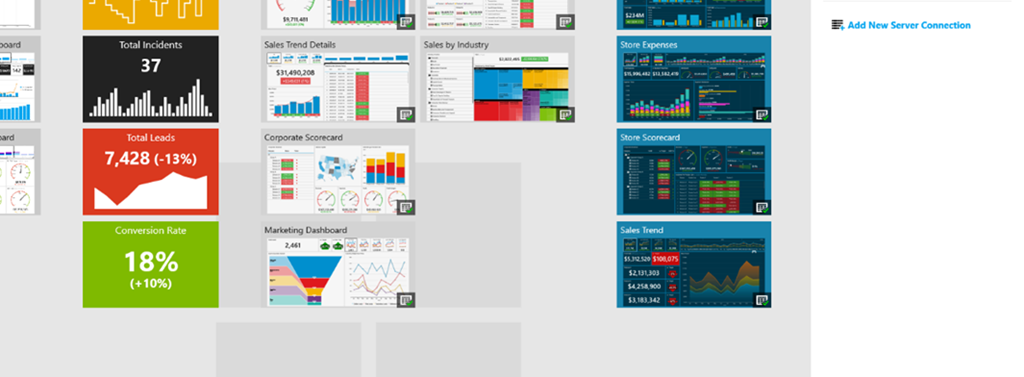
How to build dashboards directly on your test/dev Datazen server

Greetings all!  After guest-posting on Rob Collie’s blog about Datazen earlier this week, I’m back on my own for this post.  One of the things that I love about Datazen is that you can use any Windows 8 device to build your dashboards on.  Simply go to the Windows 8 store, download the Datazen Publisher app, and you can be building beautiful dashboards within minutes.  Unfortunately, it appears not everyone is running Windows 8 in their organization (shocking, I know), so I wanted to show you a way to build dashboards directly on the Datazen server you spun up in my previous post, which is running Windows Server 2012.

When you use Windows Server 2012 machine, you have the ability to access the Windows App Store, just like you would from any Windows 8 machine.  However, you have to enable that, as it is turned off by default.  Here’s how you can turn that on –

First, go to the Server Manager and open it –

image

Then, you’ll want to enable a new feature.  So choose Add Roles and Features –

image

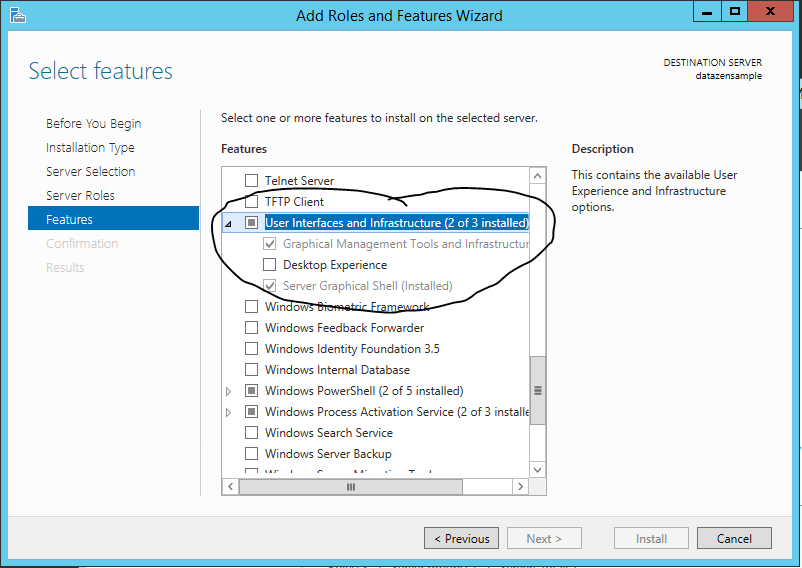
Click next until you get to the “Features” selection, then scroll down amongst the features and expand the “User Interfaces and Infrastructure” selection area. 

image

We can then enable the “Desktop Experience” by checking that box, clicking “Add Features” when the pop-up window comes up, and then choosing “Next”.

image

I’d suggest now checking the “Restart the destination server” checkbox and then hitting Install.  It has to restart anyways before that stuff is enabled, so you might as well do it now.  It’ll take about 15-20 minutes to install everything, and then the server will restart.

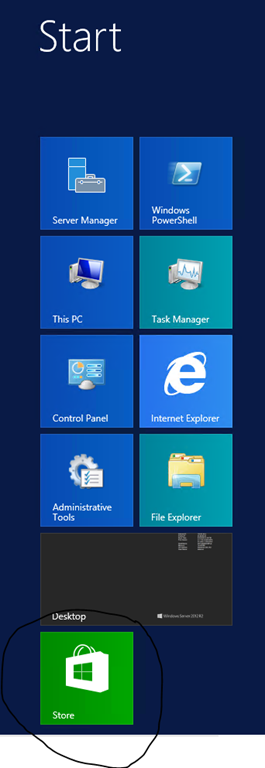
Once done, the Store App will appear. 

image

Here is where the first gotcha comes along.  You can’t use the built-in administrator account to use the Windows Store on the server, so you need to make sure you’re logged in with another account besides the one you setup when you setup the server.  That user can have server administrator privileges, however.  So great, you can open the Windows Store as this user.  Here is the next gotcha –

image

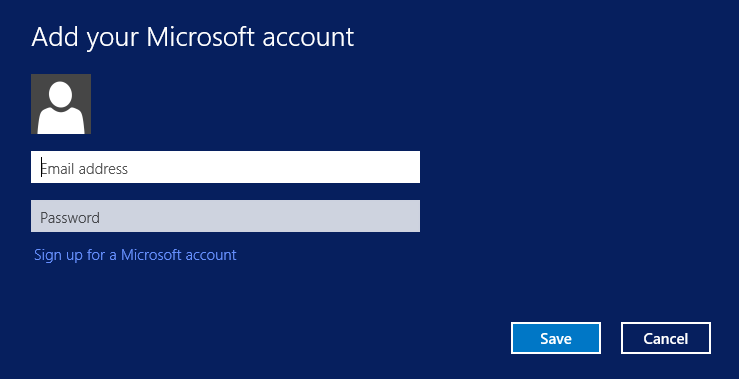
You need a Microsoft Account to download and install the apps – so you can either create a new account, or you can use one you already have setup and use for Xbox Live, for example.

Once that’s done, you can download the Datazen Publisher App and it will start installing

image

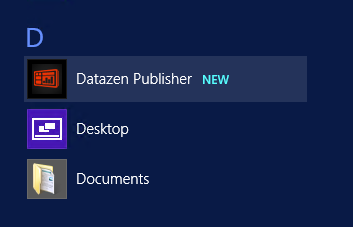
Once finished, it will show up in your list of apps –

image

Now, one last gotcha.  In order to get the publisher working on a Windows Server 2012 machine, you will need to create a Loopback Exemption for the Datazen App.  You can do this one of two ways –

Open an administrator command prompt, and then type this:

checknetisolation LoopbackExempt –a -n=componentart.datazenpublisher_4hjyx1gpectq6

or install this on your server and use the gui:
https://loopback.codeplex.com/

I prefer the latter, but it is up to you.  Once that is done, you can open the Datazen Publisher app and connect to your local server as the location you want to publish to.

image

Once connected, you should see any dashboards or KPI hubs that you’d previously created, and you’re ready to go.  You now have a one-stop shop for both dashboard creation and hosting!

Thanks for reading, and I’ll have more stuff later this week!


How to connect to Azure HDInsight from your Datazen server using ODBC

Happy Mother’s Day!

As with our previous post on connecting to SAP HANA, this is another easy one to knock out just by pulling together some previous posts from this blog and from Microsoft.

First, make sure you’ve followed the instructions in my post to setup your own Datazen server.

Second, make sure you follow my instructions to setup a custom ODBC provider on your Datazen server.

Third, spin up your own HDInsight cluster in Microsoft Azure.

Now, follow these instructions to install and configure the Microsoft Hive ODBC driver on your Datazen server, just like you did for your SAP HANA connection.

Once that’s done, you can follow the same steps you did to setup the other data source on the Datazen server admin portal –

Under the BI hub you want to setup the HDInsight connection, select the Data Sources option.

image

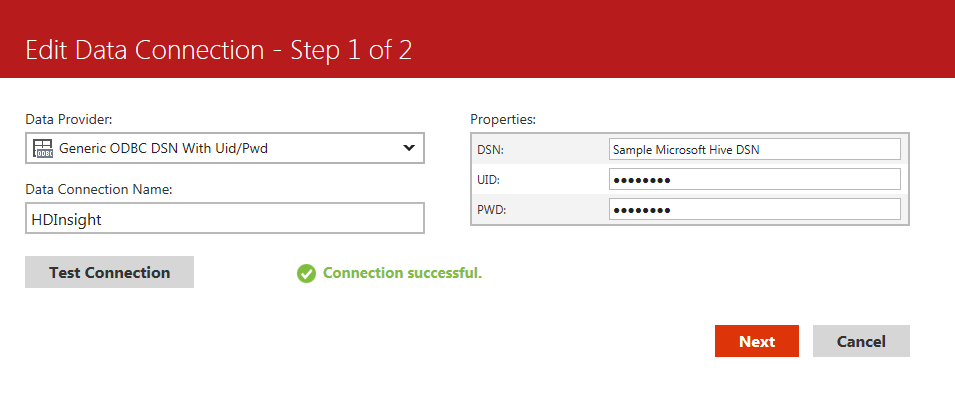
Choose the custom ODBC provider you setup in my previous post so you can pass the username/password in the connection string to the HDInsight cluster.

image

Test the connection – you should get a success message if you connected properly.

image

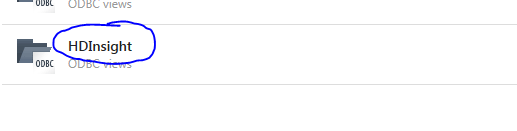
Great – you’ve finished setting up your connection to HDInsight.  Now you can write a sample query against it and make sure it brings back data.  Click on the name of your data connection to go to the Data View screen

image

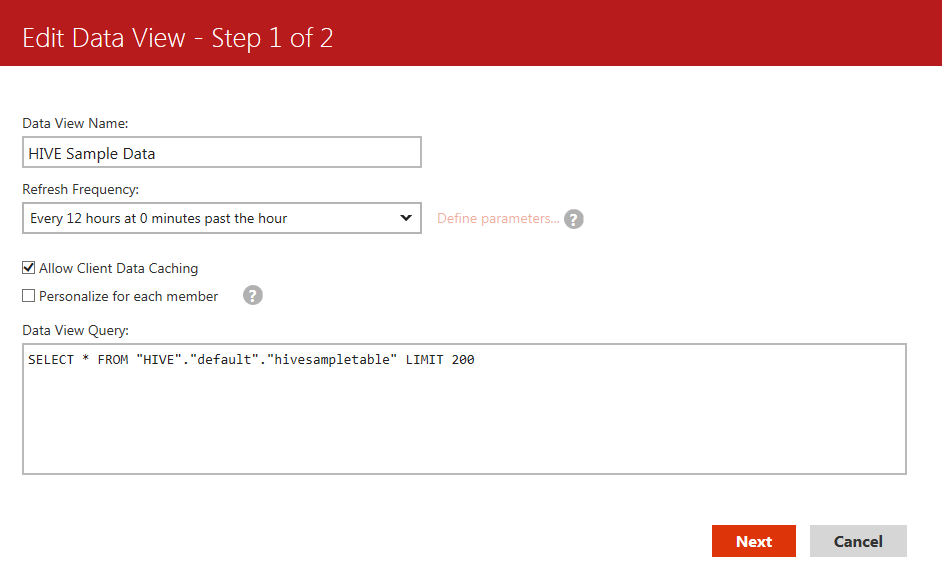
Now click the “New Data View” button to create a new view of your Hive data.  Give it a name, leave the “Allow Client Data Caching” box checked if you want to make sure folks can use the dashboards while offline, and choose a refresh frequency.  Then write your query to be used against HDInsight and hit Next –

image

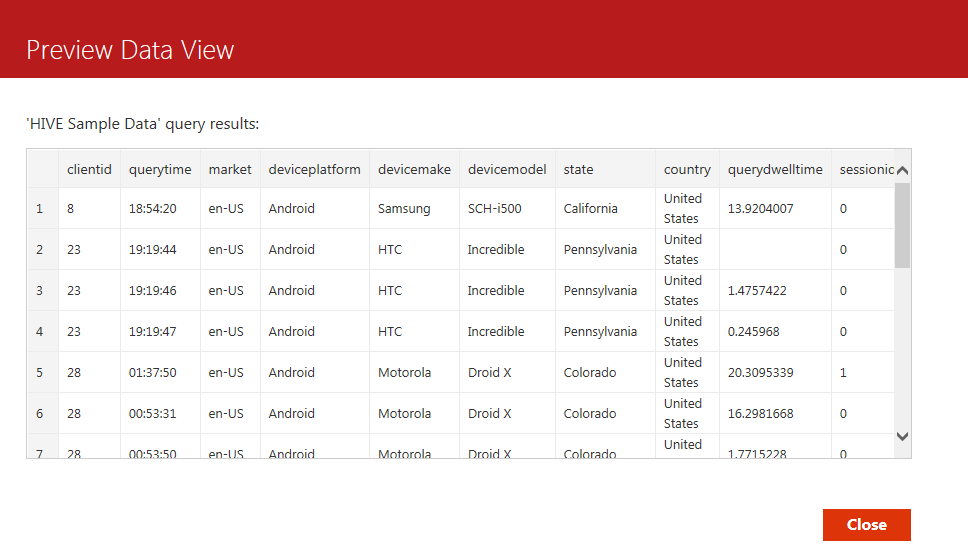
Success!  I wrote my query properly, and now have this data view available for the dashboards I want to build in my Datazen Publisher App.

image

Thanks to the custom ODBC provider, adding new data sources from many different data sources becomes child’s play.

One final note – There’s a great blog post on how to setup ADFS for Datazen you can read here.  It’s really well done, and I highly recommend taking the time to step through it.

Thanks!


How to connect your Datazen server to SAP HANA via ODBC

SAP

This is actually a pretty easy post for me to write, since I’ve done all the heavy lifting in three earlier posts.  So, things you’ll need to do as pre-requisites for this article –

Setup your HANA instance – follow the instructions in this post to provision a test/dev HANA server and deploy it to Azure if you don’t have one already setup. 

Setup your Datazen server – follow the instructions in this post if you need to set one up – http://bit.ly/1GtIuJ4.

Create a custom ODBC data connection file and add it to your Datazen server – follow the instructions in this post –  http://bit.ly/1AyJbw6

Once you’ve done those things, you’re already 90% of the way there.  Here’s what is remaining –

First, One thing I found when going through this was SAP seems to have made their native ODBC driver unavailable outside of the SAP software corner.  If you don’t have access to it, you can download one from Progress DataDirect to preview for free for 60 days.  It’s available for download at this link – http://bit.ly/1EaBsGc, and I used that for this post since that is one everyone can get at currently.

Make sure you download the 64-bit version and install it on the Datazen server.  Once you’ve installed it, you can create the system DSN file for Datazen to use.  The following steps you all do on the Datazen server.

Go to Control Panel – > Administrative Tools

image

Then choose ODBC Data Sources (64 bit)

image

Click the System DSN tab then click “Add”

image

Select the SAP HANA driver and click Finish

image

Enter a name for your data source, the description, and the host name.  If you followed the instructions in the earlier blogpost, you should be able to use the public IP address that your SAP HANA server was assigned for the host name.  Leave the port as is –

image

Hit the “Test Connect” button at the bottom and enter the credentials to connect to the server.  Assuming it authenticates, you should get a message showing it connected.

image

You can then hit OK to save your system DSN connection.  Now go to your Datazen control panel to setup the HANA connection and write your first query.

Under the BI hub you want to setup the HANA connection, select the Data Sources option.

image

Choose the custom ODBC provider you setup in my previous post so you can pass the username/password in the connection string to the HANA server.

image

Test the connection – you should get a success message if you connected properly.

image

Great – you’ve finished setting up your connection to the HANA server.  Now you can write a sample query against it and make sure it brings back data.  Click on the name of your data connection to go to the Data View screen

image

Now click the “New Data View” button to create a new view of your HANA data.  Give it a name, leave the “Allow Client Data Caching” box checked if you want to make sure folks can use the dashboards while offline, and choose a refresh frequency.  Then write your query to be used against HANA and hit Next –

image

Success!  I wrote my query properly, and now have this data view available for the dashboards I want to build in my Datazen Publisher App.

image

Congratulations – you’ve finished setting up SAP HANA as one of the data sources for your jaw-dropping Datazen KPI’s and dashboards!


How to setup a test/dev Datazen Server instance in Microsoft Azure

Hi all!  Well, it’s been quite some time since my last post, but with the news breaking last week that Microsoft acquired Datazen, I decided it was time to reenter the blogosphere to help folks get started using this fantastic product.

First things first, go grab the Datazen Publisher App from the Windows Store.  Anyone can download and use Datazen on their Windows 8/8.1 device to build dashboards on top of local Excel files.

Visual02

For most folks, however, they’ll want to use live data sources, make dashboards available on iPad/Android devices, phones, etc.  To do all that, you’ll need to stand up a Datazen server to host the dashboards.  Microsoft has made the Datazen server software available to download right away, provided you are a SQL Server Enterprise Edition customer with version 2008 or later AND have active Software Assurance coverage. 

Assuming you meet those requirements, it’s very easy to get a single server instance up and running quickly by leveraging Microsoft Azure, and especially for test/dev scenarios.  So I’m going to walk you through just how you would do just that. 

This walkthrough assumes you already have a Microsoft Azure account and have a basic understanding of the Azure portal. 

1. Go to azure.microsoft.com and login to your Azure portal.

2. Select New – > Compute -> Virtual Machines -> From Gallery

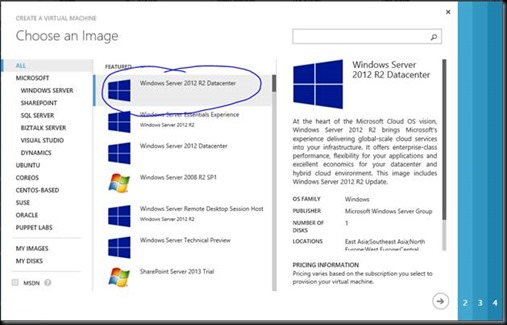
3. Select the Windows Server 2012 R2 Datacenter Image
clip_image002

4. Click the next arrow at the bottom right.

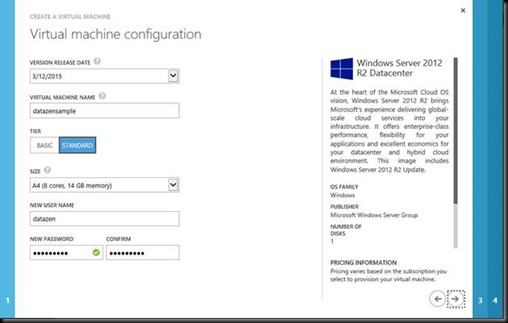
5. Enter a virtual machine name, choose Basic or Standard Tier (recommended), then choose A4 as the machine size. A4 has 8 cores, which is the minimum number of cores for a single machine setup. Enter the machine admin username/pass and hit the next arrow
clip_image004

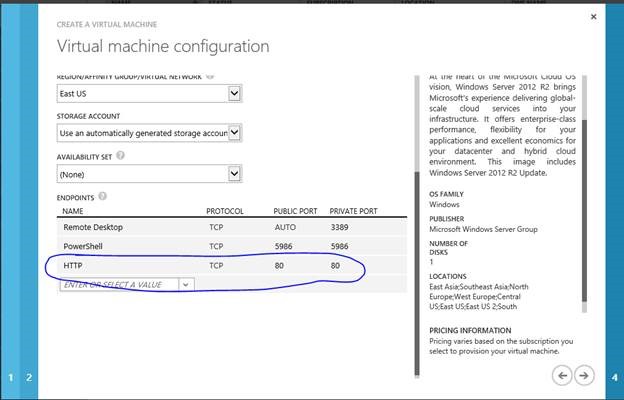
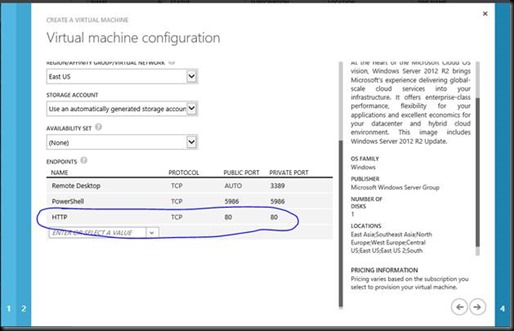
6. Create a new cloud service (make sure the Cloud Service DNS Name is available), then choose the subscription it should be billed to, the region it should be deployed to (choose the one closest to your location), and then leave the Storage Account and Availability Set as is. Make sure you add an http endpoint at a minimum (you will need to scroll to add the endpoint).
clip_image006

7. Click the right arrow and then click the checkmark to start the deployment process. You’ll see it start the provisioning process in the list of the virtual machines you are responsible for in Azure.

clip_image008

8. Once it is finished, connect to the VM via Remote Desktop and enter the admin username/password

clip_image009

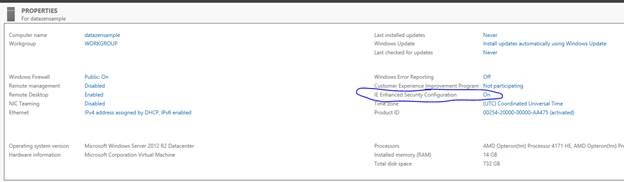
Head to the following link and download the Datazen server software onto the VM – you can save it anywhere you will be able to easily access it. You may need to turn off IE Enhanced Security on the server to do so. Click the “Configure this local server” link in the Server Manager dashboard that appears when you login

clip_image011

Then change the IE Enhanced Security Configuration from “On” to “Off” for Administrators at a minimum. You can always change it back if you really want to when you’re done.

clip_image013

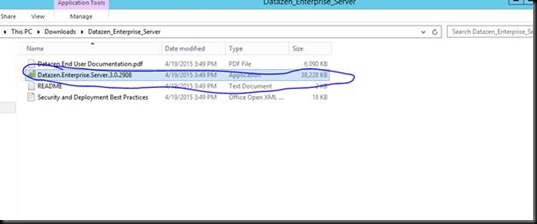
9. The server files come zipped as a download – extract all the files and then run the executable to start the install process
clip_image015

10. Click Next through the wizard, accepting the terms in the License Agreement and moving through each screen.

clip_image016

Hit Next

clip_image017

Hit Next

clip_image018

Hit Next

Once you get to the password screen, choose a password for the Datazen admin. This doesn’t have to be the same password as you used for the server.

clip_image020

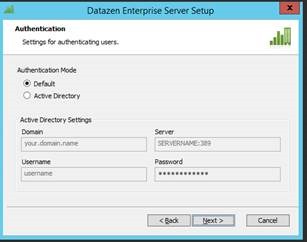
Leave the authentication mode as “Default” and hit Next.

clip_image022

Create a new text file on the desktop and copy the encryption key on the next page to it. Save the file to somewhere safe. Hit Next

clip_image024

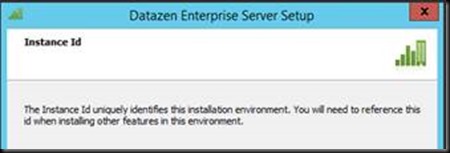
Same thing for the instance ID – copy the information to a local text file then save it somewhere safe. In fact it won’t let you proceed until you add it your clipboard. Hit Next when done.
clip_image026

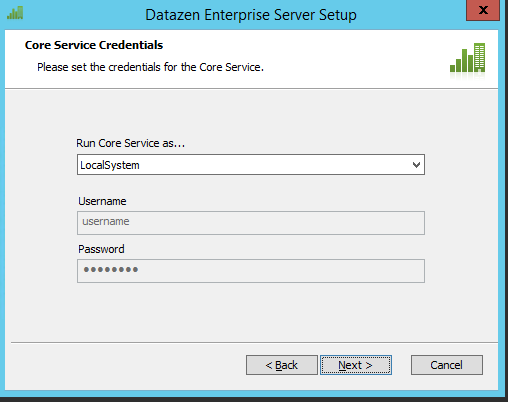
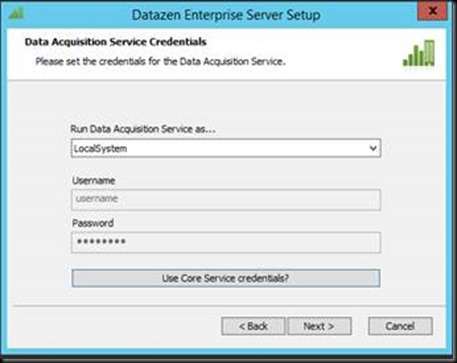
Leave credentials as is and hit Next.
clip_image028

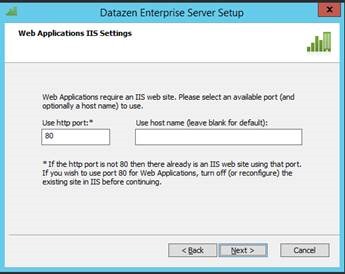
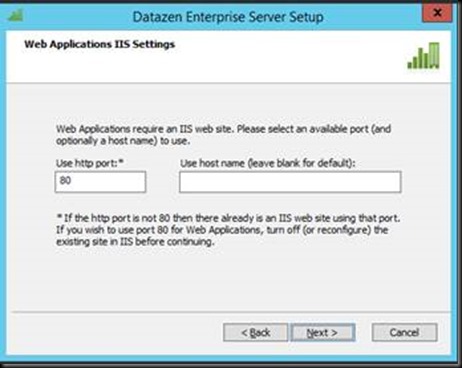
Leave IIS settings as is and hit Next
clip_image030

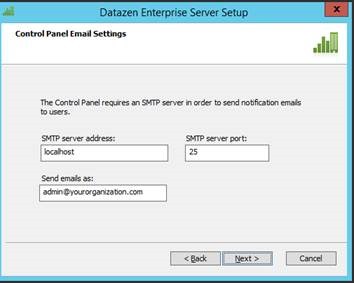
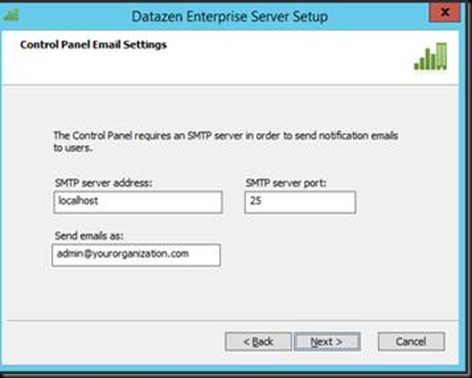
You can leave the mail settings as is if you want since it is a test server and just hit next.  (I’ll go over how to setup the mail settings for this server in a short follow-up blog post sometime in the near future.)
clip_image032

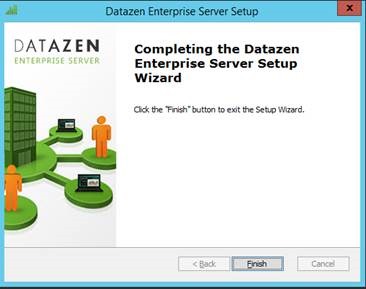
Hit Install and wait until it is complete. It will take a few minutes to finish, so be patient.

clip_image034

To confirm the service was installed properly and can be reached from the public internet, open a web browser on your local machine and go to (make sure you replace the yourcloudservicename with whatever you named your cloud service) – http://yourcloudservicename.cloudapp.net/cp. If you can successfully connect, you should see the following in your browser window –

clip_image036

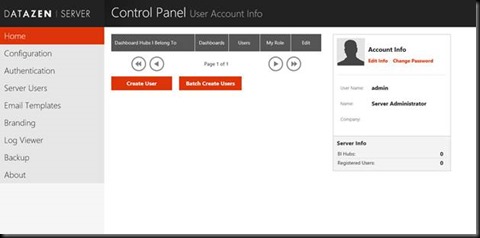
Enter the username “admin” and the password you entered DURING THE INSTALL WIZARD and hit Log In. You’ll then be brought to the control panel screen.
clip_image038

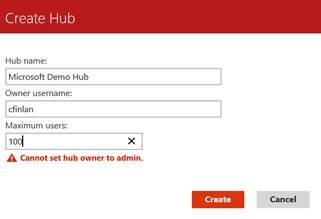
You’ll need to create a new user to start creating dashboard hubs, since you need each hub to have an owner. The owner can NOT be the “admin” user. Click “Create User” to create your first user –

Enter the top three boxes (the email address can be fake if you want) and hit “Create User”

image

You’ll now see a new option to “Create BI Hub”

clip_image042

To create a new hub, click the “Create BI Hub” button and enter the info. You can name the hub whatever you’d like, but make sure you enter the username of the user you just created.clip_image044

Hit Create to finish creation of the hub. You’ll now see it in the list of available hubs

clip_image046

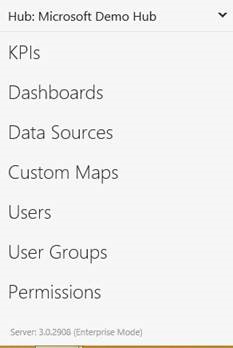
along with a new set of menu options on the bottom of the left-hand side of the screen.clip_image048

At this point, I’d recommend finishing the setup of the user you’d created to be the hub owner. They need to have their password reset, but won’t get an email since we didn’t setup the email notification service with proper email settings. To get around this, click on the Server Users link on the left-hand side of the screen

clip_image050

You’ll see the user and a “Set Password Link” option next to the username. Click it and then copy the address to your clipboard.

clip_image052

Log out as the admin before completing this next step. You can logout in the upper right hand corner of the browser and hit the dropdown arrow. Choose Logout.

clip_image053

Open a new browser window and paste the URL into the address bar. You can now finish setting up that user by entering the password you want for the account.

image

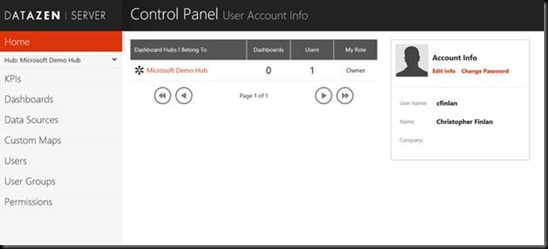
Once you’ve completed the process, you should be brought into a new screen as the user you just finished completing and have the ability to configure the hub accordingly.
clip_image057

Logout as this user and log back in as the admin before proceeding.

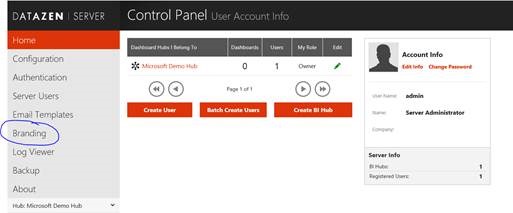
One of the great features you get with Datazen is the ability to use custom branding for the server and for each dashboard hub you create.  To add a brand package you’ve created, click on the branding link on the left hand side and simply upload the brand package to the server. Make sure you choose the Server to upload it to, and not the hub.

clip_image059

image

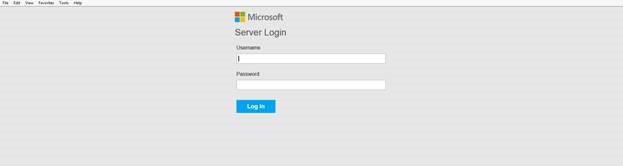
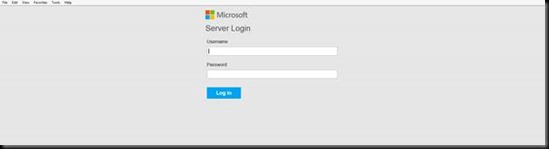
You’ll now see the Server icon has the “Microsoft” branding associated. To make sure it was applied properly, open a new browser and enter the following url (make sure you replace the mycloudservicename with whatever you named yours) –

http://mycloudservicename.cloudapp.net

My viewer login screen has been updated, since I’ve added the Microsoft brand package to the server –
clip_image063

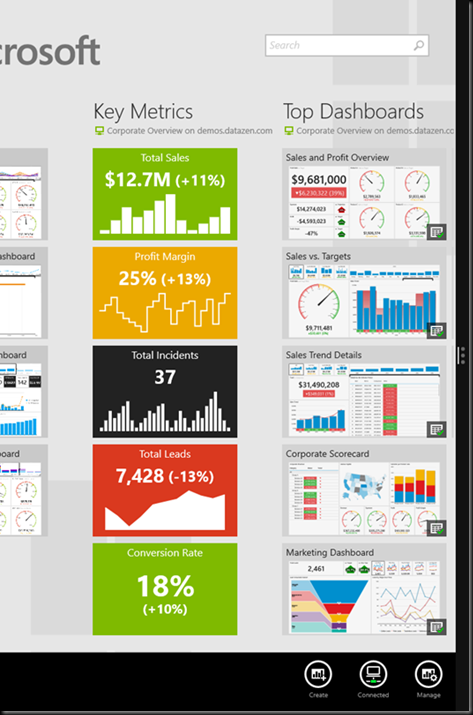
Now we can connect to the server you’ve setup from the Datazen Publisher App.  If this is the first time using the app, you’ll have the option of connecting the Datazen Demo server. I recommend going ahead and doing that, so you’ll have some nice demo dashboards to create from immediately.

To add this server as an additional server to connect to (and publish to, eventually), right-click on the bottom of the app and select the server icon.
image

A fly-out will come from the right-hand side showing the list of servers, followed by an option to add a new server connection–

image

Choose “Add New Server Connection” and enter the information for the server you just setup. MAKE SURE YOU UNCHECK THE “Use Secure Connection” box.

image

When that’s done, you should be connected and now be able to publish dashboards to your Datazen server!

clip_image071

To learn more about how to build dashboards, setup data sources, how to publish, etc., just use the PDF file that came with the server download titled “Datazen End User Documentation”.

There you go – hopefully this guide gives folks what they need to get started with Datazen and begin their new career as a dashboard designer extraordinaire!

Thanks, and feel free to ask any questions in the comments.