Oh, how I’ve waited for this day. Finally, the days of handwriting MDX queries in Datazen server are over for me. Thanks to the latest server update, the server can now handle MDX generated from a tool like SQL Server Management Studio or SQL Server Report Builder. Not only that, I have additional control over the field names and field types when the query results are returned. Let me show you how it works using SSMS – Right-Click on your database and select browse –  The handy Model browser comes up where I can drag and drop my fields from my model and build my query.
  I’ll bring in Country Region Name and State Province Name from Geography plus Internet Total Sales from my Measures. My results are returned like so –
  Now I want to get the query that generated by this to use with Datazen. I can simply toggle off Design mode by clicking this button in the toolbar –
  And my query text appears –
  I’m going to copy this text and switch over to my Datazen control panel and paste this query as a new data view under my SSAS data source –
 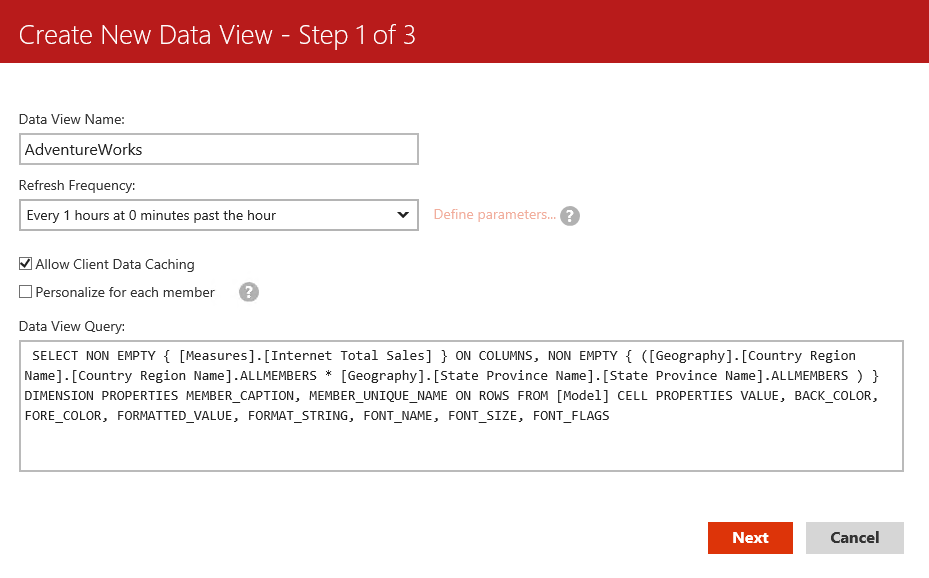 Before today’s update, when I hit next, this query wouldn’t work. It would just bring back a blank result set. But now, a couple things now happen. The first one is, a new screen appears in the wizard –
  I now have the ability to change the display name, the data types being returned from the data source, and exclude certain fields from the result set. This gives me a lot of flexibility I didn’t have previously. So I’ll change my display name to the following –
  I hit next and Whammo (that was for Mike Gannotti) – the query not only works, it is all cleaned up and ready for my Datazen dashboards –
  This is great news for folks who love Datazen, but don’t love handwriting their MDX queries. And the new abilities to change the display name, data type and field list is there for all datasets, not just SSAS. So SQL Server customers, grab the new server build of Datazen and take advantage of this great new functionality. Thanks for reading!
Category: SQL Server

How to enable user activity reporting on your Datazen dashboards
One of the common questions that has come up around Datazen is folks wanting to see some basic information around their dashboard usage. While there isn’t anything like that available on Datazen server right now, there is a way you can setup the collection of some simple metrics on each dashboard. Let’s walk through how you do it.
You’ll need to setup a table on a SQL Server instance (or Azure SQL Database is a great option, and what we used for this example) to collect the metrics. The table will have just a few fields – ActivityId, ActivityDate, ActivityDashboard, and ActivityUserName (I’ll provide the SQL scripts I used for this as part of a zip file you can download at the end of this post).

Once you’ve created the table, you need a way to insert the data coming in from your Datazen dashboards. We’ll use a simple stored procedure that runs each time someone opens a dashboard. You need to make sure the procedure also includes a simple select statement after your stored procedure executes. I’ll explain why in a little bit –

Once that’s done, switch over to your Datazen server instance and add this SQL instance as a new data source.

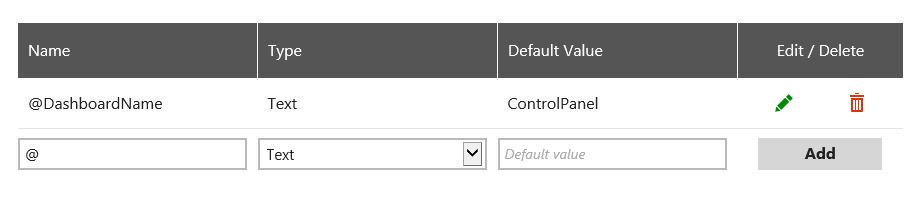
Here’s where the magic happens – you’ll want to add the stored procedure as a query, and this needs to be a real-time data connection. You’ll also need to make sure you are passing through the parameters from Datazen that you need to capture. So you’ll first add a new parameter from the ‘Define Parameters’ link highlighted here – 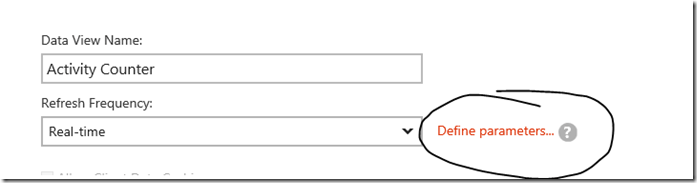 Setup a parameter for your Dashboard Name and assign a default value that will appear when a user is entering the dashboard design screen for that dashboard. This allows you to determine who might have made changes to a dashboard, for example. Here’s what I chose –
Once complete, I’ll now enter my query text and make sure I’ve checked the ‘Personalize for each member’ option. This will give me the ability to capture the username for each user and pass that as a parameter. Here’s my final result –
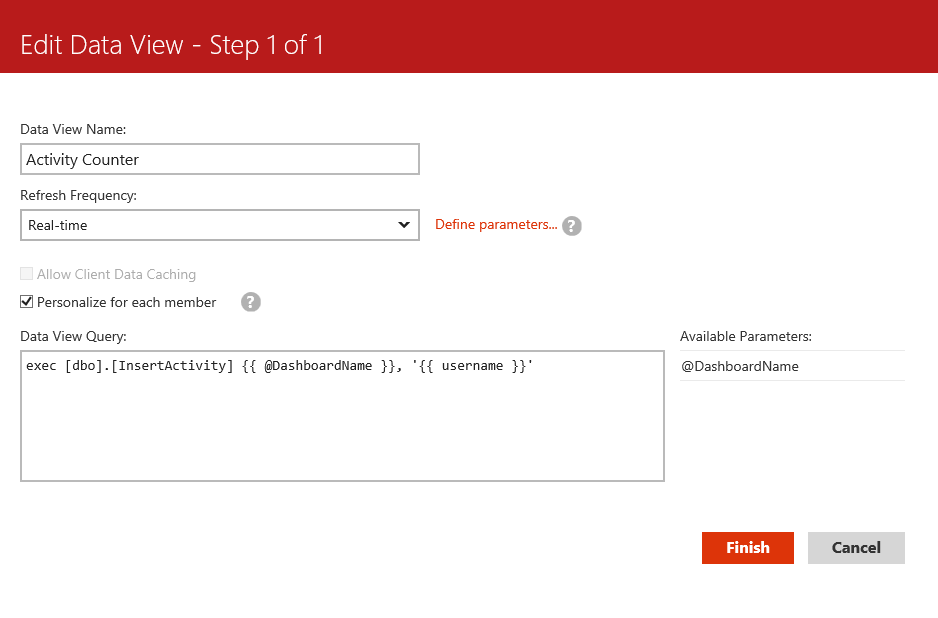
Notice I added single quotation marks around the username parameter, and also used curly brackets around each parameter I am passing back to the stored procedure. It won’t work properly if you don’t do that.
I hit finish to save this information, and I now have the following in my list of data queries. It was successfully setup, but I don’t have the ability to preview the data like I do with other queries I’ve created. That’s okay, as long as you have the successful status message like I’ve highlighted here.

To test this out, I go into my Datazen publisher app and create a brand new dashboard with a single widget. It doesn’t matter which one, be creative!

Once complete, you now can add the data source you created earlier to the dashboard. Here’s where you see the results of the query that runs in the stored procedure. Datazen has to have a result set returned for the data view to be added to the dashboard, which is why we had to have the query included –
 To make sure you properly now capture the dashboard name, you need to click the Param. selection under the gear in the data source tab to bring up the selection screen.

Then type in the dashboard name as the default value that gets passed back to the SQL table.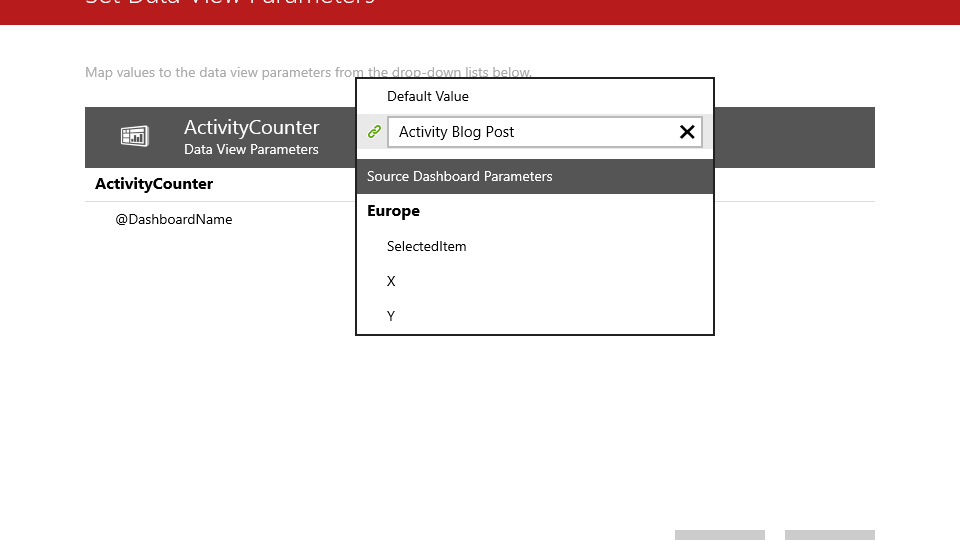
Hit Apply and run a preview of your dashboard. If you check your table in SQL Server, you’ll see the resulting record has been inserted into the table.

You notice you don’t need to hook it into any of your dashboard widgets for this to work, and this will work for any dashboard you setup and publish to your Datazen server.
Now you can view a simple report (maybe even in another Datazen dashboard!) that shows you the user activity for each of the dashboards you’ve added this data view to, including the time, username and dashboard name. It also opens up a number of possibilities for you to fire off other events every time a user opens a dashboard that I’ll explore in future posts.
Here is a zipped file of the SQL scripts I used for this post – http://1drv.ms/1TbMVPN
Special thanks to Christopher Moncayo for his help with this post.
Share this:

How to use an Excel data source for KPI’s in Datazen
Happy weekend, folks. As mentioned in the guest post I did with Rob Collie, a folder of Excel files can be used as a data source for dashboards with Datazen. However, when it comes to KPI’s, there isn’t out of the box support to use Excel as a data source for those. But you can still use Excel if you setup a custom data connector to do so. One caveat with this approach – what’s we’re basically doing is allowing Datazen Server to use Excel like it would a normal SQL Server data source. This means you’ll need to write at least some basic T-SQL statements to actually bring back data from your Excel workbook.
Assuming you know how to do that, here are the steps you need to follow to enable this –
1. You need to download and install the Microsoft Access Database Engine 2010 Redistributable (choose the AccessDatabaseEngine_x64.exe option) on your Datazen server.
2. Create a new folder named OLEDB in the following location (this assumes you setup a custom data provider with my previous post. If you haven’t, do that first.) –
C:\Program Files\Datazen Enterprise Server\service\dataproviderschemas

3. Download the following file – Excel.zip and extract the XML file to the folder you just created.

4. Now login to your Datazen Control Panel and go to “KPIs” for the hub you want to setup with your KPIs.
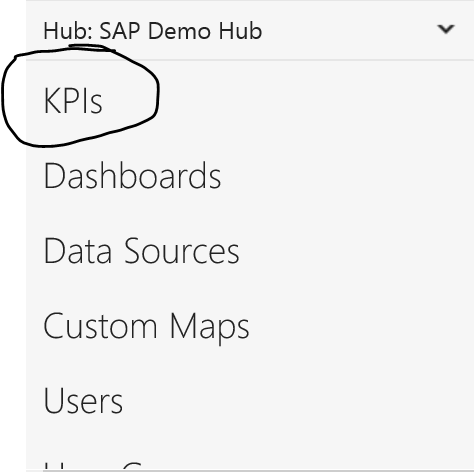
5. Click “Create New Group”

6. You should see the new provider you setup in the previous steps listed as “Microsoft ACE OLEDB 12.0 Excel 2007-Newer” –
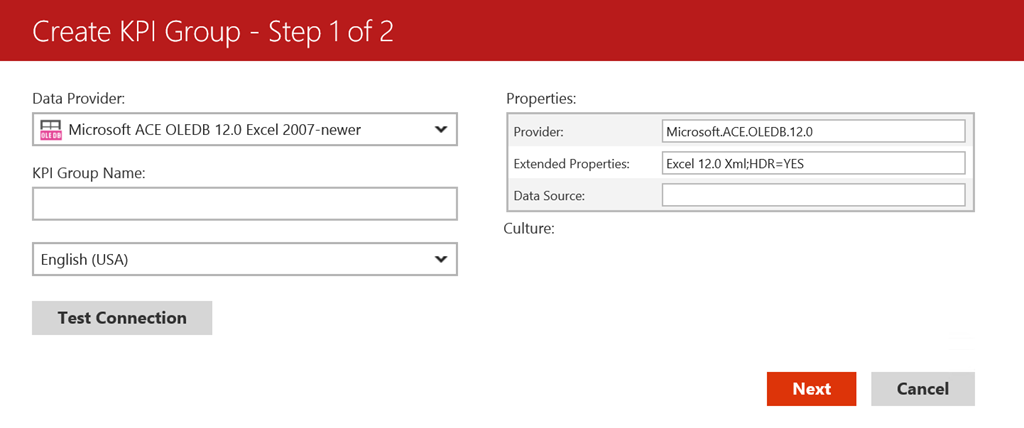
Enter a name for your KPI group, and leave the HDR=Yes item under Extended Properties if your Excel file contains a header row. Otherwise, change it to “No”.

Next, in the data source area, put the file path of the Excel document you wish to you use. Make sure it is some place the Datazen service account has access to. Test the connection to make sure it works, and hit next if you see the “Connection Successful” message –
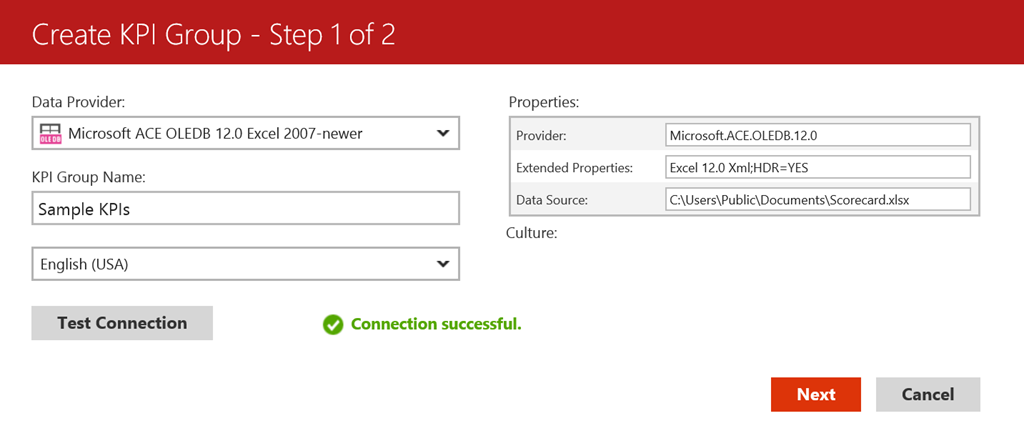
Select the groups who should have access to the data source, then hit Finish. This will bring you back to the KPI menu with your new KPI hub showing –

If I click “Create New KPI”, I’m presented with the KPI Creation screen. On the right hand side of the screen, I see my KPI Value/Goal/Status fields I can use my Excel data source for.

If I select the dropdown for “Value”, I can choose “Execute Query” and a “Define Query” link appears. I need to click it to write my query –

Now I can write my query for this KPI Value. The table name equates to the name of the tab in the Excel file, but you need to have a ‘$’ appended to it. A sample query would look like this –

If successful, it should bring back a single result to be used with that KPI –

Hit ‘Update’ to save your query and return to the KPI setup screen. You can now repeat the process for the Goal/Status/Trend Set items if you wish, or you may set any or all of those manually.
If you want to learn more about KPI’s and how to set them up in Datazen, refer to the Datazen documentation. Hope this was helpful, and enjoy the rest of your weekend!

 Christopher Finlan