Enhancing Power BI Data Analysis with OpenAI API: A Follow-Up Guide

Introduction:

In our previous blog post, we walked you through the process of integrating Power BI with OpenAI’s GPT-4 to generate textual insights. This time, we will dive deeper into leveraging the OpenAI API to analyze data in Power BI and enhance your data-driven decision-making process. By incorporating OpenAI’s natural language processing capabilities, you can extract valuable information from textual data and make informed decisions based on your Power BI analysis.

Prerequisites:

  1. Familiarity with the previous blog post on integrating Power BI with OpenAI
  2. A Power BI Pro or Premium account
  3. OpenAI API Key
  4. Python and required libraries installed (openai, pandas, powerbiclient)

Note – Please be aware that this solution involves interacting with OpenAI’s API. I encourage users to familiarize themselves with OpenAI’s data usage policy (https://platform.openai.com/docs/data-usage-policy) and take necessary precautions to ensure the privacy and security of their data.

Step 1: Fetch and Process Textual Data

Before analyzing textual data with the OpenAI API, you need to fetch and preprocess it. In this example, we will work with customer reviews data. You can import this data into Power BI from various sources like a CSV file, Excel file, or a database.

  1. Import customer reviews data into Power BI and create a dataset.
  2. Clean and preprocess the data as necessary (e.g., removing duplicates, handling missing values, etc.).

Step 2: Update the Python Script to Analyze Textual Data with OpenAI

  1. Open the Python script you created in the previous blog post (e.g., ‘openai_powerbi_integration.py’) and locate the fetch_openai_data function.
  2. Modify the function to accept the text to be analyzed as an input parameter:
def fetch_openai_data(text):

3. Update the OpenAI API call within the function to perform the desired analysis task. For example, you can modify the prompt to perform sentiment analysis:

def fetch_openai_data(text):
    prompt = f"Analyze the sentiment of the following customer review: '{text}'. Is it positive, negative, or neutral?"
    
    response = openai.Completion.create(
        engine="text-davinci-002",
        prompt=prompt,
        max_tokens=100,
        n=1,
        stop=None,
        temperature=0.7,
    )
    generated_text = response.choices[0].text.strip()
    return generated_text

Step 3: Analyze Textual Data in Power BI Using the Updated Python Script

  1. In Power BI, create a new column in the customer reviews dataset to store the sentiment analysis results.
  2. Iterate through the customer reviews and call the fetch_openai_data function for each review. Store the sentiment analysis result in the new column:
for index, row in customer_reviews.iterrows():
    text = row["Review_Text"]
    sentiment = fetch_openai_data(text)
    customer_reviews.loc[index, "Sentiment"] = sentiment

Step 4: Visualize the Analyzed Data in Power BI

  1. In Power BI, create a new report using the updated customer reviews dataset.
  2. Design visualizations to display the sentiment analysis results, such as pie charts, bar charts, or word clouds. You can also create filters to allow users to interact with the data and explore specific segments, such as reviews with positive or negative sentiment.
  3. Save and publish the report to share the AI-enhanced insights with your team.

Conclusion:

In this follow-up blog post, we demonstrated how to use the OpenAI API to analyze textual data in Power BI, enhancing your data analysis capabilities. By incorporating the power of OpenAI’s natural language

processing into your Power BI dashboard, you can gain deeper insights and make more informed decisions based on your data.

Remember that this is just one example of how you can integrate OpenAI with Power BI for data analysis. You can customize the Python script and the OpenAI prompt to perform other analysis tasks such as topic extraction, keyword identification, or summarization. The possibilities are vast, and with a little creativity, you can unlock the full potential of combining AI and business intelligence tools to drive your organization’s success.

As you continue exploring the integration of OpenAI and Power BI, always keep in mind the ethical considerations and usage guidelines of AI-generated content. Ensure that the generated insights align with your organization’s values and goals while adhering to responsible AI practices.

Learn More

If you’re interested in learning more, here are three example follow-up questions you could ask ChatGPT about the blog post:

  1. In the blog post about using the OpenAI API to analyze data in Power BI, how can I optimize the Python script to handle a large volume of textual data for analysis without exceeding API rate limits or incurring excessive costs?
  2. What are some methods to ensure data privacy and security when analyzing sensitive textual data, such as customer reviews or internal communications, using the OpenAI API and Power BI integration?
  3. Are there any limitations or potential biases in the AI-generated analysis that users should be aware of when interpreting the results and making data-driven decisions based on the Power BI visualizations?

This blogpost was created with help from ChatGPT Pro.

Integrating Power BI with OpenAI: A Comprehensive Guide

Introduction:

As the need for data-driven decision-making grows, integrating artificial intelligence (AI) with business intelligence (BI) tools has become an invaluable asset for businesses. Two popular tools in these fields are Power BI by Microsoft and OpenAI’s GPT-4. In this blog post, we’ll walk you through a detailed process to integrate Power BI with OpenAI, unlocking powerful analytics and AI capabilities for your organization.

Power BI is a suite of business analytics tools that helps you visualize and share insights from your data. OpenAI is a cutting-edge AI research lab that has developed the GPT-4, a large language model capable of understanding and generating human-like text. By integrating Power BI with OpenAI, you can enhance your data analysis and generate insights using AI techniques.

Note – Please be aware that this solution involves interacting with OpenAI’s API. I encourage users to familiarize themselves with OpenAI’s data usage policy (https://platform.openai.com/docs/data-usage-policy) and take necessary precautions to ensure the privacy and security of their data.

Prerequisites:

  1. A Power BI Pro or Premium account
  2. OpenAI API Key (Sign up for OpenAI’s API service at https://beta.openai.com/signup/)

Step 1: Install Python and Required Libraries

To install Python on your computer, follow these steps:

  1. Visit the official Python website: https://www.python.org/downloads/
  2. You will see the download buttons for the latest Python version available for your operating system (Windows, macOS, or Linux). Click on the appropriate button to download the installer. If you need a different version or want to explore other installation options, click on the “View the full list of downloads” link below the buttons.
  3. Once the installer is downloaded, locate the file in your downloads folder or wherever your browser saves downloaded files.
  4. Run the installer by double-clicking on the file.

For Windows:

  • In the installer, check the box that says “Add Python to PATH” at the bottom. This will allow you to run Python from the command prompt easily.
  • Select the “Customize installation” option if you want to change the default installation settings, or just click on “Install Now” to proceed with the default settings.
  • The installer will install Python and set up the necessary file associations.

For macOS:

  • Follow the installation prompts in the installer.
  • Depending on your macOS version, Python may already be pre-installed. However, it’s usually an older version, so it’s still recommended to install the latest version from the official website.

For Linux:

  • Most Linux distributions come with Python pre-installed. You can check the installed version by opening a terminal and typing python --version or python3 --version. If you need to install or update Python, use your distribution’s package manager (such as apt, yum, or pacman) to install the latest version.

After installation, open a command prompt or terminal and type python --version or python3 --version to ensure that Python has been installed correctly. You should see the version number of the installed Python interpreter.

Now you have Python installed on your computer and are ready to proceed with installing the required libraries and running Python scripts.

2. Install the following Python libraries using pip:

pip install openai pandas powerbiclient
pip install msal

Step 2: Create a Power BI Dataset and Table

  1. Sign in to Power BI service at https://app.powerbi.com/
  2. Navigate to your workspace and click on ‘Datasets + dataflows’ in the left pane.
  3. Click on the ‘+ Create’ button and select ‘Streaming Dataset.’
  4. Choose ‘API’ as the connection type and click ‘Next.’
  5. Provide a name for your dataset, such as ‘OpenAI_Insights,’ and click ‘Create.’
  6. You will receive an API URL and an authentication token. Save these for later use.

Step 3: Create a Python Script to Fetch Data and Push to Power BI

  1. Create a new Python script (e.g., ‘openai_powerbi_integration.py’) and import the required libraries:
import openai
import pandas as pd
from powerbiclient import Report, models
import requests
from msal import PublicClientApplication

2. Set up OpenAI API and Power BI authentication:

# Set up OpenAI API
openai.api_key = "your_openai_api_key"

# Set up Power BI authentication
POWER_BI_CLIENT_ID = "your_power_bi_client_id"
AUTHORITY = "https://login.microsoftonline.com/common"
SCOPE = ["https://analysis.windows.net/powerbi/api/.default"]
app = PublicClientApplication(POWER_BI_CLIENT_ID, authority=AUTHORITY)

result = None
accounts = app.get_accounts()
if accounts:
    result = app.acquire_token_silent(SCOPE, account=accounts[0])

if not result:
    flow = app.initiate_device_flow(scopes=SCOPE)
    print(flow["message"])
    result = app.acquire_token_by_device_flow(flow)

powerbi_auth_token = result["access_token"]

Replace your_openai_api_key with your OpenAI API key and your_power_bi_client_id with your Power BI client ID. The script will prompt you to authenticate with Power BI by providing a URL and a device code.

To obtain your Power BI client ID, you need to register an application in the Azure Active Directory (Azure AD) associated with your Power BI account. Here’s a step-by-step guide to help you get your Power BI client ID:

  1. Sign in to the Azure portal: Go to https://portal.azure.com/ and sign in with the account you use for Power BI.
  2. Navigate to Azure Active Directory: Once you’re logged in, click on “Azure Active Directory” from the left-hand menu or find it using the search bar at the top.
  3. Register a new application: In the Azure Active Directory overview page, click on “App registrations” in the left-hand menu, and then click on the “+ New registration” button at the top.
  4. Configure your application:
    • Provide a name for your application (e.g., “PowerBI_OpenAI_Integration”).
    • Choose the supported account types (e.g., “Accounts in this organizational directory only” if you want to restrict access to your organization).
    • In the “Redirect URI” section, choose “Web” and provide a URL (e.g., “https://localhost“). This is just a placeholder and won’t be used for our Python script.
  5. Click on the “Register” button at the bottom to create the application.
  6. Obtain your client ID: After registering your application, you’ll be redirected to the application’s overview page. Here, you’ll find the “Application (client) ID.” This is the Power BI client ID you need for your Python script. Make sure to copy and save it securely.
  7. Grant API permissions:
    • In the application’s main menu, click on “API permissions.”
    • Click on the “+ Add a permission” button and select “Power BI Service.”
    • Choose “Delegated permissions” and check the “Dataset.ReadWrite.All” permission.
    • Click on the “Add permissions” button to save your changes.
  8. Don’t forget to update the Power BI client ID in your Python script!

3. Create a function to fetch data from OpenAI and process it:

def fetch_openai_data(prompt):
response = openai.Completion.create(
engine="text-davinci-002",
prompt=prompt,
max_tokens=100,
n=1,
stop=None,
temperature=0.7,
)
generated_text = response.choices[0].text.strip()
return generated_text

4. Create a function to push data to Power BI:

def push_data_to_powerbi(api_url, auth_token, dataframe):
headers = {
"Content-Type": "application/json",
"Authorization": f"Bearer {auth_token}",
}
data_json = dataframe.to_json(orient="records")
response = requests.post(api_url, headers=headers, data=data_json)
return response.status_code

5. Use the functions to fetch data from OpenAI and push it to Power BI:

# Define your OpenAI prompt
prompt = "Summarize the key factors affecting the global economy in 2023."

# Fetch data from OpenAI
openai_data = fetch_openai_data(prompt)

# Create a DataFrame with the data
data = {"OpenAI_Insight": [openai_data]}
dataframe = pd.DataFrame(data)

# Push data to Power BI
api_url = "your_power_bi_api_url"
auth_token = powerbi_auth_token
status_code = push_data_to_powerbi(api_url, auth_token, dataframe)

# Print status code for confirmation
print(f"Data push status code: {status_code}")

6. Save and run the Python script:

python openai_powerbi_integration.py

If successful, you should see the status code ‘200’ printed, indicating that the data push was successful.

Step 4: Create a Power BI Report and Visualize Data

  1. Go back to Power BI service and navigate to the ‘OpenAI_Insights’ dataset.
  2. Click on the dataset to create a new report.
  3. In the report editor, create a table or any other visualization type to display the ‘OpenAI_Insight’ data.
  4. Save and publish the report to share insights with your team.

Conclusion:

In this blog post, we walked you through the process of integrating Power BI with OpenAI. By following the steps, you can use Power BI to visualize and share insights generated by OpenAI’s GPT-4, enhancing your data analysis capabilities. This integration opens up new possibilities for advanced data-driven decision-making, enabling your organization to stay ahead of the competition.

Remember that this is just a starting point. You can further customize the Python script to fetch and process more complex data from OpenAI, and even create dynamic, real-time dashboards in Power BI to keep your team updated with the latest AI-generated insights.

Learn More

If you’re interested in learning more, here are three example follow-up questions you could ask ChatGPT about the blog post:

  1. How can I customize the OpenAI prompt to generate more specific insights or analyses for my Power BI dashboard?
  2. What are some best practices for visualizing the AI-generated insights in Power BI to create effective and easy-to-understand reports?
  3. Can you provide examples of other use cases where the integration of Power BI and OpenAI can be beneficial for businesses or organizations?

Make sure you provide the context of the blogpost when asking your follow-up questions. Here is an example of how you could ask it:

In the blog post about integrating Power BI with OpenAI, you mentioned creating a Python script to fetch data and push it to Power BI. How can I customize the OpenAI prompt within the script to generate more specific insights or analyses for my Power BI dashboard?

Thanks for reading!

This blogpost was created with help from ChatGPT Pro.

An Exclusive Interview with Paginated Report Bear: The Fun Side of Reporting

Introduction

In the world of data analysis and reporting, we often get caught up in the technical aspects and overlook the fun side of things. Today, we’re excited to share an exclusive, light-hearted interview with the internet’s favorite data reporting mascot, Paginated Report Bear! Join us as we delve into the bear’s thoughts on paginated reports, Power BI, and what makes him so passionate about reporting.

The Interview

Me: Thank you for joining us today, Paginated Report Bear! Let’s start with the basics. How did you become so passionate about paginated reports?

Paginated Report Bear: Well, it all started when I stumbled upon a beautifully crafted paginated report in the woods. The way it presented the data in such a precise, pixel-perfect manner was mesmerizing. From that moment on, I knew I had found my true calling – to spread the joy of paginated reports to the world!

Me: That’s quite an inspiring story! What do you think makes paginated reports so special compared to other reporting formats?

Paginated Report Bear: Paginated reports are like a canvas for data. They allow you to design highly customizable, print-ready reports that can span multiple pages with ease. Plus, they’re perfect for handling complex data scenarios, and who doesn’t love the satisfying feeling of flipping through a beautifully formatted, multi-page report?

Me: So true! Now, we know you’re a big fan of Power BI. Can you tell us about your favorite features in Power BI for creating paginated reports?

Paginated Report Bear: Absolutely! I love how Power BI offers a seamless experience for designing paginated reports using the Power BI Report Builder. It’s packed with awesome features like Document Maps, Interactive Sorting, and Custom Pagination, which make it super easy to create dynamic, user-friendly reports. And let’s not forget the amazing Power BI community that’s always there to help and share their knowledge.

Me: You’ve definitely become an icon in the Power BI community. How does it feel to be such a beloved figure?

Paginated Report Bear: Oh, it’s truly humbling! I’m just a bear who loves paginated reports, and the fact that I can bring a smile to people’s faces while they’re working on their reports is simply heartwarming. I’m grateful for the opportunity to connect with the community and share my passion for paginated reports with everyone.

Me: Before we wrap up, do you have any tips or advice for Power BI users who are just starting to explore paginated reports?

Paginated Report Bear: Absolutely! First and foremost, don’t be afraid to experiment and try out different features – that’s how you’ll discover the true potential of paginated reports. Also, make use of the wealth of resources available online, such as tutorials, webinars, and blog posts, to enhance your skills. And remember, the Power BI community is always there to help, so don’t hesitate to ask questions and learn from fellow users. Most importantly, have fun with it!

Conclusion

We hope you enjoyed this lighthearted, exclusive interview with Paginated Report Bear! His passion for paginated reports and Power BI serves as a reminder that reporting and data analysis can be fun, engaging, and enjoyable. Keep experimenting, learning, and embracing the power of paginated reports – and don’t forget to have some fun along the way!

This blogpost was created with help from ChatGPT Pro.

Mastering Paginated Reports in Power BI: Tips and Tricks for Success

Power BI is a powerful tool that enables users to create interactive reports and visualizations to facilitate data-driven decision making. One of the key features of Power BI is the ability to create paginated reports. These reports, also known as ‘pixel-perfect’ or ‘SQL Server Reporting Services (SSRS) reports,’ provide a high level of control over report layout and formatting, making them perfect for generating invoices, official documents, or detailed data tables that need to span multiple pages.

In this blog post, we’ll explore several tips and tricks that will help you create professional and efficient paginated reports in Power BI.

  1. Plan your report layout

Before diving into Power BI, take a moment to plan your report layout. Consider the information you need to display and how it should be presented. This will ensure a more efficient design process and will help you avoid making unnecessary changes later on.

  1. Use Power BI Report Builder

To create paginated reports, you’ll need to use Power BI Report Builder. This standalone desktop application is specifically designed for creating paginated reports and provides a familiar SSRS environment. You can download the Power BI Report Builder from the Power BI website.

  1. Set up data sources and datasets

Once you’ve opened Power BI Report Builder, you’ll need to set up data sources and datasets. To do this, go to the “Report Data” window, right-click “Data Sources,” and click “Add Data Source.” After connecting to your data source, create a dataset by right-clicking “Datasets” and selecting “Add Dataset.” This process will allow you to access the data in your report.

  1. Use tables, matrices, and lists wisely

Paginated reports offer a variety of data regions, including tables, matrices, and lists. Each data region has its own unique capabilities:

  • Tables: Use tables for displaying data in a simple row and column format.
  • Matrices: Use matrices to show aggregate data, especially when you need to display row and column groupings.
  • Lists: Use lists to create free-form reports with varying data layouts.

Choose the appropriate data region based on your report’s requirements to ensure an efficient and organized layout.

  1. Leverage expressions for dynamic content

Expressions are a powerful way to create dynamic content in your paginated reports. You can use expressions to:

  • Concatenate fields
  • Format dates and numbers
  • Calculate totals and averages
  • Implement conditional formatting

Learn the basics of expression syntax and familiarize yourself with the available functions to unlock the full potential of your paginated reports.

  1. Utilize headers and footers

Headers and footers are essential for adding context and professionalism to your reports. Use them to display important information such as page numbers, report titles, and company logos. Headers and footers can also contain dynamic content using expressions, making them even more versatile.

  1. Manage page breaks and pagination

Controlling page breaks and pagination is crucial for ensuring a clean and well-organized report. Use the “Page Break” property in the properties window to control the placement of page breaks within your report. Additionally, you can use the “PrintOnFirstPage” and “PrintOnLastPage” properties to control the visibility of report items on the first and last pages.

  1. Preview and test your report

Always preview and test your report to ensure that it meets your requirements and displays correctly. This will help you identify any issues or discrepancies early in the design process, saving you time and effort in the long run.

Conclusion

Creating paginated reports in Power BI can be a rewarding experience when armed with the right knowledge and tools. By following the tips and tricks outlined in this blog post, you’ll be well on your way to mastering paginated reports and creating professional, efficient, and visually appealing documents. Remember to plan your layout, use the appropriate data regions, leverage expressions, and test your report thoroughly. By doing so, you’ll not only impress your colleagues and clients with your Power BI skills but also make data-driven decision-making more accessible and efficient for your organization. So, go ahead and unlock the full potential of Power BI paginated reports, and take your reporting capabilities to the next level!

This blogpost was generated by ChatGPT Pro as an experiment to see the level of quality it would generate.

Be sure to check out my YouTube channel!

I know it’s been quite some time since I’ve posted on here, and while I hope to start to post more regularly here, you can always find me posting regularly on my YouTube channel. And by regularly I mean “More than once a year” :).

It’s focused on Power BI and paginated reports, along with some other neat items I’ll sometimes focus on (like Premium per user!).

Make sure you check it out if you haven’t had the chance to do so – Chris Finlan’s YouTube channel

Thanks for reading everyone!

Happy birthday, Paginated Report Bear!

20190606_022241354_iOSpadgie

Paginated Report Bear turns 1 year old today.  He wasn’t expected to last more than a few weeks.

20190405_043319215_iOS

For those of you who aren’t familiar with Paginated Report Bear, my friend Chris Webb described him as follows – “Well, he’s the breakout social media star of 2019, a furry YouTube sensation whose incisive interviews of members of the Power BI development team have become renowned for their deep technical content and insights into the Power BI roadmap. If you’re not watching his videos on YouTube, you’re missing out.”

20190609_152624000_iOS

If you watch the very first video that “Padgie” did 1 year ago today, Chris’s description seems EXTREMELY generous.  The production quality was very low, and Mr. Matthew (my son) couldn’t even say “Paginated Reports”.  Why even do videos with a bear in the first place?  You see, my son had for some time wanted to do a YouTube video series with me where his stuffed animals would be included.  They had been granted various personalities and voices throughout the years by yours truly, and these characteristics have carried over to the videos.  I decided to rename “Mickey” to “Paginated Report Bear” because he was the lovable but dumb one, and I thought the name sounded ridiculous.  And since my (naïve) assumption was we’d do a few of these videos during my vacation, and my son would get tired of doing them, that would be that.  And that almost happened – there wasn’t any videos for a month from December to January, and I figured that was the end of it.

20181127_162925342_iOS20190722_160008289_iOS

Then something strange happened – not only did my son want to do more, but some members of the Power BI community seemed to actually ENJOY the videos.  He was featured on Guy in a Cube, he was mentioned on the BiFocal podcast, and he was a hit at the MVP Conference in March (he even got an MVP pin!).  It was then that we decided to have him start interviewing members of the product team, starting with Lukasz back in April, and the rest is history.

20190609_212520198_iOS20190610_141332035_iOS

But the biggest achievement of Paginated Report Bear is the one he’s taught my kids as they’ve watched their dad carry a cheap stuffed bear purchased from EBay to conferences across the country just so people can take a selfie with him – you can do something different, or be different, and be successful in your career and in life.  That means a lot, and shows the broad Power BI community can have an impact outside of the day to day product details.

20190610_122939172_iOS20190610_194931190_iOS

So thank you, and I look forward to what the future has in store for Paginated Report Bear in the year ahead!

20190612_024209056_iOS20190703_173803591_iOS

Free sample Power BI paginated report – Ultimate Export Report available for download

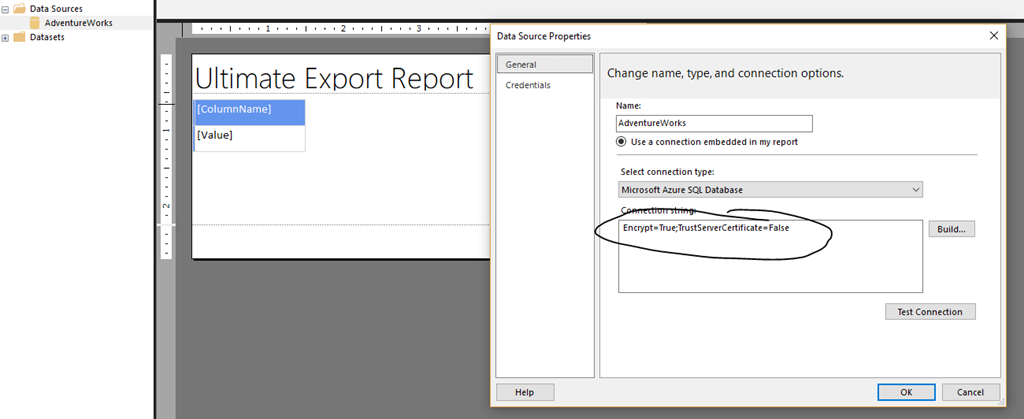
I recently came across an interesting article on MSSQLTips for SQL Server Reporting Services that showed how you could use a T-SQL query as the parameter value, and have it return a table of data as the result set from that query.  (The original article is here, and I will fully admit that all I did was take this author’s idea (and that of one of the commenters) and stick it into this sample report  – https://www.mssqltips.com/sqlservertip/5757/create-dynamic-ssrs-reports-using-a-query-as-an-input-parameter/ ). I wanted to see if this worked for Paginated Reports in Power BI, and of course it does!  So once I put in my connection string information for my Azure SQL database (the original article was against a traditional SQL Server database), I can write just about any select query against that database as a parameter at runtime and get back results in a nice table that can be exported out to Microsoft Excel.  I created a short video to show you how it works in practice –

Now there’s little chance I’d use this report as is in production – it’s really just a way for me to test some things, dump out data quickly, and it demos nicely.  But there are some ways you could potentially change this to make it more production friendly – have a list of dropdown values that represent the queries that you update on an ongoing basis, or even allow users to submit queries through a workflow you approve that updates the parameter list.

If you’d like to try it out yourself, feel free to download the sample report –

Ultimate Export Report

Once downloaded, you’ll need to update the data source with your connection string to whatever database you’ll use this against in Power BI Report Builder before you can use it in the service, but once you do that, you should be good to go.

image

Thanks for reading!

Use a Conditional Preview Image in Paginated Reports subscriptions in Power BI

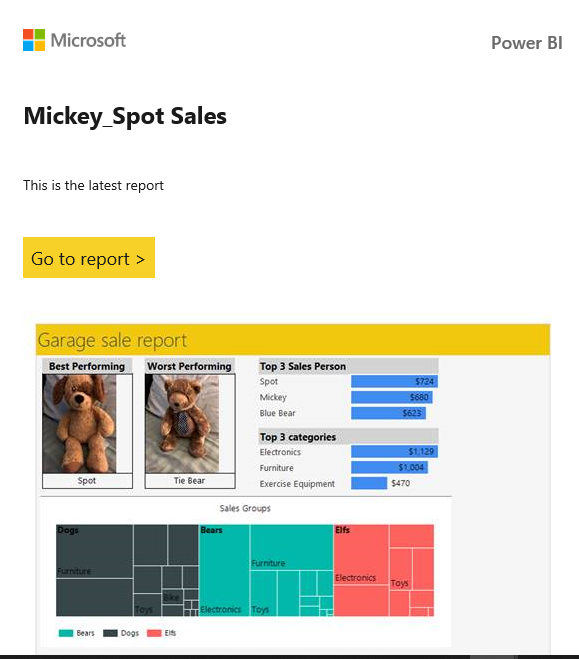
Recently in Power BI, a new feature was added for Paginated Reports e-mail subscriptions where you could optionally add a preview image in the body of your e-mail message.  By default, this is the first page of your report.  However, it doesn’t have to be.  For example, in my e-mail subscription, I see the following preview image –

image  

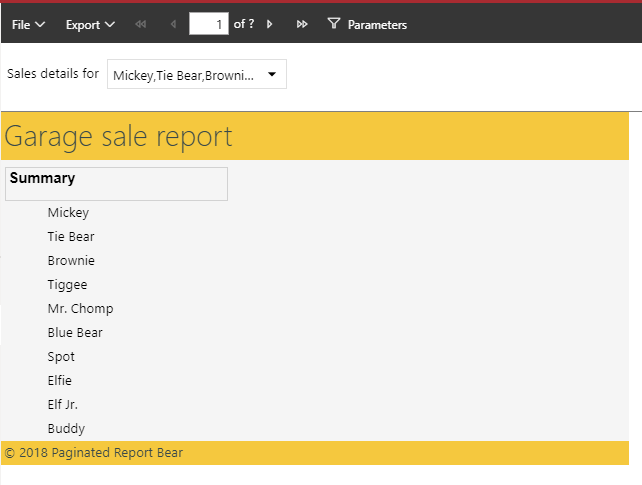
But when I view the report in the PDF attachment or in the web, I see the following report links as my first page –

image

How is this possible?

Well, one of the cool things you can do with Paginated Reports is set the visibility of items in your report to be conditional.  You do this by adding an expression that sets the condition for when it should be shown or hidden.  Since the preview image in your e-mail subscription uses the “IMAGE” output format, all I did was set the visibility of an item to be conditional based on that.  So I took all of the items you see in that preview image and added them to a tablix, then made that conditionally visible based on the following expression –
=ucase(Globals!RenderFormat.Name) <> “IMAGE”   

Now, the report renderer knows to hide that part of the report whenever the renderer is something other than the “IMAGE” output format.  I’ve attached the sample report below so you can try this out yourself.  You can test this in the Power BI service (if you have Premium) by setting up a new e-mail subscription with it, or in Power BI Report Builder by exporting it to a TIFF file.

Download Sample Report

Thanks for reading!

Use Outlook, Microsoft Flow and Paginated Reports to create Power BI Report and Dashboard E-Mail Subscriptions with PDF attachments

image

I hear this ask quite a bit these days – I want to be able to create e-mail subscriptions with PDF (or other file format) attachments of my full Power BI report or dashboard.  Well, you can actually do this already, thanks to Microsoft Flow and Paginated Reports in Power BI Premium or SQL Server Reporting Services/Power BI Report Server if you chose to do so.

If you read my blog post last week, I showed you how to use Flow to take your e-mail attachments and save them to a OneDrive for Business folder.  While I did it for PDF’s in that example, you can do it for any attachment type, including images, which is what you get today as an attachment when you subscribe to a Power BI Report or Dashboard.  The challenge is if you want an attachment of a full Power BI report, you only get one report page image per subscription.  However, you can stitch those items together into a paginated report that’s hosted either in Power BI Premium or SSRS and set that up as a subscription with a full report attachment.  Here’s how –

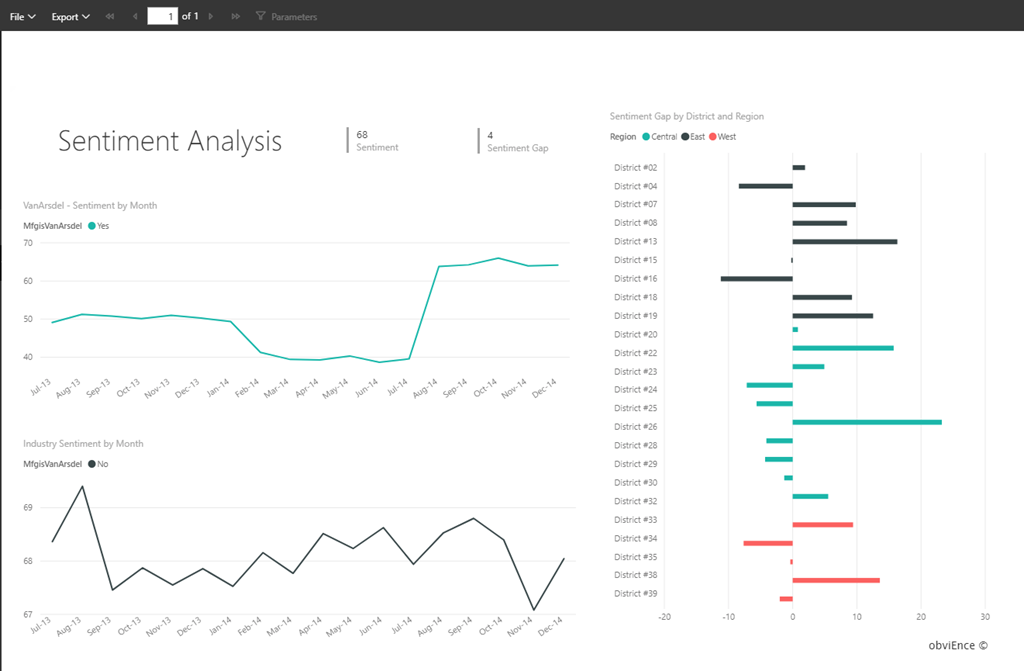
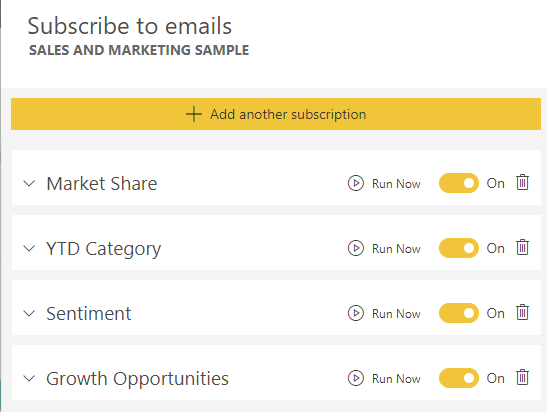
Let’s say I have four report pages total in my Power BI report.  I’ll create four subscriptions, 1 for each page.

image

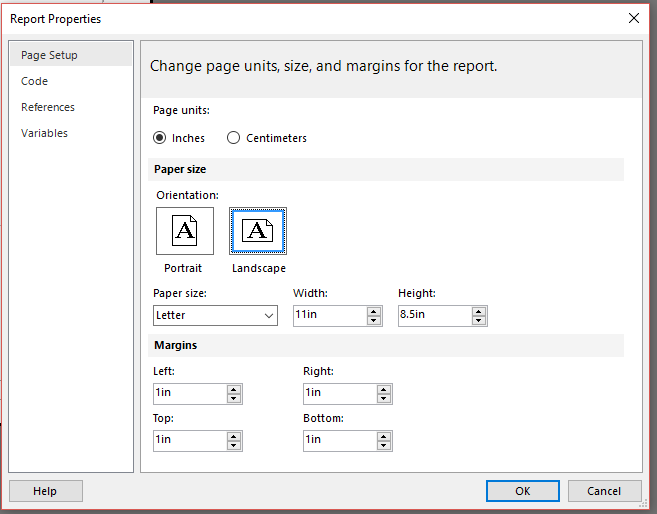
Next, I’m going to create a paginated report where I show each of those images on a different page.  Since they are optimized for landscape, I am going to change my report properties to landscape in Power BI Report Builder.

image

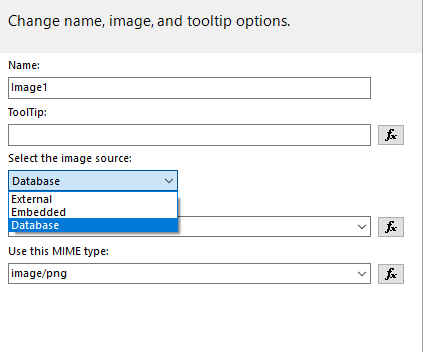
With paginated reports, you can surface images one of three ways in your report.  You can do it either as an embedded image, an external image, or from a Database. 

image

Embedded images are what I used for the Paginated Report Bear sample report – I literally just saved the image files in the rdl you could download.  That doesn’t help in this use case. 

If I want to use an external images for each of the files, which is a URL image I point to, than I can create a Flow where I save the e-mail attachments from my Power BI subscriptions to a folder in OneDrive (personal), and then use the embed URL from each of those images as external sources for my report.  Each time I save a new image with the same name, my embed URL doesn’t change, so I can update the images as often as I like using Flow and my report will always show the latest.  I just need to add four images to my paginated report, each with a link to one of the report page URLs, and I’m done!

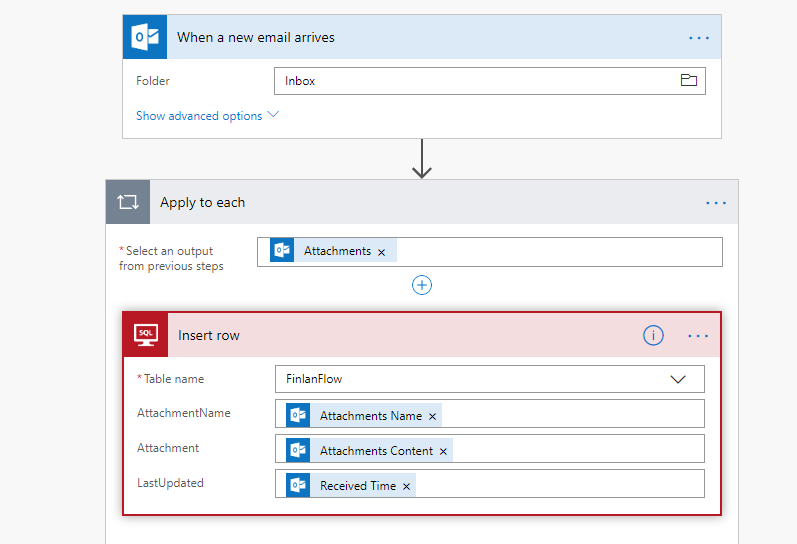
Anyone who cares about security is going bonkers right now, since sticking them in my personal OneDrive means they’re publicly available to anyone in the world.  A better (and safer) solution I’m using is saving them to an Azure SQL database, and then surfacing them as “Database” images in my paginated report.  My flow looks like this for that scenario –

image

What I did here was create a table in an Azure SQL database with three fields, and the Attachment field is an Image field.  (This is an admittedly sloppy table written for a blog post vs. production use.)  I also narrowed down the scope of the attachments by limiting the flow to those e-mails from the following address (I could be even more precise, but dinner is waiting in the other room) –

image

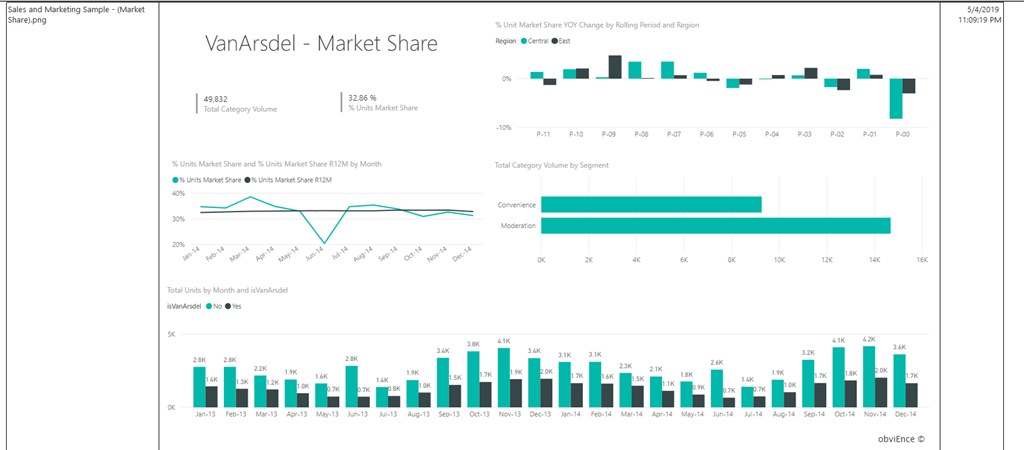
Now when my Flow is triggered (it checks my inbox every minute), if it finds a new item matching that rule, I see a new entry in my SQL table like so. 

image 

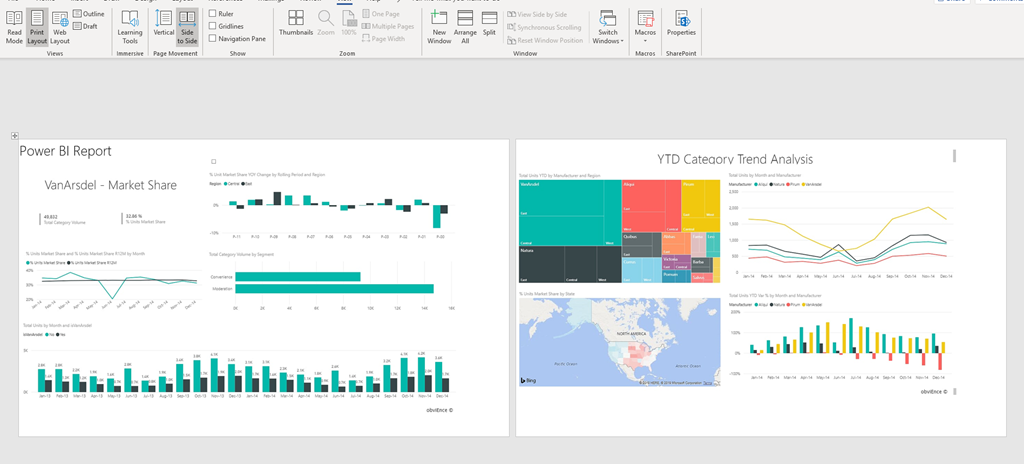
With them saved to a SQL database, I have a few different options how to surface them in my report.  Either I do them as standalone items with a page break in between (Check out these two pages when I export out the report out to Word) –

image

With this method, I’m setting my SQL query to always show the most recent image for each page of my report.

Or perhaps in a table as a collection showing different report states over time if I want to show all the report images

image

Now, with my images saved in a paginated report, I can load it to either the Power BI service OR SQL Server Reporting Services, setup my subscription, choose the output format (PDF, Word, etc.) and there you have it – full report attachments of my Power BI reports sent as e-mail subscriptions!

Thanks for reading!

Yes, you can export unlimited** rows of data from Paginated Reports in Power BI

image

This question has come up more than I can count, so I am doing a super quick blog post to answer it for folks.

Many people are well aware of the limitations around exporting data in Power BI today.  The biggest one I hear about is you can’t export more than 150,000 rows to Excel from a Power BI Report visual.  Since people always want to export data, the question came to me immediately when we released the paginated report capabilities in Power BI if we had the same restriction.  I know from several customers I’ve worked with in the past that many of their SSRS reports are/were nothing more than a single table with some parameters that users visit to dump out the data they need to an Excel or CSV file, so I wasn’t that surprised it came up.

The answer is no, we don’t put any cap on the number of rows you can export from a paginated report in Power BI to Excel, CSV, or any of the formats we support.  The only limitation is the amount of memory that’s available for Paginated Reports in your Premium capacity.  Hence the asterisk in the blog title – eventually you’ll run out of memory if you try to export too much at one time, so if you try to export a table of 1 trillion rows and 40 columns to a CSV file, I’m fairly sure you’re out of luck and will fail.  But as you can see by the picture, I exported one of my reports with over 240,000 rows out to a CSV file without a hitch.

There’s much, much more you can do with Paginated Reports in Power BI (and Patrick LeBlanc has done some awesome videos about a number of those items on the Guy in a Cube YouTube channel), but for those folks who want to use paginated reports to help them with this use case, you absolutely can do so.

Thanks for reading!