Articles

Overview of Datazen Parameter Replacement Functions

Wanted to highlight a new Technet article by my colleague Christopher Moncayo about some Datazen specific functions for parameter replacement.  These can be helpful when you’re writing new queries for your data sources and need to simplify things a bit.  The article can be read here –

http://social.technet.microsoft.com/wiki/contents/articles/32028.datazen-data-view-parameter-replacement-functions.aspx

Thanks to Chris for putting this together!

How to insert a live Datazen dashboard into a PowerPoint slide

image

This is one of these posts where I’m reverting to my old “Radar O’Reilly” mode of having to simply figure out a way to get something done, by hook or crook.  That was often the missive I was given from the business – didn’t care how I got it done, just needed it done, as long as it wouldn’t get anyone arrested.  So with that in mind, I wanted to see if there was a simple way I could enable this (without getting arrested).

What made the most sense to me was to insert a web page into a PowerPoint slide and take advantage of Datazen’s public access support.  Since PowerPoint doesn’t support embedding a web page out of the box, I was going to install an add-in called LiveWeb, which allows you to do just that.  However, and this is important, Microsoft doesn’t recommend you do this for security reasons.  Microsoft gives you a workaround for this, but let’s see if we can’t find a better way (since I’m not looking to provide advice counter to that of my employer).

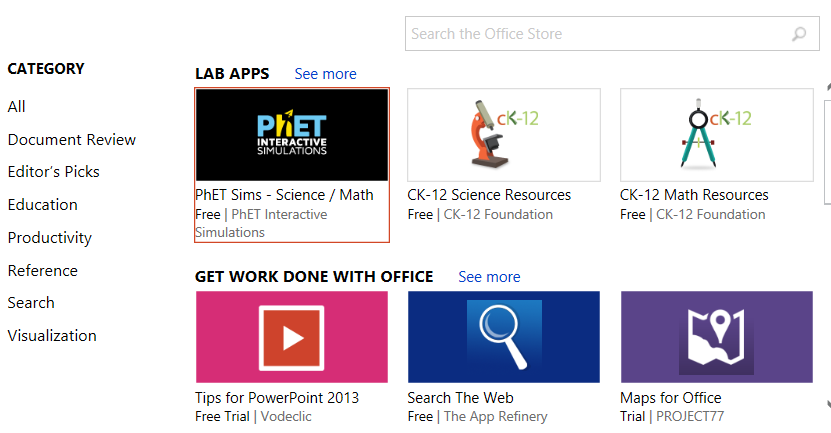
My next thought was – why not check the Office Apps Store to see if we have an official add-in?  If you haven’t used the Office App Store before, it’s an easy way to find apps, both free and paid, for your Office365 programs to use as add-ins.  To start using them in your next presentation –

1.  Go to the Insert Tab in PowerPoint.  You should see the Store Add-In in the ribbon.  Click it to open the App Store –
OfficeSnip
2.  A pop-up will open with the apps available in the store.  You can now run a search for the app you wish to use
image

Since I wanted to use a web viewer add-in for PowerPoint, I typed Web Viewer into the search bar and hit Enter.  And what do you know?  Microsoft has created an app to do exactly what I wanted to do.  And it’s free!

image

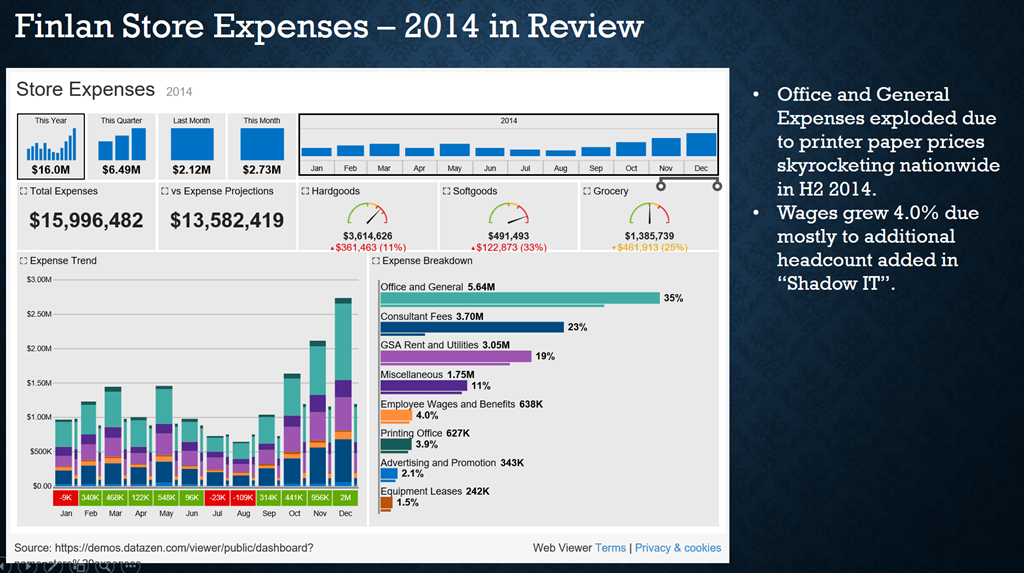
I added the app to my slide and then entered the Datazen dashboard address I wanted to include.  Since it’s configured for public access, I wasn’t prompted for my user credentials and it was added and worked.image

And since it is treated like any other slide element, I was able to redo my slide accordingly.  Ta da – I’m able to add proper commentary and still have a fully interactive, live dashboard!

image
This wasn’t too tough after all, and I didn’t mess around with my registry to get it to work.  Success!

Thanks for reading, and enjoy the rest of your weekend.

How to connect to Teradata from Datazen

Greetings, folks!  Here’s another short and sweet post around connecting to a popular data source, Teradata.  This is even easier to do than the data connections outlined in the previous posts, since you can use the native ODBC connection that comes with Datazen out of the box.

To use Teradata with Datazen, follow these steps –

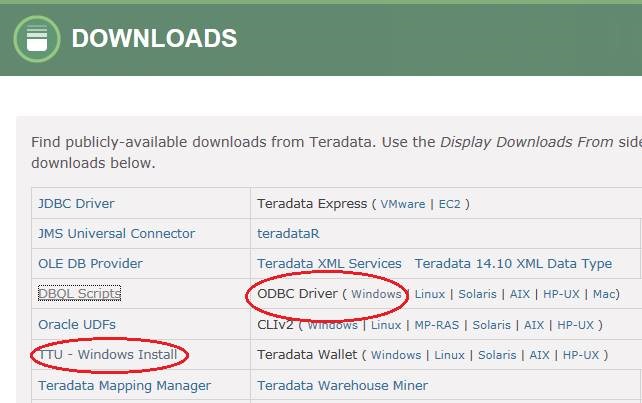
1. You need to download the Teradata ODBC driver here (you’ll need to register for an account).  I’d suggest you download the Teradata Tools and Utilities (or TTU for short) so you can test things if you run into issues, but you can just download the ODBC driver and plow ahead if you’re a gambling man.  You’ll need the 64-bit version of the driver.

clip_image002

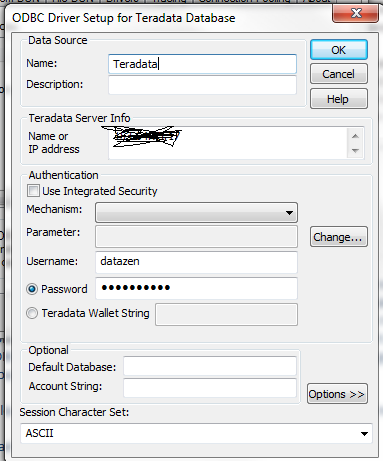
2. Once you’ve installed the driver on the Datazen server, setup a new ODBC connection.  You’ll need to save the username/password in the connection, and leave everything else as the default settings or if you want to set a default database in the connection, that’s fine as well.
teradata
Excuse the scribbling to hide the IP address, trying to use Paint on an airplane with your touchpad is not a great experience.


3. From the control panel in Datazen, add a new data connection and select the ‘Generic ODBC DSN’ provider.  Enter a new connection name and the ODBC DSN and hit ‘Test Connection’.  You should see a message saying you’re successful –
image

See?  Easy peasy.  Have a great week, folks!

Use a Powershell Script to Restore Datazen Server

image

Happy Wednesday, everybody.  This post is short and sweet, but potentially a big time saver for you.  So you need to backup and restore your Datazen server for whatever reason.  There’s instructions in the documentation on how to do this, but the process of restoring the server can be automated even further using Powershell.

I’ve included a download link to a Powershell script that automates the restoration process of Datazen.  While you’ll still need to setup and run the backup through the control panel as either a one-time event or on a scheduled basis, this script will do the following –

– Stop All Datazen Services
– Delete the Data Folder
– Restore the backup using Raven
– Defrag the database
– Run Datazen.Server in console mode to sanitize the installation
– Start the services again

Note (thanks, Rui!) – Make sure the service account that is running the core service has access to the new data folder, whether by updating the script or confirming access is available manually.  If it doesn’t, the core service will hang when it starts.

The biggest thing to remember when doing this process is that you are using the correct Datazen Instance ID that you want to restore.  This process assumes your current server and your backup are using the same instance id.  If, however, you need to restore or move the Datazen server to a new server, and restore an existing db there, you’ll need to reinstall Datazen using the command line and specify the instance id.  That process is outlined here.

As promised, here’s the Powershell script you can use – http://1drv.ms/1TsbWZE

Thanks for reading!

Using Datazen with Plus One to visualize your social media data

image

The idea for this post came from having spent the last year or so playing with a app called Plus One.  Check out their site to learn much more about it, but in short, it’s an app you download onto your desktop, enter the keywords you want to search across different social networks (Twitter, Facebook, etc.), and get back the results.    And in the FAQ, it states – “You are not limited to just the reports found within Plus One Social.  Because we store the data in a friendly desktop database, Microsoft Access, you can connect your favorite self serve bi tool . . .”

Naturally, I wanted to see if Datazen would work with Plus One, which meant I had to do a few things I hadn’t done before to get started –

– Install the Plus One application on Windows Server and
– Use Microsoft Access as a data provider

Installing Plus One is pretty straightforward – you go to this link, enter in your information, and they’ll send you the download link.  Download and install the app on the Windows Server you’re running Datazen on, and the Plus One icon will appear on the desktop.

image

This next part is tricky – BEFORE you try to open the app, you have to install two Access ACE ODBC drivers.  If you try to do it before that, you’ll get an error message.  The problem is, Datazen requires the 64-bit ODBC driver, while Plus One requires the 32-bit driver.  So how do we work around this?

1. Follow the instructions in this blog post to install the driver and setup the data source that Datazen needs.  However, use this data provider schema file as opposed to the one in the post because you need to leverage Access as your data source, not Excel.

2. Once that’s done, install the 32-bit Access Driver from here.  It’s from the 2007 version of Office, so there’s only one item to download and install.  That should allow you to open Plus One Social to get started.

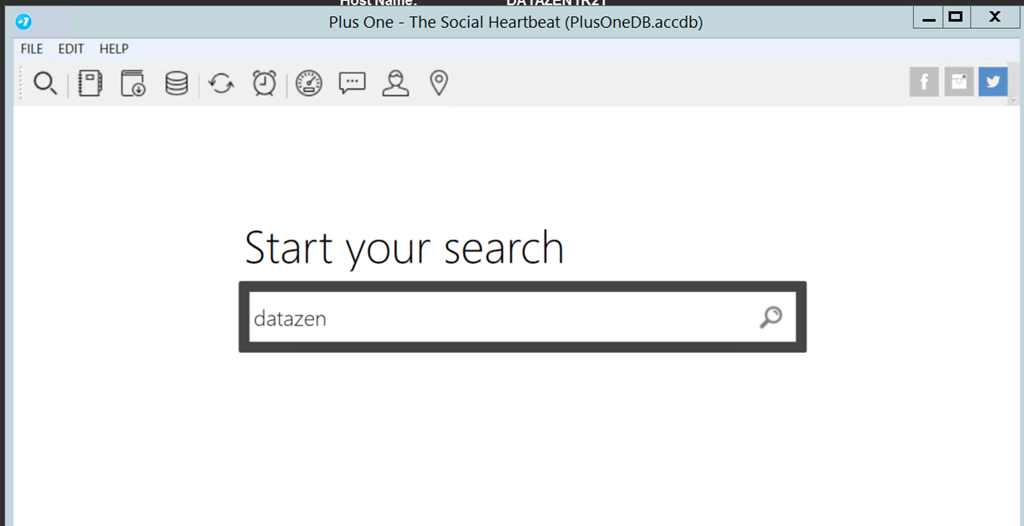
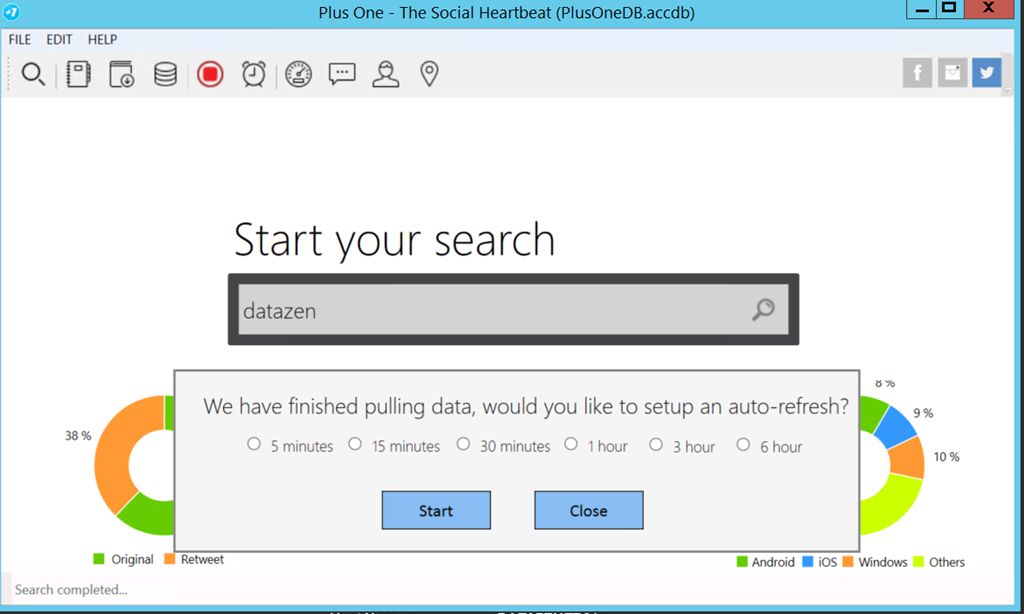
Open the app now, and you’ll see the search bar where you can enter your search terms.  I’m going to do a search for Twitter data related to Datazen (surprise, surprise), so I type in datazen.
image

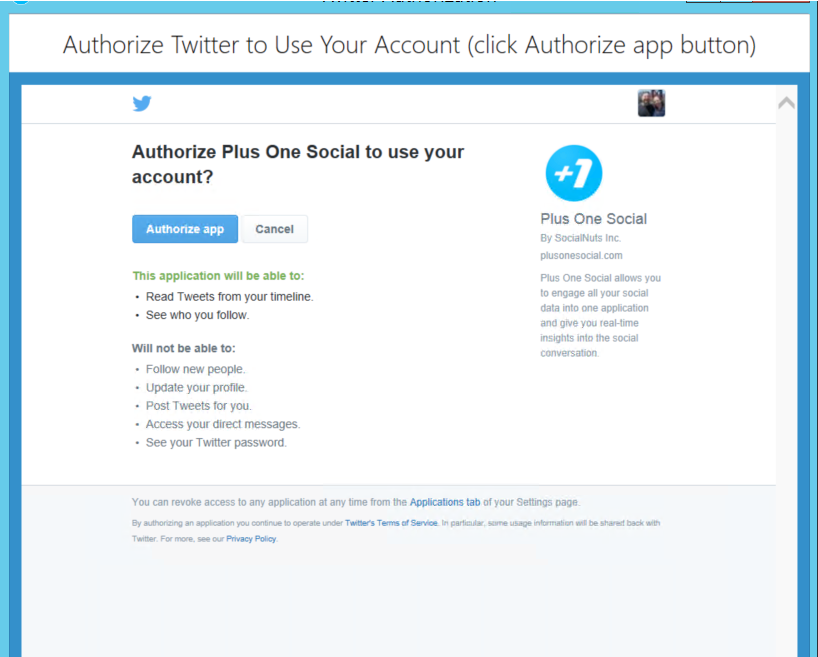
I’m asked to authorize the app on my Twitter Account (you need accounts with the different social networks you want to search across)image

I authorize the app, and it grabs the results from Twitter.  It’ll then go and grab the last seven days of tweets (Plus One is limited to one week of data, so you’ll need to save it on a rolling basis to keep older data), and I can even setup an auto-refresh to get the latest data.
image
Now that I’ve got my Twitter data, I want to view it in Datazen.  The default Access database sits in the following folder location on the machine –

C:\Users\UserName\Documents\Plus One Social\PlusOneDB.accdb

If you were to open the file in MS Access, you’d see five tables with data – Hashtags, Mentions, Messages, Queries, and Users.  You can now write SQL queries against those tables in the Datazen server to pull back the data you need for your dashboard(s).  Let’s do one together.

I’ve got the Microsoft Access data provider all setup
image

I want to see what platform people are using on my dashboard, whether it’s iOS, Android or something else.  So I’m going to write a simple case statement query to bring back the results.  Something like this –

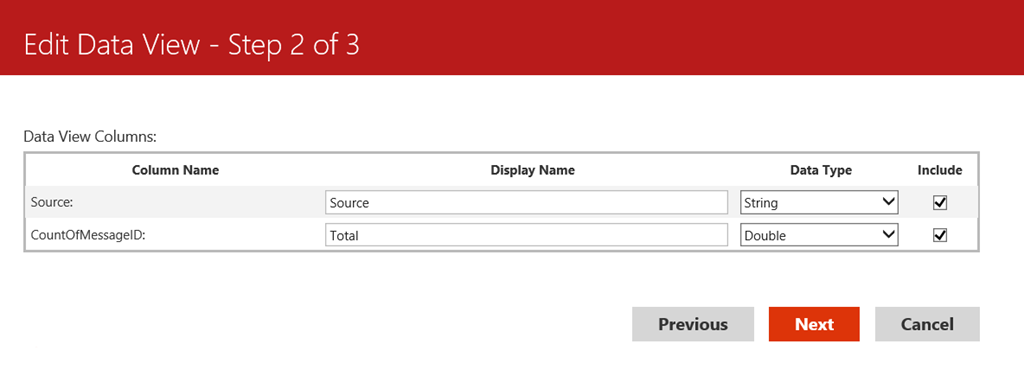
SELECT Source = CASE WHEN Messages.Source like ‘%iPad%’ THEN ‘iOS’ When Messages.Source like ‘%iPhone%’ THEN ‘iOS’ WHEN Messages.Source like ‘%Android%’ THEN ‘Android’ ELSE ‘Other’ END,
Count(Messages.MessageID) AS CountOfMessageID
FROM Messages
Group By CASE WHEN Messages.Source like ‘%iPad%’ THEN ‘iOS’ When Messages.Source like ‘%iPhone%’ THEN ‘iOS’ WHEN Messages.Source like ‘%Android%’ THEN ‘Android’ ELSE ‘Other’ END

Except I get an error –
image

The issue here is you have to write the SQL Query like you would in Access, when doesn’t use case statements.  It does use switch statements, so I try that instead –

SELECT Switch (Messages.Source like ‘%iPad%’, ‘iOS’, Messages.Source like ‘%iPhone%’, ‘iOS’, Messages.Source like ‘%Android%’, ‘Android’,True, ‘Other’ ) as Source, Count(Messages.MessageID) AS CountOfMessageID
FROM Messages
GROUP BY Switch (Messages.Source like ‘%iPad%’, ‘iOS’, Messages.Source like ‘%iPhone%’, ‘iOS’, Messages.Source like ‘%Android%’, ‘Android’, True, ‘Other’ )

image
And that works without issue.  I went ahead and created seven different queries in total –
image
and set them up to refresh every hour, making sure I set it to run 10 minutes after I know my refresh on Plus One will finish.
image
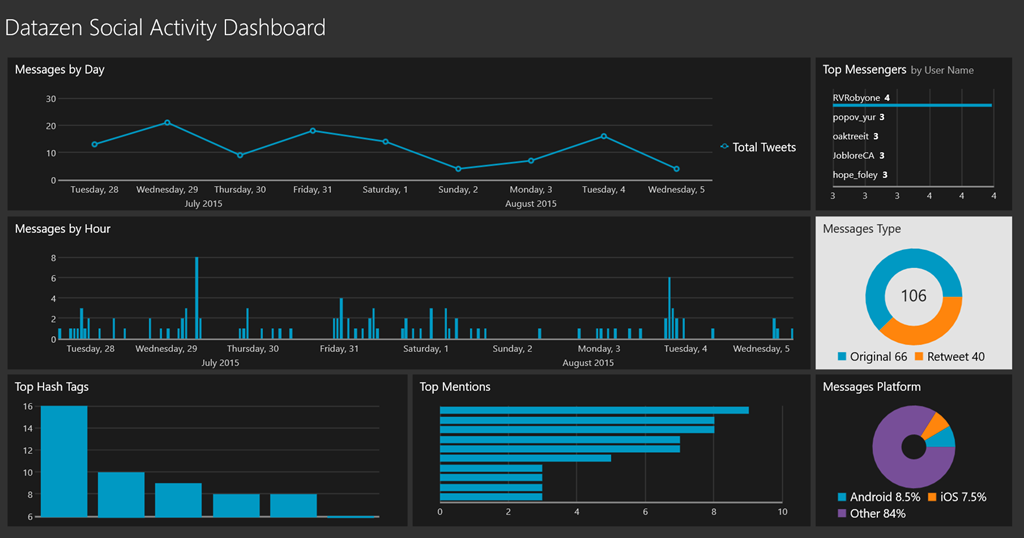
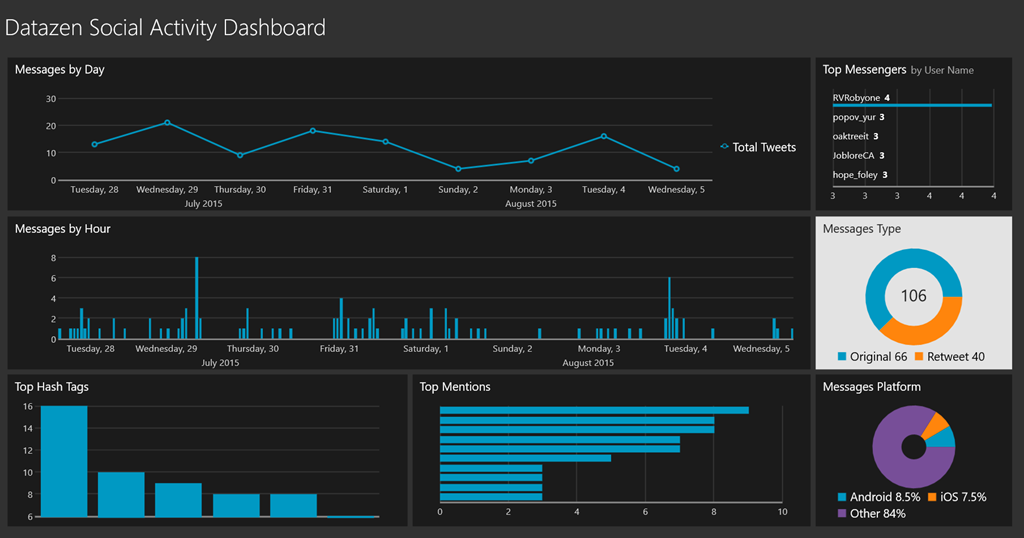
With that all setup, it was easy to create my dashboard (thanks to Datazen) and always stay on top of our social media activity.  This was the end result –
image

Thanks for reading!
Respect my security – A primer on Datazen user authentication

Almost every customer conversation I’ve had around Microsoft Business Intelligence the past few years has had part of it devoted to a conversation around security.  This isn’t my favorite topic to cover off on.  It’s a little like going to the dentist – that isn’t my favorite thing to do either (even though I truly like my dentist). 

But security (and visiting the dentist) are still very important, so I want to use today’s post to spend some time explaining what Datazen can (and can’t) do when it comes to each of the authentication options it supports  –

Datazen Authentication (default) – ah, good ol’ Datazen Authentication.  The preferred authentication option for demo server builds everywhere.  This is the easiest option to setup, and easiest for everyone to understand.  You create a user on the server, they get a link to reset their password, and all the credentials are assigned (and stored) on the Datazen server.

When should you use this – if you read the Security Best Practices in the Datazen documentation, your answer would be never.  But there are some legitimate reasons where it probably makes sense for you to use this authentication scheme –

– It’s a test/development server or a quick proof of concept.
– You’re looking for the simplest setup possible to start using Datazen.  You can invite users just by using their e-mail address.
– You have a scenario where you are servicing external users who wouldn’t be in a domain to leverage Active Directory.
– You’re a long haired hippie who likes to let their hair down and live on the wild side, not worried that the Datazen server could be used as an attack vector.

Far out man – classic authentication!

Okay, forget that last point.

Windows Authentication –

This option is the one that most people will probably end up leveraging when it comes to Datazen.  It’s also the one that generates the most confusion – let’s see if I can’t clear that up a bit.

Generally, people assume when they setup users in this scenario, the Datazen server is communicating with the domain controller during that process to validate them.  It doesn’t – you could create bozotheclown@microsoft.com as the username, and Datazen will show a success message when you finish user creation. 

image
Wait a minute . . .

Datazen doesn’t check the users in the domain until someone actually attempts to login as that user – it does a check against the users in the domain and makes sure it matches.  If it can’t find the user in both the Datazen server AND the domain, it’ll fail.  This is why you can’t leverage Active Directory user groups – Datazen wants to find a 1:1 match.

So the time saving benefit around user setup that you’re expecting to get using a Windows authentication vs. Datazen authentication doesn’t exist from an admin perspective.  (Saying this was an oft-requested feature enhancement people are looking for is an understatement.)  It also doesn’t change the way the users have to authenticate when they are hitting the service from an app – the first time they connect to a Datazen server, they still have to enter a username/password.  It’ll be their network password, sure, but it’s the same experience as Datazen authentication for them.

The only place a single sign-on experience can be enabled for them is in a web browser.  This is true for both WinAD AND for ADFS – the app experience will ALWAYS require entering a username and password the first time you connect to a Datazen server (at least for now, anyways).

So why use Windows Authentication?
– No passwords stored on the Datazen server
– Looking to enable Analysis Services row-level security
– You’re integrating Datazen into a SharePoint site or custom app, and want an improved user experience when they use the dashboards in that context (no additional login page).
– You don’t want IT to yell at you, or you are IT and Windows Authentication is the standard security option for this type of application.

ADFS (Active Directory Federation Service)

This is where the dentist drill is at full-bore for me. Setting up ADFS is not for the faint of heart, and I’m not going into the weeds on that or in any other post on this blog (ever). If you want to see the process from start to finish, this blog post does that wonderfully.


”Oh, please don’t worry. I’m not going into that cavity.”

However, this is the most secure option if you have ADFS already setup in your organization. It will ensure no user credentials are stored on the server, but you still need to go through the user setup on the Datazen server. It also offers some additional options for the security team, like using a smart card to login to the Datazen server.

However, and without getting into the sordid details of why, Single Sign-On doesn’t work with that type of login security scenario. Should it work? Yes, it should, but it doesn’t. It’s something that will be addressed by the team as we move forward with the product.

External authentication

This option works in the opposite manner of Windows Authentication – a user’s username and password is checked first against an external source, then looks for a match on the username stored in the Datazen server.  You have to be careful when using this method because –

– You’re assuming the username and password are checked.  If that isn’t setup properly, it’s a massive security hole you’ve potentially enabled.
– The mobile apps don’t work with it.  It was designed for web-only scenarios.
– You can’t make changes to the server when you are running in external authentication.  You need to switch to another authentication method, make your changes, and then switch it back.

I’ve not run into a customer yet using this setup, so I’m curious to hear from folks on how they’re using it in their organizations.

Whew – now that our visit to the dentist is over, hopefully you have some more clarity around the different user authentication options in the product.  The team is fully aware of the limitations I’ve called out in this post, and we’re committed to improving these options as the product is fully integrated into the Microsoft platform.