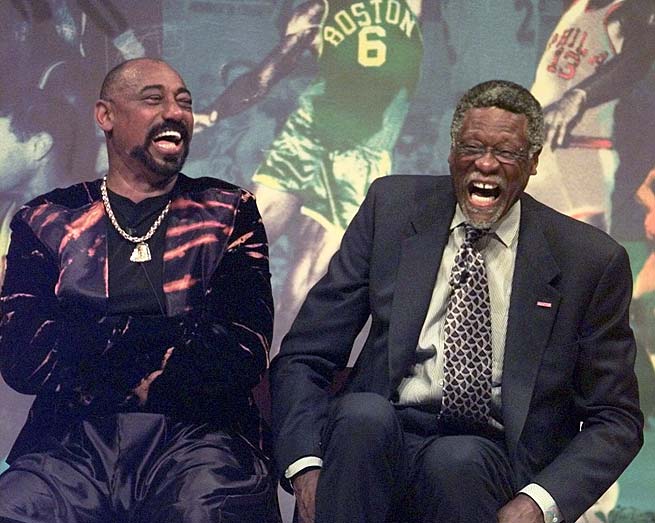
There has been a long-standing debate in basketball circles: who was the superior player, Wilt Chamberlain or Bill Russell? These two titans dominated the NBA in the 1960s, setting records, and altering the course of the league. While Russell’s Boston Celtics frequently bested Chamberlain’s teams, leading to a more decorated career in terms of championships, does that definitively prove Russell was the superior player? Perhaps not. In this blogpost, we’ll make a case for Chamberlain as the superior individual player over Russell.
Unparalleled Individual Statistics
When comparing individual statistics, Chamberlain’s numbers are nothing short of staggering. He remains the only player to average 30 points and 20 rebounds for his entire career, and his 1962 season, in which he averaged 50.4 points and 25.7 rebounds per game, is arguably the greatest single season in NBA history. He also owns the record for the most points in a single game, with an astounding 100. While Russell was no slouch on the stats sheet, Chamberlain’s numbers eclipse Russell’s in nearly every individual category.
Versatility and Adaptability
In addition to his dominant scoring and rebounding, Chamberlain was an extraordinarily versatile player. In the 1967-68 season, he led the league in assists, a testament to his all-around skills and ability to adapt to his team’s needs. Furthermore, he had an uncanny ability to stay on the court, often playing the full 48 minutes. On the defensive end, while blocks were not officially recorded during his career, anecdotal evidence and unofficial tallies suggest Chamberlain was one of the most dominant shot-blockers in history.
Dominance Over Russell in Head-to-Head Matchups
While Russell’s Celtics often came out on top in their battles with Chamberlain’s teams, the individual matchup between the two centers was a different story. Chamberlain averaged 28.7 points and 28.7 rebounds in games against Russell, both better than his career averages. This shows that when directly facing Russell, Chamberlain elevated his game, underscoring the point that team success does not necessarily correlate with individual superiority.
Impact on the Game
Chamberlain’s impact on the game of basketball extended beyond his personal achievements. His sheer dominance forced the NBA to change several rules, including widening the lane and adjusting rules on inbounding and free-throw shooting. This is a testament to the profound impact Chamberlain had on the sport.
Bill Russell was undoubtedly a phenomenal player and an exceptional leader, leading the Celtics to an unprecedented 11 championships in 13 seasons. His defensive prowess and unselfish play set the gold standard for the league. However, the case for Chamberlain as the superior individual player is compelling when considering his astounding statistical achievements, versatility, and dominance over Russell in their individual matchups.
The Chamberlain vs. Russell debate will undoubtedly continue as long as the game of basketball is played. In the end, perhaps it is enough to say that they were both exceptional players who shaped the sport in their own unique ways. Still, through this lens, the argument can indeed be made that Wilt Chamberlain was the better player.
Some pageant results fade the second the crown lands.
This one never did.
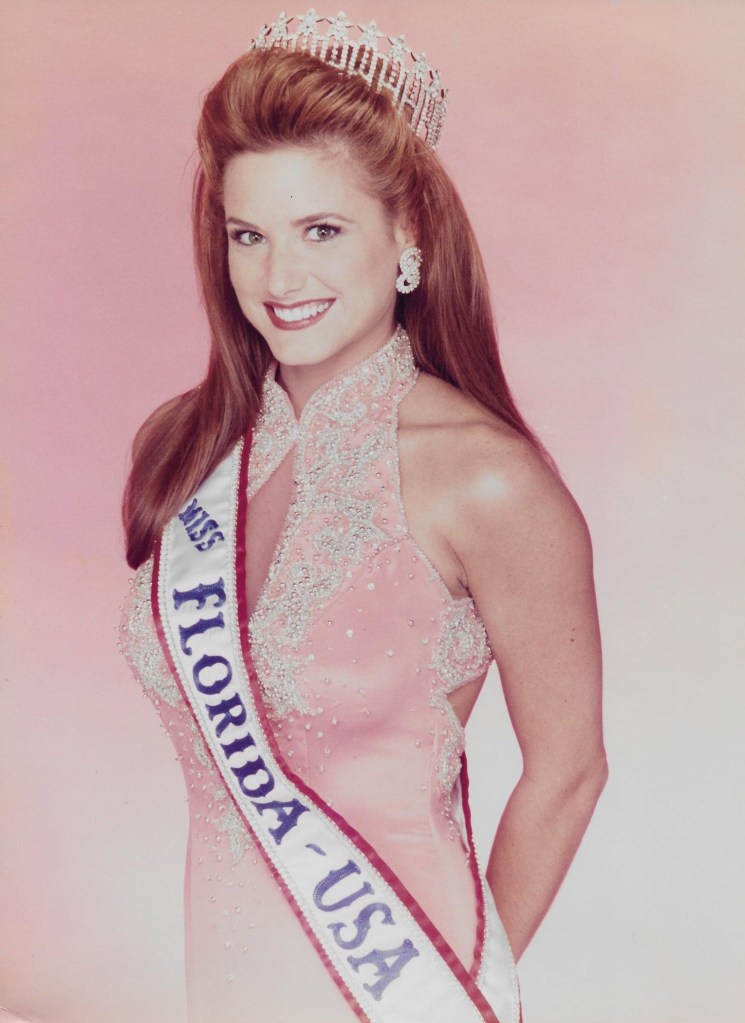
If you watch Miss USA 1997 back now, the obvious winner is not subtle. Angelia Savage of Florida looks like the strongest contestant in the field for most of the night. She has the body, the stage presence, the control, the ease. She looks like the woman to beat because, for most of the broadcast, she is.
And then Brook Lee wins.
To be clear, this is not a “Brook Lee was a fraud” argument. She wasn’t. She was smart, funny, polished, and she went on to win Miss Universe, which is a pretty serious rebuttal to anybody trying to dismiss her. She was excellent.
I just don’t think she should have won Miss USA 1997.
I think Angelia Savage should have.
What made Angelia stand out
The old version of this argument leaned too much on generic praise. “She was graceful.” “She was poised.” Fine. So was half the top ten. That doesn’t get you anywhere.
What made Angelia different was that she consistently looked like the most complete package in the competition.
She won Best in Swimsuit. That matters. Not because swimsuit is the whole competition, but because pageants have always rewarded a certain mix of athleticism, confidence, and command, and Angelia had all three. She didn’t just look fit. She looked fully in control. There was no hesitation in her movement, no sense that she was trying to survive the moment. She looked like she belonged there.
That same confidence carried into the rest of the night. In evening gown, she didn’t disappear behind the dress. In interview, she came across as natural instead of overprocessed. That sounds like a small thing until you watch enough pageants to realize how rare it is. A lot of contestants can deliver a clean answer. Fewer can make you feel like you’re seeing the actual person and not just the pageant software running behind their eyes.
Angelia had that.
And by the time the field narrowed, she felt like the contestant with the strongest overall momentum.
That’s the key point. My argument is not that she had one killer moment that got ignored. My argument is that she put together the best total performance and should have been crowned because of it.
Where the pageant turned
Miss USA 1997 wasn’t judged in a vacuum. The whole broadcast was hanging under the cloud of the Alicia Machado controversy. The reigning Miss Universe had been publicly criticized for her weight, and that story had become the pageant story whether anybody wanted it to or not.
Once that happens, the competition stops being only about who is performing best. It also becomes about who can best answer the question the culture wants answered.
Brook Lee got that question, and she knocked it out of the park.
That’s the uncomfortable truth at the center of this pageant. Brook didn’t steal anything. She hit the exact moment the show wanted. She gave the answer that fit the climate, fit the controversy, fit the broadcast, and fit the role. It was warm, quick, politically smart, and impossible to argue with in the room.
And that was that.
The problem, if you’re making the case for Angelia, is that the outcome suddenly hinged less on the whole competition and more on one late-stage communication test built around the biggest talking point in the pageant universe.
Brook was brilliant in that spot.
Angelia never got that spot.
She had already answered her on-stage question earlier. By comparison, it was just less consequential. Less loaded. Less built for the kind of answer that changes the energy in the building.
That’s really the crux of it. I don’t think Angelia lost because she was weaker. I think she lost because the pageant’s most important moment turned into a very specific kind of messaging contest, and Brook Lee happened to be exactly the right contestant for that moment.
That’s a real skill. I just don’t think it should have outweighed the rest of the competition.
Why I still side with Angelia
If you score Miss USA 1997 as a full-night competition, Angelia Savage still makes the most sense to me.
She looked stronger physically. She looked stronger in total stage command. She looked like the contestant with the clearest sense of herself. And most importantly, she looked like the woman who had done the most across the full competition to earn the title.
That doesn’t mean Brook Lee was some fluke. She wasn’t. It means the pageant rewarded the contestant who won the most important late moment instead of the contestant who had earned the title across the full night.
That distinction matters.
Pageants always pretend to be holistic until they aren’t. They tell you the whole competition matters, and then one answer, one question, one stray wobble, one lightning-strike moment suddenly outweighs two hours of work. Sometimes that’s fair. Sometimes it’s just how television works.
Miss USA 1997 feels like one of those nights where television won.
And television, to be fair, picked a strong winner. But I still think it passed over the stronger competitor.
What I don’t want to overclaim
I also think it’s worth being honest about the limits of this argument.
I don’t think Angelia was robbed in some conspiratorial sense. I don’t think the judges were insane. And I definitely don’t think Brook Lee’s later success should be brushed aside just because it complicates the thesis.
If anything, Brook going on to win Miss Universe makes this more interesting, not less. It proves the judges weren’t hallucinating. She had the goods.
But it still doesn’t settle the narrower question of who should have won Miss USA 1997.
For me, that’s Angelia. Not as a consolation prize for being memorable. Not as a “better on the night” footnote. As the woman who should have actually gotten the crown.
Why this one still bugs me
I know this is niche. Believe me, I know.
But some results linger because they expose the difference between “who won” and “what people saw.”
Miss USA 1997 is one of those results.
If you only read the winner list, it looks settled. Brook Lee won. End of story.
If you watch the pageant, it feels messier than that. You see a contestant in Angelia Savage who, for long stretches of the night, looks like the surest bet in the room. You see a pageant that gradually bends toward one question, one controversy, one answer. And you see the crown go to the woman who best answered the moment instead of the woman who, in my view, had earned it.
That is why people still argue about it.
And honestly, I think they should.
Because sometimes the official result is defensible and still wrong.
Gilligan’s Island, a beloved sitcom that aired from 1964 to 1967, has left an indelible mark on American pop culture. The show’s premise was simple yet captivating: seven people stranded on an uninhabited island after their boat, the S.S. Minnow, was caught in a storm. The castaways, each with their unique personalities and quirks, made the show a delightful watch. However, one character stands out from the rest, and that is Thurston Howell III, or as he is more affectionately known, Mr. Howell.
Mr. Howell, played by the talented Jim Backus, was the millionaire on the island. He was a character of contradictions, a man of immense wealth stranded in a place where money held no value. Yet, it is these contradictions, coupled with Backus’s exceptional performance, that make Mr. Howell the best character on Gilligan’s Island.
Firstly, Mr. Howell’s character was a brilliant satire of the wealthy elite. He was a caricature of the upper class, with his ascot, yachting cap, and ever-present martini in hand. Despite being stranded on an island with no hope of rescue, he maintained his lavish lifestyle, even going so far as to bring a trunk full of money with him. His insistence on maintaining his millionaire lifestyle in the face of adversity was both humorous and a poignant commentary on the value (or lack thereof) of material wealth.
Moreover, Mr. Howell’s relationship with his wife, Lovey, was one of the most endearing aspects of the show. Despite his bluster and bravado, Mr. Howell was a devoted husband. He treated Lovey with respect and affection, a rarity for sitcoms of that era. Their relationship was a testament to their enduring love, providing a heartwarming contrast to the comedic chaos that often ensued on the island.
Additionally, Mr. Howell’s character development throughout the series was remarkable. He started as a self-centered, money-obsessed tycoon, but as the series progressed, he showed a softer, more compassionate side. He often used his business acumen to help the castaways devise plans for rescue or survival. This evolution of his character added depth and complexity, making him a more relatable and likable character.
Furthermore, Jim Backus’s portrayal of Mr. Howell was nothing short of brilliant. He brought a certain charm and charisma to the character that made him impossible to ignore. His comedic timing, coupled with his ability to convey a range of emotions, made Mr. Howell a standout character. Backus’s performance was so iconic that it’s hard to imagine anyone else in the role.
Finally, Mr. Howell’s catchphrases and mannerisms have become ingrained in pop culture. Phrases like “Lovey” and “You buffoon!” are instantly recognizable and have been referenced in various forms of media, attesting to the lasting impact of his character.
In conclusion, while all the characters on Gilligan’s Island contributed to the show’s success, Mr. Howell stands out as the best character. His satirical portrayal of the wealthy elite, his endearing relationship with Lovey, his character development, Jim Backus’s exceptional performance, and his lasting impact on pop culture make him the most memorable character on the show. So, here’s to Mr. Howell, the millionaire castaway who won our hearts with his charm and wit.
This blogpost was created with help from ChatGPT Pro
Data science is the process of extracting insights from data using various methods and techniques, such as statistics, machine learning, and artificial intelligence. Data science can help organizations solve complex problems, optimize processes, and create new opportunities.
However, data science is not an easy task. It involves multiple steps and challenges, such as:
Finding and accessing relevant data sources
Exploring and understanding the data
Cleaning and transforming the data
Experimenting and building machine learning models
Deploying and operationalizing the models
Communicating and presenting the results
To perform these steps effectively, data scientists need a powerful and flexible platform that can support their end-to-end workflow and enable them to collaborate with other roles, such as data engineers, analysts, and business users.
This is where Microsoft Fabric comes in.
Microsoft Fabric is an end-to-end, unified analytics platform that brings together all the data and analytics tools that organizations need. Fabric integrates technologies like Azure Data Factory, Azure Synapse Analytics, and Power BI into a single unified product, empowering data and business professionals alike to unlock the potential of their data and lay the foundation for the era of AI¹.
In this blogpost, I will focus on how Microsoft Fabric offers a rich and comprehensive Data Science experience that can help data scientists complete their tasks faster and easier.
The Data Science experience in Microsoft Fabric
The Data Science experience in Microsoft Fabric consists of multiple native-built features that enable collaboration, data acquisition, sharing, and consumption in a seamless way. In this section, I will describe some of these features and how they can help data scientists in each step of their workflow.
Data discovery and pre-processing
The first step in any data science project is to find and access relevant data sources. Microsoft Fabric users can interact with data in OneLake using the Lakehouse item. Lakehouse easily attaches to a Notebook to browse and interact with data. Users can easily read data from a Lakehouse directly into a Pandas dataframe³.
For exploration, this makes seamless data reads from One Lake possible. There’s a powerful set of tools is available for data ingestion and data orchestration pipelines with data integration pipelines – a natively integrated part of Microsoft Fabric. Easy-to-build data pipelines can access and transform the data into a format that machine learning can consume³.
An important part of the machine learning process is to understand data through exploration and visualization. Depending on the data storage location, Microsoft Fabric offers a set of different tools to explore and prepare the data for analytics and machine learning³.
For example, users can use SQL or Apache Spark notebooks to query and analyze data using familiar languages like SQL, Python, R, or Scala. They can also use Data Wrangler to perform common data cleansing and transformation tasks using a graphical interface³.
Experimentation and modeling
The next step in the data science workflow is to experiment with different algorithms and techniques to build machine learning models that can address the problem at hand. Microsoft Fabric supports various ways to develop and train machine learning models using Python or R on a single foundation without data movement¹³.
For example, users can use Azure Machine Learning SDK within notebooks to access various features such as automated machine learning, hyperparameter tuning, model explainability, model management, etc³. They can also leverage generative AI and language model services from Azure OpenAI Service to create everyday AI experiences within Fabric¹³.
Microsoft Fabric also provides an Experimentation item that allows users to create experiments that track various metrics and outputs of their machine learning runs. Users can compare different runs within an experiment or across experiments using interactive charts and tables³.
Enrichment and operationalization
The final step in the data science workflow is to deploy and operationalize the machine learning models so that they can be consumed by other applications or users. Microsoft Fabric makes this step easy by providing various options to deploy models as web services or APIs³.
For example, one option for users is they can use the Azure Machine Learning SDK within notebooks to register their models in Azure Machine Learning workspace and deploy them as web services on Azure Container Instances or Azure Kubernetes Service³.
Insights and communication
The ultimate goal of any data science project is to communicate and present the results and insights to stakeholders or customers. Microsoft Fabric enables this by integrating with Power BI, the leading business intelligence tool from Microsoft¹³.
Users can create rich visualizations using Power BI Embedded within Fabric or Power BI Online outside of Fabric. They can also consume reports or dashboards created by analysts using Power BI Online outside of Fabric³. Moreover, they can access insights from Fabric within Microsoft 365 apps using natural language queries or pre-built templates¹³.
Conclusion
In this blogpost, I have shown how Microsoft Fabric offers a comprehensive Data Science experience that can help data scientists complete their end-to-end workflow faster and easier. Microsoft Fabric is an end-to-end analytics product that addresses every aspect of an organization’s analytics needs with a single product and a unified experience¹. It is also an AI-powered platform that leverages generative AI and language model services to enable customers to use and create everyday AI experiences¹. It is also an open and scalable platform that supports open standards and formats, and provides robust data security, governance, and compliance features¹.
Data analysis and visualization are key components of business intelligence, and Power BI stands as a leading platform in this domain. A pivotal part of working with Power BI involves dealing with datasets. Unfortunately, it isn’t always easy to access or generate datasets that perfectly illustrate the capabilities of Power BI. This is where ChatGPT, OpenAI’s powerful language model, can lend a hand. Today, we’ll delve into how you can use ChatGPT to create intriguing sample datasets for use in Power BI.
Step 1: Understanding the Desired Data Structure
Before generating your data, it’s essential to understand the structure you require. In Power BI, data is often organized into tables that consist of rows (records) and columns (fields). For example, a simple customer database could contain fields such as CustomerID, Name, Email, Country, and Purchase Amount.
You can sketch out your desired table and decide the kind of data you need for each column. For instance, for a column like “Country,” you might want a mix of countries worldwide, while for “Purchase Amount,” you may need a range of numerical values.
Step 2: Defining the Data Parameters with ChatGPT
Once you understand the structure of the data, the next step is to translate it into a form that ChatGPT can generate. This would typically involve providing the model with examples or templates of what you want. For instance, if you are creating a dataset for customer analysis, you can instruct ChatGPT as follows:
    data_template = """
    {
    "CustomerID": "random alphanumeric string of length 6",
    "Name": "random human name",
    "Email": "random email",
    "Country": "random country",
    "Purchase Amount": "random number between 100 and 5000"
    }
    """
Remember, your instructions need to be as clear and specific as possible to generate the right type of data.
Step 3: Generating the Data
After setting the data parameters, you can now instruct ChatGPT to generate the data. If you’re using the OpenAI API, you can use the openai.ChatCompletion.create() method, passing in the model you’re using (for instance, ‘text-davinci-002’) and the data template you’ve defined. Your code may look something like this:
    import openai
    import json

    openai.api_key = 'your-api-key'

    response = openai.ChatCompletion.create(
      model="text-davinci-002",
      messages=[
          {"role": "system", "content": "You are a helpful assistant that's generating a data sample."},
          {"role": "user", "content": data_template},
      ]
    )

    data_sample = json.loads(response['choices'][0]['message']['content'])

    print(data_sample)
This code will generate a single record. If you want to generate more records, you can loop through the data generation process as many times as you need.
Step 4: Compiling and Formatting the Data
Now that you have the data generated, you can compile it into a dataset. Each generated record can be appended to a list which can later be converted into a DataFrame using pandas. Here is how it might look:
    import pandas as pd

    data_records = []

    # Assume you have generated n number of records
    for i in range(n):
        data_records.append(generate_data()) # generate_data function includes the data generation code from step 3

    # Convert the list to DataFrame
    df = pd.DataFrame(data_records)

    # Save the DataFrame as a CSV file for use in Power BI
    df.to_csv('sample_dataset.csv', index=False)
Step 5: Importing the Dataset into Power BI
After your CSV file is ready, you can now import it into Power BI. In Power BI Desktop, you can import your CSV file by navigating to “Home” > “External Data” > “CSV”. From here, you can start creating your visualizations and dashboards.
Here is the complete code as a single block for easier reference:
import openai
import json
import pandas as pd

def generate_data():
    # Define your data template
    data_template = """
    {
    "CustomerID": "random alphanumeric string of length 6",
    "Name": "random human name",
    "Email": "random email",
    "Country": "random country",
    "Purchase Amount": "random number between 100 and 5000"
    }
    """

    # Initialize the OpenAI API
    openai.api_key = 'your-api-key'

    # Create a chat completion with the model and data template
    response = openai.ChatCompletion.create(
      model="text-davinci-002",
      messages=[
          {"role": "system", "content": "You are a helpful assistant that's generating a data sample."},
          {"role": "user", "content": data_template},
      ]
    )
    # Parse the response to JSON and return
    return json.loads(response['choices'][0]['message']['content'])

# Initialize a list for storing your data
data_records = []

# Decide the number of records you want to generate
n = 100

# Generate n number of records
for i in range(n):
    data_records.append(generate_data())

# Convert the list to a DataFrame
df = pd.DataFrame(data_records)

# Save the DataFrame as a CSV file
df.to_csv('sample_dataset.csv', index=False)
This script will generate 100 records based on the data template, compile them into a DataFrame, and save it as a CSV file. You can then import this CSV file into Power BI. Remember to replace 'your-api-key' with your actual OpenAI API key. Also, ensure that you have installed the openai and pandas libraries, which you can do with pip:
pip install openai pandas
Wrapping Up
Creating compelling sample datasets for Power BI is crucial for demonstrating its capabilities and experimenting with various features. By leveraging ChatGPT, you can create datasets that are tailored to your specific needs and can offer varied insights when analyzed in Power BI.
It’s important to remember that while ChatGPT is a powerful tool, it’s not perfect. Be sure to verify and clean the generated data before using it in your Power BI projects to ensure accuracy in your data visualizations and analysis.
This blogpost was created with help from ChatGPT Pro
Chris note: I was going to redo this to use Report Builder instead, but thought it’d be fun to leave it “old school” and use SQL Server Data Tools as the example.
Introduction
Reporting is a critical aspect of modern business operations. It enables decision-makers to understand the state of their business and make informed decisions. One common reporting solution utilized by businesses today is Microsoft’s SQL Server Reporting Services (SSRS). SSRS allows users to design and deploy comprehensive, interactive, and printed reports. An essential part of SSRS is the Report Definition Language (RDL), an XML standard used to define reports.
In this blog post, we’ll discuss how you can leverage the capabilities of ChatGPT, an AI language model developed by OpenAI, to facilitate the creation of RDL files. While the AI can’t directly write RDL files, it can guide you through the process, providing insight into best practices, troubleshooting, and automation potential.
Understanding RDL Files
Before we get into the process, let’s understand what RDL files are. Report Definition Language (RDL) is an XML markup language used for defining reports. It describes all necessary information needed for a report, including layout, query information, parameters, and more.
Creating an RDL file requires an understanding of XML structure, SQL queries for data retrieval, and the specific RDL schema. A basic understanding of SQL Server Reporting Services is also beneficial for deploying and managing these reports.
Step-by-Step Guide to Create an RDL File with ChatGPT Guidance
Step 1: Setting Up Your Environment
To create an RDL file, you need the appropriate development environment. Microsoft’s SQL Server Data Tools (SSDT) in Visual Studio is the standard tool for creating and editing RDL files. Download and install Visual Studio and the necessary SSDT if you haven’t done so already.
User: ChatGPT, where can I download the latest version of Visual Studio and SSDT?

ChatGPT: You can download Visual Studio from the official Microsoft website. As for the SQL Server Data Tools (SSDT), you can find it within the Visual Studio installer under 'Individual components'. Look for 'SQL Server Data Tools'.
Step 2: Creating a New Report
Open Visual Studio and create a new Report Server Project. Within this project, add a new Report item.
User: How do I create a new Report Server Project in Visual Studio?

ChatGPT: To create a new Report Server Project, follow these steps:
1. Open Visual Studio.
2. Click 'File' > 'New' > 'Project'.
3. In the new project dialog, search for 'Report Server Project'.
4. Choose the 'Report Server Project Wizard' option.
5. Specify your project name and location, then click 'Create'.
Step 3: Defining Data Sources and Datasets
Data sources define where your report data comes from, while datasets define what data to retrieve. They can be defined directly in the RDL file or can be shared among multiple reports.
User: How can I create a data source for my report in Visual Studio?

ChatGPT: Here are the steps to create a data source for your report:
1. In the Solution Explorer, right-click 'Shared Data Sources' and then click 'Add New Data Source'.
2. In the 'Shared Data Source Properties' dialog box, enter a name for the data source.
3. Select a data source type. For SQL Server, this would be 'Microsoft SQL Server'.
4. Enter your connection string or use the 'Edit' button to build it.
5. Click 'Test Connection' to ensure your settings are correct, then click 'OK' to create the data source.
Step 4: Designing Your Report
Designing your report includes creating tables, charts, and other visual elements, defining groupings, and applying formatting.
User: I want to add a table to my report. How can I do that?

ChatGPT: Here's how you can add a table to your report:
1. In the 'Report Data' pane, expand your dataset to see the available fields.
2. Right-click in the report designer and select 'Insert' > 'Table'.
3. Drag and drop fields from your dataset onto the table.
4. To adjust the size, borders, and other properties of the table and its cells, you can use the 'Properties' window.
Step 5: Defining Parameters
Parameters in an RDL report allow user interaction. Users can input values that filter or otherwise affect the report data.
User: I want to add a parameter to my report to filter the data by date. How do I set it up?

ChatGPT: To add a parameter to your report, follow these steps:
1. In the 'Report Data' pane, right-click 'Parameters' and select 'Add Parameter'.
2. In the 'Report Parameter Properties' dialog, give your parameter a name, such as "StartDate".
3. If necessary, you can set up available values or default values.
4. In your dataset query, you'll want to reference this parameter to filter your data. You would add something like "WHERE OrderDate >= @StartDate" to your SQL query.
Step 6: Testing and Deployment
Once your report design is complete, you should preview your report to ensure it looks and functions as expected. When satisfied, deploy the report to your report server.
User: How can I deploy my report to the report server?

ChatGPT: To deploy your report to the report server, follow these steps:
1. In Solution Explorer, right-click your project and select 'Properties'.
2. In the 'Property Pages' dialog box, specify the URL of your target report server in the 'TargetServerURL' field.
3. Click 'OK', then right-click your project again and select 'Deploy'.
Conclusion
Creating RDL reports can be a complex task due to the myriad of features and options available in SQL Server Reporting Services. However, with a tool like ChatGPT, you have a virtual assistant that can guide you through the process, answer your questions, and provide helpful suggestions.
Remember, while AI is an incredibly powerful tool, it’s just that—a tool. It won’t replace the need for human oversight, but it can dramatically streamline the process and make it more accessible. So why not leverage it to improve your reporting process? Happy reporting!
This blogpost was created with help from ChatGPT Pro.
Data Analysis Expressions (DAX) is a powerful formula language in Power BI that allows users to perform advanced calculations and create custom metrics for their reports and dashboards. Mastering DAX can help you unlock the full potential of your data and provide valuable insights to support data-driven decision-making. In this blog post, we will cover essential tips and tricks for using DAX in Power BI, from optimizing performance to tackling complex calculations.
Start with the basics: Understanding DAX syntax and functions
To master DAX, it’s essential to familiarize yourself with its syntax and basic functions. The syntax is similar to that of Excel, but it offers a more extensive set of functions tailored to data analysis. Some commonly used DAX functions include SUM, AVERAGE, COUNT, and MAX. Make sure you understand the purpose and application of these basic functions before moving on to more complex calculations.
Use variables for complex calculations
Variables in DAX allow you to store intermediate calculations and use them in subsequent expressions. By utilizing variables, you can break down complex calculations into smaller, more manageable parts, making your DAX formulas easier to read and maintain. Variables can also improve performance by preventing redundant calculations.
Example:
SalesAmountVar =
VAR TotalSales = SUM(Sales[SalesAmount])
VAR TotalUnits = SUM(Sales[Quantity])
RETURN TotalSales / TotalUnits
Use CALCULATE for context manipulation
CALCULATE is a powerful DAX function that allows you to modify the filter context for a given expression. It’s essential for creating complex calculations, such as time-based comparisons or conditional aggregations. By understanding how CALCULATE works and its interaction with other DAX functions, you can create advanced calculations that provide valuable insights.
When working with large datasets, optimizing performance is crucial. To do this, you need to understand the evaluation context in DAX – the filter and row contexts. Filter context is determined by the filters applied to a report or visualization, while row context is created when iterating through rows in a table. Use functions like CALCULATE, FILTER, and ALL to manipulate the evaluation context and optimize the performance of your DAX formulas.
Leverage time intelligence functions for time-based calculations
Power BI offers a robust set of time intelligence functions, making it easy to create time-based calculations such as Year-to-Date (YTD), Month-over-Month (MoM), or Year-over-Year (YoY) comparisons. These functions include TOTALYTD, DATESMTD, SAMEPERIODLASTYEAR, and more. Make sure to use a proper date table in your data model for accurate time intelligence calculations.
The key to mastering DAX is consistent practice. As you work with Power BI, challenge yourself to create more complex calculations and explore new DAX functions. Use online resources, forums, and tutorials to expand your knowledge and learn from others in the Power BI community.
Conclusion
Mastering DAX in Power BI is essential for creating advanced calculations and custom metrics that drive data-driven decision-making. By understanding DAX syntax, using variables, optimizing performance, leveraging time intelligence functions, and practicing consistently, you can unlock the full potential of your data and deliver powerful insights to your organization.
This blogpost was created with help from ChatGPT Pro and is dedicated to Marco Russo and Rob Collie.
The high-stakes world of the National Football League (NFL) often swings on a dime. A single decision, a single call can make the difference between glory and defeat, with the weight of the game frequently resting on the shoulders of the officials. While they make countless good calls, it’s the controversial and sometimes seemingly unfair decisions that leave fans reeling and debating for years, if not decades.
In this blogpost, we’re revisiting some of the most infamous calls in NFL history, the ones that caused uproars, led to rule changes, and perhaps even shaped the course of the league. Grab your helmets, folks, we’re heading straight into the eye of the storm!
1. The Fail Mary (2012)
On September 24, 2012, the Seattle Seahawks clashed with the Green Bay Packers, culminating in one of the most contentious decisions in NFL history. In the final play, Seahawks’ Russell Wilson threw a Hail Mary into the end zone, where both Golden Tate of the Seahawks and M.D. Jennings of the Packers claimed possession. Despite the seeming interception by Jennings, the replacement officials (regular officials were locked out due to a labor dispute) ruled it as a touchdown for the Seahawks. This call ended the game in Seattle’s favor and hastened the end of the officials’ lockout.
2. The Tuck Rule Game (2002)
The New England Patriots owe a large part of their early-2000s success to the infamous ‘Tuck Rule.’ During the 2001 AFC Divisional playoff game, Patriots’ quarterback Tom Brady seemingly fumbled the ball after a hit from the Raiders’ Charles Woodson. The Raiders recovered the ball, and it appeared they were on their way to a victory. But upon review, the referees invoked the little-known tuck rule, which stated if a quarterback’s arm is moving forward during an incomplete pass, it’s considered an incomplete pass even if the ball is then fumbled. The ball was returned to the Patriots, who would go on to win the game and eventually the Super Bowl. The contentious nature of this call led to the elimination of the tuck rule in 2013.
3. The Music City Miracle (2000)
In a 1999 AFC Wild Card game, the Tennessee Titans pulled off an implausible play that was either a miracle or a missed call depending on your team allegiance. With 16 seconds left on the clock, the Buffalo Bills were leading by one point. On the kickoff, Titans’ tight end Frank Wycheck threw a lateral pass across the field to Kevin Dyson who sprinted down the sideline for a touchdown. The question was whether the throw was genuinely lateral (legal) or forward (illegal). Despite the Bills’ protests, officials ruled it a lateral, cementing the Titans’ win. Debates over this call still surface, especially in Buffalo.
4. The Immaculate Reception (1972)
One of the most iconic plays in NFL history, the Immaculate Reception, occurred during the 1972 AFC Divisional playoff game between the Pittsburgh Steelers and the Oakland Raiders. With less than a minute left, Steelers’ Terry Bradshaw threw a pass that deflected off a Raiders player and was miraculously caught just before it hit the ground by Franco Harris, who ran it in for the game-winning touchdown. Controversy revolves around whether the ball first touched the Steelers’ John Fuqua (illegal under the rules of the time) or the Raiders’ Jack Tatum. The officials ruled it a legal catch, and the play helped propel the Steelers to a decade of dominance.
5. The Dez Bryant “Non-Catch” (2015)
During the 2014 NFC Divisional playoff game between the Dallas Cowboys and the Green Bay Packers, a crucial 4th quarter catch by Dez Bryant on 4th down was controversially overturned. Bryant appeared to make a phenomenal catch, taking three steps and reaching towards the end zone. However, when he hit the ground, the ball bobbled. Despite initially being ruled a catch, it was controversially overturned upon review, thanks to the “process of the catch” rule, which has since been revised. This led to a Packers victory and left Cowboys fans and players alike in disbelief.
These contentious calls serve as a stark reminder of the vital role that officiating plays in the NFL. While the rules have evolved in response to some of these controversies, the debate continues. It’s these controversial moments that, for better or worse, make the NFL not just a game, but a continually unfolding drama that keeps us glued to our screens every season.
This blogpost was created with help from ChatGPT Pro
“Sledge Hammer!” is a cult classic TV show that first aired in 1986 and ran for two seasons until 1988. It was a satirical take on the traditional cop show, which featured David Rasche in the lead role as Inspector Sledge Hammer, an exaggerated version of the stereotypical trigger-happy, tough-talking detective. The show was created by Alan Spencer, who was inspired by the over-the-top action films of the time like “Dirty Harry” and “Rambo”. Though “Sledge Hammer!” didn’t receive much attention when it first aired, it has since gained a cult following, and many fans now argue that the show was ahead of its time. In this blog post, we will explore why this cult classic deserves more recognition and how it was ahead of its time.
A Satirical Take on Popular Cop Shows
“Sledge Hammer!” was a parody of popular cop shows of the time. The show’s humor often derived from the absurdity of the situations and the excessive use of force by the main character, Inspector Sledge Hammer. He was a caricature of the typical action hero, with his catchphrase “Trust me, I know what I’m doing” becoming a running joke throughout the series.
The show poked fun at various tropes from the cop show genre, such as the buddy cop dynamic, with Sledge’s partner, Dori Doreau, played by Anne-Marie Martin. Doreau was a competent and intelligent detective, often contrasting with Hammer’s reckless and impulsive approach. This dynamic provided a fresh perspective on the genre, which resonates even today as we continue to see similar partnerships in modern shows.
Absurdism and Surrealism as Comedy
“Sledge Hammer!” also stood out for its unique blend of absurdism and surrealism. The show featured outlandish storylines and character interactions that were intentionally over-the-top, leading to a unique comedic experience. For instance, Sledge’s attachment to his gun was so intense that he would often sleep with it and even take it into the shower.
This comedic style was ahead of its time, as many shows that followed in later years, like “Arrested Development” and “Brooklyn Nine-Nine”, have incorporated similar elements of absurdity and surrealism into their humor.
Social Commentary and Parody
Another aspect that made “Sledge Hammer!” ahead of its time was its subtle social commentary. The show often poked fun at prevalent social issues, such as gun control, police brutality, and sexism, all of which are still relevant today. By mocking these issues, “Sledge Hammer!” was able to raise awareness about them in an entertaining and accessible way, a feat that not many shows of the time were able to accomplish.
Conclusion
“Sledge Hammer!” was a cult classic TV show that deserves more recognition for its unique blend of satire, absurdism, and social commentary. Though it may not have been appreciated during its time on the air, the show was undoubtedly ahead of its time in many ways. Its fearless approach to parodying the cop show genre, incorporating absurd and surreal elements into its comedy, and providing subtle social commentary on pressing issues make “Sledge Hammer!” a must-watch for fans of cult classics and innovative television alike.
This blogpost was created with help from ChatGPT Pro.
It’s not often that a seemingly ordinary person captures the hearts of millions with their unbridled joy and infectious energy. But Gene Gene The Dancing Machine, a stagehand-turned-dance-sensation, did just that. His iconic dance moves on the 1970s television show “The Gong Show” have left an indelible mark on American pop culture. In this blog post, we will celebrate the life and legacy of Gene Gene The Dancing Machine, a true national treasure.
The Beginnings of a Legend
Born Eugene Patton on April 25, 1932, in Berkeley, California, Gene started his career as a stagehand for the NBC Burbank Studios. Little did he know that his life would take a turn for the extraordinary when he was discovered by Chuck Barris, the creator and host of “The Gong Show.”
Barris was known for his unique brand of talent show, where quirky and eccentric performances took center stage. Recognizing Gene’s charismatic personality and natural rhythm, Barris invited him to perform on the show. With his trademark green jacket and hat, Gene Gene The Dancing Machine wowed audiences with his exuberant dance moves and infectious smile.
A Cultural Phenomenon
Gene’s performances were unlike anything seen before on television. His unpretentious, enthusiastic dancing was a breath of fresh air in a world that often prioritized polished, professional routines. Gene’s unique style struck a chord with viewers, who eagerly awaited his appearances on “The Gong Show.”
His popularity transcended generations, as people of all ages found joy and inspiration in his unbridled enthusiasm. Gene Gene The Dancing Machine became synonymous with happiness, and his appearances on the show were often considered the highlight of each episode.
A Lasting Impact
Gene’s legacy extends far beyond his time on “The Gong Show.” His dancing has inspired countless individuals to embrace their own unique styles and express themselves without fear of judgment. He became a symbol of happiness and self-expression in a time when society needed it the most.
Gene’s influence can still be seen today, with many performers and entertainers drawing inspiration from his iconic dance moves. Social media platforms like TikTok and YouTube are filled with tributes and reinterpretations of Gene Gene The Dancing Machine’s unforgettable performances.
A Timeless Treasure
As we look back on the life and legacy of Gene Gene The Dancing Machine, it’s clear that his impact on American pop culture is immeasurable. His authentic, joyful performances have brought smiles to millions and will continue to inspire future generations. Gene Gene The Dancing Machine truly is a national treasure, reminding us all of the power of dance, laughter, and living life to the fullest.
This blogpost was created with help from ChatGPT Pro.








 Christopher Finlan