Powerful Productivity using Power BI and Office 365 – Part 1 in a series

Alright the long weekend is here (and sadly over by the time I finished this post)!  And since Monday is was a celebration of the worker here in the US and Canada, I wanted to do something special for this post.  Microsoft Office is the go to productivity suite for 1.2 billion people every day.  That translates to 1 in 7 people on the planet earth using Office to get things done, both personally and professionally.

It’s also a key part of every successful business intelligence implementation I’ve seen – and I’m not just talking about the ability to export to Excel.  In my previous life in shadow IT, the VP I supported used to hammer this point home to me.  He and his team lived in the Office suite day in and day out to do their jobs, so whatever I was providing to his team, I needed to always keep that in mind.  They had jobs to do that didn’t involve learning a complicated new report or app – if it wasn’t easy to adopt, show immediate value, and work well with things like PowerPoint, Excel and Outlook, then it was dead on arrival.

While I’d like to think I did this pretty well, looking back now, I can’t believe how much additional work I had to do simply to achieve the same results I could get just a few years later.  And I’m not talking about me being more skilled (or balder) – the level of productivity someone can achieve using tools like Office365 and Power BI is STUNNING.

You’re probably thinking – “Yeah, it’s “stunning” a Microsoft employee is telling us how amazing their new stuff is,” as you roll your eyes and switch to Jen Underwood or Rob Collie’s blog.  I’ll admit, that isn’t a terrible idea, but hear me out.  I just want to see what my old job would have been and how much more I could have accomplished.  I used to spend my days building apps, setting up databases, building reports, etc.  With the way things have been automated and simplified in Office 365 and Power BI, could they be done now entirely using those tools?

“OH MY GOD – HE’S NOT BLOGGING ABOUT DATAZEN!  THE PRODUCT MUST BE DEAD, etc.” – Thought by at least one person reading this blog post.

To this person I say, yeah, um, no.  No, the reason I am not including Datazen is because one of the rules I need to follow for this self-imposed challenge is that I can’t use IT to setup a VM for me.  I have to do everything in the context of Office 365 and Power BI for this particular challenge.

So, without further adieu, here’s a typical project request I might have gotten 5-6 years ago –

There’s a request in my inbox from someone whose team needs a line of business app built.  They need a simple app built to capture ten fields of data for a one-off project.  A couple temps will be entering the data for a week or two, and they’ll need to do it via a web interface.  There are some reports I’ll need to build off of the data, and I’ll need to show the final numbers in PowerPoint deck I provide back to them so they can add some additional commentary.

Requests like this I used to eat for breakfast (along with Honey Nut Cheerios, usually).  Let’s assume this was asked of me in 2009.  I probably completed the request this way (FYI – SharePoint wasn’t set up and available to me) –

– Ordered a virtual machine (VM) from IT then waited until it was finally provisioned for me.
– Installed SQL Server 2005/2008 on the VM to host the database
– Setup Internet Information Services (IIS) on the VM to host the website
– Built the app using ASP.Net maker (which I had purchased myself) to do these little forms over database projects.
– Deploy the app to the server from my local machine
– Built a couple reports for them in SQL Server Reporting Services using Report Builder.
– Used SnagIt to grab screenshots of the reports and app I could use in the PowerPoint deck.
– Shared the files via e-mail to the folks for them to add commentary and present out.

I can’t believe that’s really how I used to do a project like that then.  At least in 2011 I could have used Visual Studio LightSwitch and Power Pivot.  Let’s try redoing that in Office 365 and Power BI –

1.  Starting with Office 2013, Microsoft Access can be used to make line-of-business apps that you deploy to Office365 sites.  These can be accessed via the web by users to enter data that’s saved in a SQL Azure database that Microsoft provides (as long as you have no more than 1 GB of stored data).

So I can open my team site in Office 365 and select Site Contents –
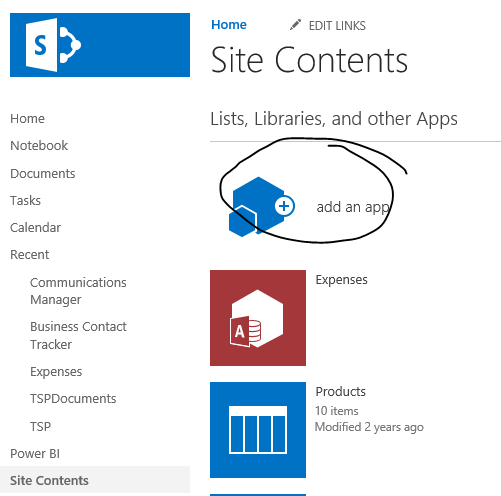
image

Then I choose Access App, and enter the title of the app I want to build.
image
I’m then greeted with a webpage that says I’ve successfully created the app.  I can start adding tables and screens in Microsoft Access on my desktop to finish the application.
image
About 7 minutes later (no seriously, I timed it), I have created my table and form, and it is now available online, via browser, for folks to start entering data –
image
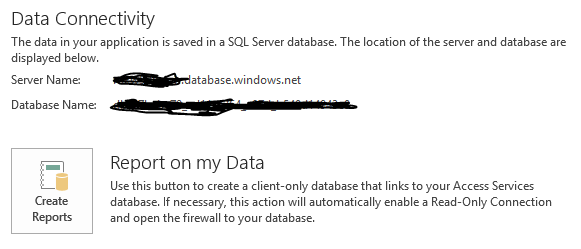
I also need to run reports.  No problem there, since if I look back in Microsoft Access on the Info tab, I am provided information around how I can connect to my database and run reports –
image
Once I’ve created the read-only connection, I can open Power BI and use the direct connect with SQL Azure functionality to connect to the database and create my dashboards and reports.  To get my connection information, I grab the details from Access for the read-only connection –
image
and then plug it into Power BI –
image
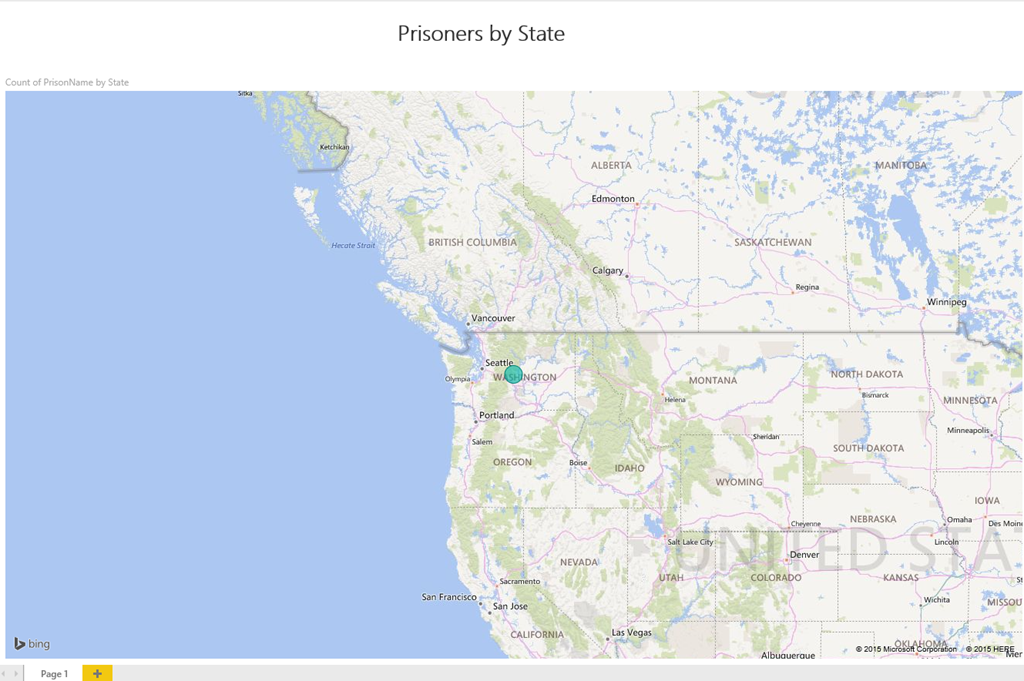
This allows me to create a report in a web browser against the dataset immediately and share it out with individuals or a group.
image
Now I can add the report to a PowerPoint slide by using some newish, built-in PowerPoint functionality (remember, I can’t use the default Snipping Tool in Windows because it isn’t in Office 365).

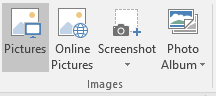
In Office 2013 and Office 2016 Preview, under the insert tab, I can insert a screenshot right from PowerPoint.
image

If I select Screenshot, I see all the open windows on my desktop, and I can simply select the Power BI browser window that’s open to insert the screenshot.  I then resize my screenshot so they can add commentary to the slide accordingly.image
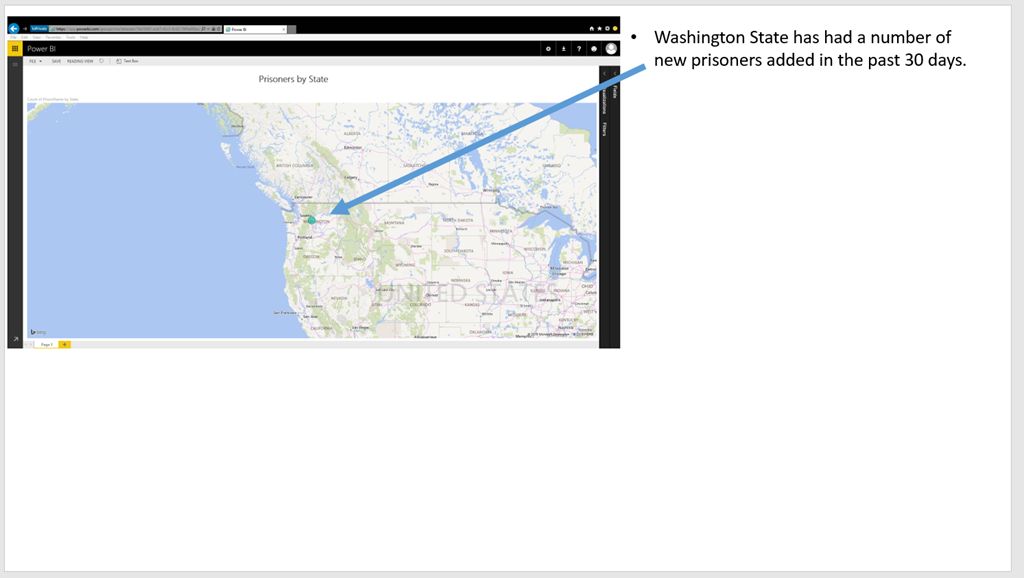
Once I’m finished my deck, I can save my PowerPoint deck either directly to an Office 365 site, or my personal OneDrive for Business site and share the file securely via a link in my web browser to approved users only.
image

Once folks get the link I send via Outlook and Exchange, they can review the deck together if they  wanted and even make the changes in real time.

So I was able to meet the goal of only using Office 365 and Power BI to complete the project.  How much more productive was I?  The amount of time I estimate it would have taken me to complete the project previously was –

– Minimum 2 weeks (336 hours) for a VM to be provisioned for this project.
– 2 hours to setup SQL server
– 1 hour to setup IIS
– 3 hours to build and test the app
– 2 hours to deploy the app to IIS and test (this never worked right away)
– 2 hours to build and test the Reporting Services reports
– 1 hours to build the slide deck and send via e-mail

So 348 hours minimum were needed to get everything done on my side, and this is assuredly being generous with the estimate.  How long did the same thing take using Office 365 and Power BI?

– 0 hours for VM setup (not required)
– 20 minutes to build, test and deploy app
– 0 hours to setup IIS
– 0 hours to setup SQL server
– 20 minutes to build report in Power BI
– 1 hours to build the slide deck and share the link for review

So I went from needing 348 hours to needing about 2 (let’s round up).  That’s a productivity improvement of over 150x!  Just think about that – this project went from something I had to do a fair amount of additional work around just to request the VM, do all the setup and configuration, etc. to something I could have back to them for the initial data entry piece within an hour of the original request.  Plus, the entire project can be done or reported on from every mobile device.  Yeah, that wasn’t a requirement for the project originally, but it certainly would be now, and that’s all included with no additional development work required on my part.

I really enjoyed doing this first post in this series – it’s easy to forget just how powerful the tools like Office 365 and Power BI are (I know I often take this stuff for granted) and how much value they bring to our customers.    I’ll do more of these now and again that I sprinkle in between my normal Datazen posts, which I know my dozens of loyal readers eagerly await each week.

Thanks for reading!

Combine Datazen dashboards with Power BI Q&A functionality

Happy Friday, everyone!

Did you know that Power BI now allows you to directly link to individual dashboards?  This got me thinking – I love the Q&A functionality in Power BI.  Could I easily put together a solution where I used Datazen for my dashboards and jumped into the Power BI service to ask additional questions?  Why yes, yes I can.  Here’s how –

For this example, we’ll use a simple Excel workbook as the data source.  But let’s leverage the capabilities of OneDrive for Business to make this solution a bit more elegant.

image

Why?  Couple reasons –

1. Power BI will automatically refresh datasets sitting in OneDrive every hour, so anytime you update your Excel data, it’ll get grabbed automatically by Power BI shortly thereafter.

2. You can leverage the OneDrive for Business sync client to save Excel files locally on your PC and have them automatically sync to other machines running the sync client.  This makes it easy to get my Excel files onto my Datazen server after I’ve installed my sync client on there – I can refresh my files locally, save them to my OneDrive folder on my PC, and they’ll show up on the Datazen server within minutes!  I could even use a tool like Power Update to automate the data refresh of my Excel files.

Let’s get started –

First, I’m going to open Datazen and draw my dashboard first so I know how I should lay out the data in my Excel workbook.

Screenshot (34)
With that done, I’m going to create my workbook from my live data source using Power Query to make sure it’s laid out the way I need.
image
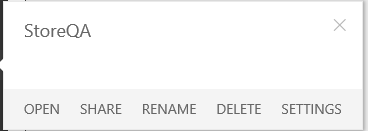
Now, I’m going to save the file to OneDrive for Business.  Once that’s done, I’m going to my PowerBI.com site and creating a new dashboard called “StoreQA”.
image
Now, I’m going to add my data to the dashboard.  So I click “Get Data”
image
Then I select “Files”
image
Now I want to select the “OneDrive for Business” tile
image
And then find the file I just saved

image
and hit “Connect”.  It’ll then bring my data into the dashboard and I can leverage Q&A with it.
image
I’m going to leave this open for now, and jump back to my Datazen Publisher App to bring in the Excel data to my Datazen dashboard.  You’ll need to setup the OneDrive for Business folder on your Datazen server as the location for the Excel data (this assumes you setup the sync agent on the box already).

image

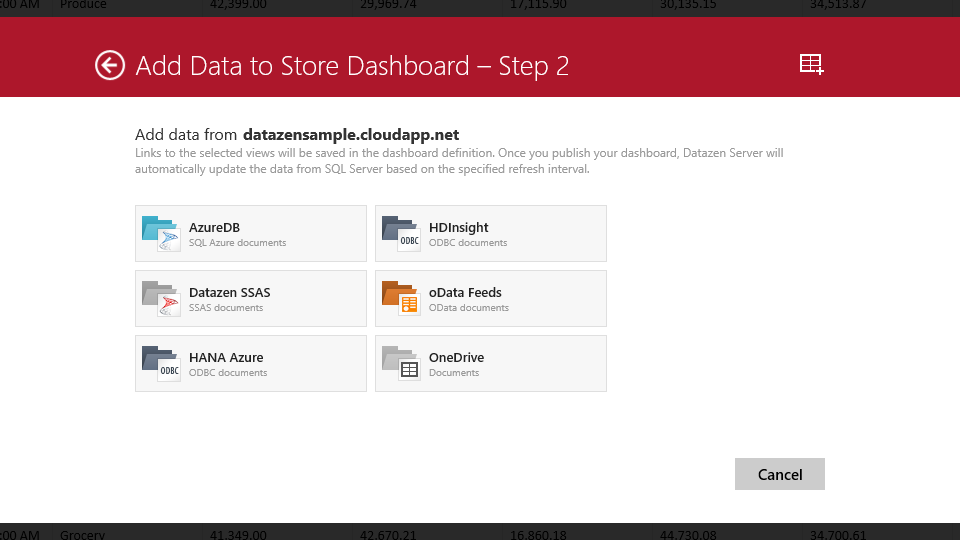
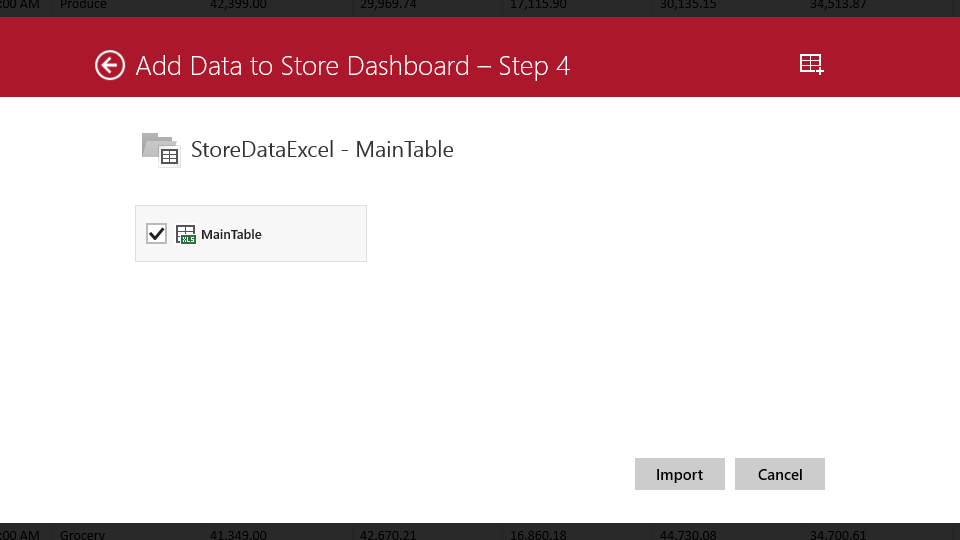
With that done, you can bring in the Excel data to your Datazen dashboard
Screenshot (35)
 Screenshot (36)
and hook back in the elements accordingly.

Screenshot (39)

Once that is done, you’ll want to create a link from the Datazen dashboard to the Q&A in Power BI for this dataset.  Go back to your browser and grab the URL for the dashboard from the address bar.  It’ll look like the example here – https://app.powerbi.com/dashboards/xxxx

To go directly to the Q&A functionality for this dashboard, just add ‘/qna’ at the end of the url, so it then looks like this – https://app.powerbi.com/dashboards/xxxx/qna
You can test it out and see how it takes you right to the question and answer area for this dashboard –
image
Simply copy that link and select an element on your dashboard you’d like to link to the Q&A piece from
image
by using the Drill-Through Target functionality to point to a custom URL
Screenshot (37)
Now when I click on the element, I get right to the Q&A page in Power BI with the same dataset so I can ask it more questions about my data
image
If you really wanted to get clever, you could even use the parameter functionality.  See how when I ask a question in Power BI, the URL changes to include the question text –

https://app.powerbi.com/dashboards/f31f7d2f-13ba-4e21-8b22-754ac62d39d7/qna?q=what%20were%20total%20sales%20for%20grocery%20by%20year

and gives me the following result

image

I can simply change it to use a parameter instead, so it would look like this –

https://app.powerbi.com/dashboards/f31f7d2f-13ba-4e21-8b22-754ac62d39d7/qna?q=what%20were%20total%20sales%20for%20{{ SelectionList01.SelectedItem }}%20by%20year

and when I run my dashboard, I can change the dropdown
Screenshot (38)

and the question will dynamically change when I click on my element with the link to Power BI!

image
Remember, you have to publish the dashboard to your server before you can test the URL drillthrough in Datazen!

And with Power BI now having the ability to setup custom links with it’s elements, you could even pin the tile for the question you just asked so you could jump back to your Datazen dashboard!

image 
Hopefully this helped open up a number of possibilities with the tools for you to explore.  Have a great weekend, and don’t forget to download the Windows 7 publisher app currently in preview from here and give it a spin.

Thanks for reading!

Drillthrough from one Datazen Map Dashboard to another dynamically

Tonight’s post came out of a conversation I had with my friend Chris here at Microsoft (yes, we’re both Chris).  I was looking to see if I could drillthrough from a map of the United States into each individual state, and see the county-level information of another Datazen dashboard.  The answer is – yes, kindof!

Why the caveat?  Because I want to dynamically have the state change based on which one I select for drillthrough.  You can’t do that by drilling from one dashboard to another inside the Datazen app.  But you can do it by using the web viewer functionality in Datazen for your lower level dashboard.  Let me show you what I did.

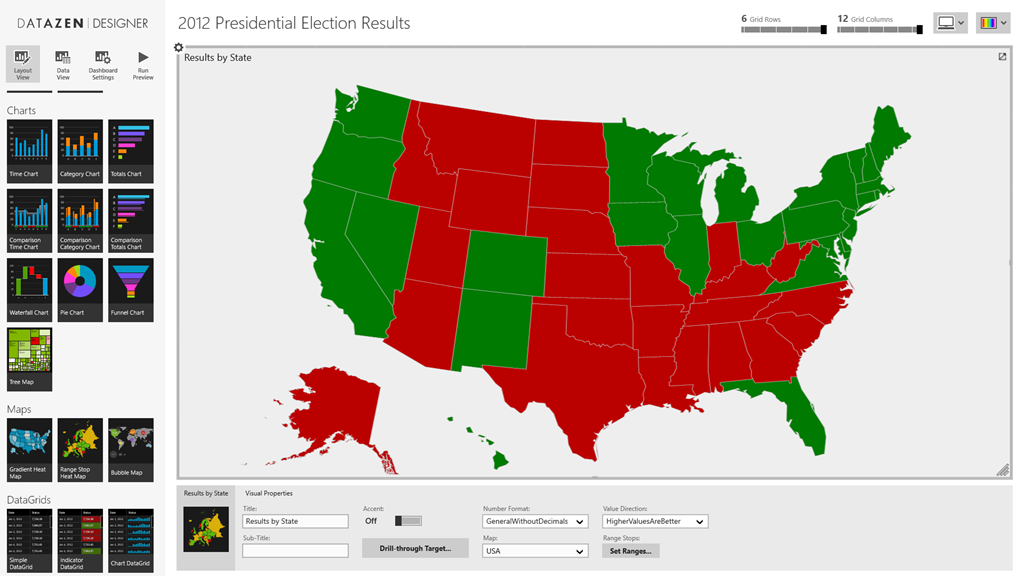
First, in the Datazen Designer, I dragged a single Range Stop Heat Map onto the canvas and renamed it accordingly.

DatazenMap

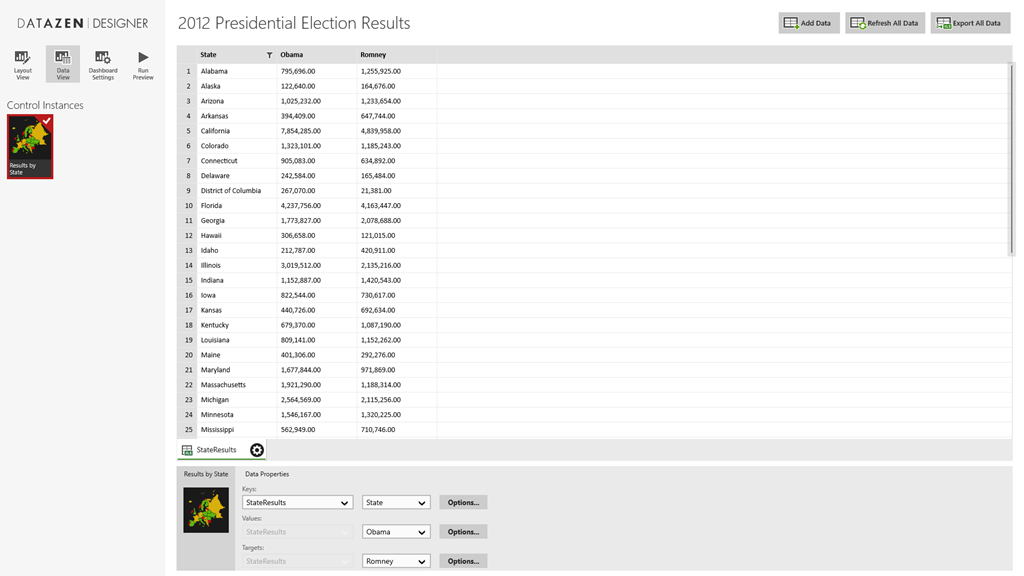
Next, I used Power Query in Excel to search online and find the state by state results for the 2012 Presidential Election.  I brought the results into an Excel file, and loaded the file into my Datazen dashboard under the “Data View” tab by choosing “Add Data” and “Local Excel File”.

Screenshot (27)
I made “Obama” the Values selection and “Romney” the Targets selection.  It doesn’t really matter which one you choose for which for this example, however.  Then I flipped back to my layout view.

I changed the range stop values to show a very narrow range for Neutral Start/Neutral End (99.98 and 99.99), so unless you had another Florida situation, you’d only see two colors for our map.  At this point, I saved it and created a new map dashboard.  But instead of using the out of the box maps, I loaded a new custom map from my local hard drive by choosing “Custom Map From File” from my map selection list.  Here I loaded the Pennsylvania map files I had (here they are if you would like to use them.  Just save them locally and extract them to somewhere on your machine – http://1drv.ms/1H1PtLp).

Screenshot (28)

Then I created a new map dashboard, doing all the same setup items I did for the map of the US.  I called it “Pennsylvania” and published it to my Datazen server.

I want everyone to see this dashboard, so I need to make it public, which is something that Datazen server supports.  To do that, I need to add a guest account to my Datazen server, and then give it rights to that dashboard.  So I add a guest Server User, like so –

image  Then I add Ol’ Guesty to my hub as a user –

image

Then I make sure I assign Sir Guest-A-Lot to my public dashboard (as you can tell, I’m kinda punchy right now).

image

Now I can link directly to this dashboard by using the following pattern as described in the Datazen documentationhttp://local.server/viewer/public/dashboard?name=DashboardName

With that complete, I can go back to my original map dashboard and set up the drillthrough to the url of this state dashboard.  Since I want it to drillthrough to the selected state, and not just Pennsylvania, I’ll use the parameter value so my url looks like this –

http://sample.cloudapp.net/viewer/public/dashboard?name={{ RangeStopHeatMap3.SelectedItem }}

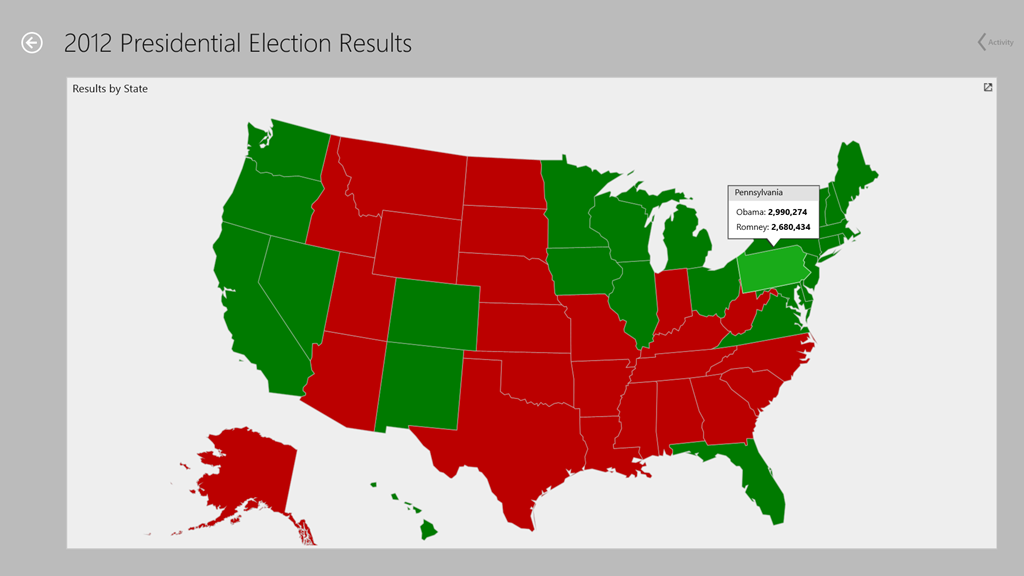
Now I publish my dashboard, and when I click on the state of Pennsylvania:

Screenshot (29)

A web browser opens up and I get this!
image

So yeah, there’s obviously the drawback I need to do this 50 times in this example.  But it DOES work (kindof), just like Chris and I discussed.

Thanks for reading!

How to use an Excel data source for KPI’s in Datazen

Happy weekend, folks.  As mentioned in the guest post I did with Rob Collie, a folder of Excel files can be used as a data source for dashboards with Datazen.  However, when it comes to KPI’s, there isn’t out of the box support to use Excel as a data source for those.  But you can still use Excel if you setup a custom data connector to do so.  One caveat with this approach – what’s we’re basically doing is allowing Datazen Server to use Excel like it would a normal SQL Server data source.  This means you’ll need to write at least some basic T-SQL statements to actually bring back data from your Excel workbook.

Assuming you know how to do that, here are the steps you need to follow to enable this –

1. You need to download and install the Microsoft Access Database Engine 2010 Redistributable (choose the AccessDatabaseEngine_x64.exe option) on your Datazen server.

2. Create a new folder named OLEDB in the following location (this assumes you setup a custom data provider with my previous post.  If you haven’t, do that first.) –

C:\Program Files\Datazen Enterprise Server\service\dataproviderschemas

image

3. Download the following file – Excel.zip and extract the XML file to the folder you just created.

image

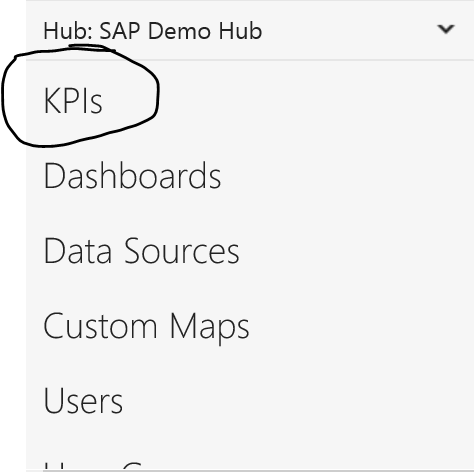
4.  Now login to your Datazen Control Panel and go to “KPIs” for the hub you want to setup with your KPIs.

image

5.  Click “Create New Group”

image

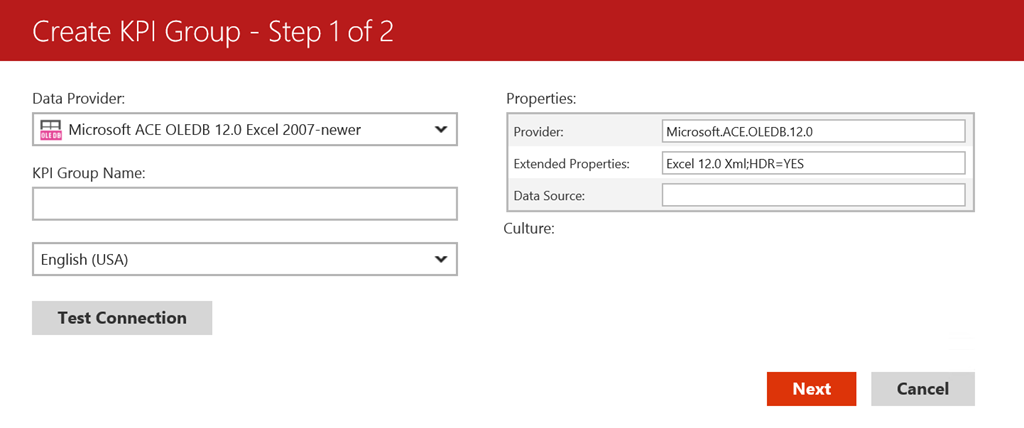
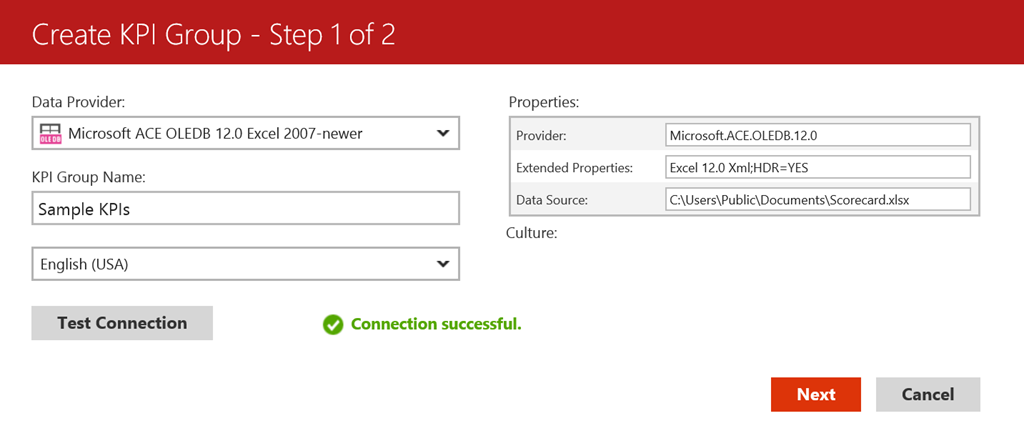
6.  You should see the new provider you setup in the previous steps listed as “Microsoft ACE OLEDB 12.0 Excel 2007-Newer” –

image

Enter a name for your KPI group, and leave the HDR=Yes item under Extended Properties if your Excel file contains a header row.  Otherwise, change it to “No”.

image

Next, in the data source area, put the file path of the Excel document you wish to you use.  Make sure it is some place the Datazen service account has access to.  Test the connection to make sure it works, and hit next if you see the “Connection Successful” message –

image

Select the groups who should have access to the data source, then hit Finish.  This will bring you back to the KPI menu with your new KPI hub showing –

image

If I click “Create New KPI”, I’m presented with the KPI Creation screen.  On the right hand side of the screen, I see my KPI Value/Goal/Status fields I can use my Excel data source for.

image

If I select the dropdown for “Value”, I can choose “Execute Query” and a “Define Query” link appears.  I need to click it to write my query –

image

Now I can write my query for this KPI Value.  The table name equates to the name of the tab in the Excel file, but you need to have a ‘$’ appended to it.  A sample query would look like this –

image

If successful, it should bring back a single result to be used with that KPI –

image

Hit ‘Update’ to save your query and return to the KPI setup screen.  You can now repeat the process for the Goal/Status/Trend Set items if you wish, or you may set any or all of those manually. 

If you want to learn more about KPI’s and how to set them up in Datazen, refer to the Datazen documentation.  Hope this was helpful, and enjoy the rest of your weekend!