An Exclusive Interview with Paginated Report Bear: The Fun Side of Reporting

Introduction

In the world of data analysis and reporting, we often get caught up in the technical aspects and overlook the fun side of things. Today, we’re excited to share an exclusive, light-hearted interview with the internet’s favorite data reporting mascot, Paginated Report Bear! Join us as we delve into the bear’s thoughts on paginated reports, Power BI, and what makes him so passionate about reporting.

The Interview

Me: Thank you for joining us today, Paginated Report Bear! Let’s start with the basics. How did you become so passionate about paginated reports?

Paginated Report Bear: Well, it all started when I stumbled upon a beautifully crafted paginated report in the woods. The way it presented the data in such a precise, pixel-perfect manner was mesmerizing. From that moment on, I knew I had found my true calling – to spread the joy of paginated reports to the world!

Me: That’s quite an inspiring story! What do you think makes paginated reports so special compared to other reporting formats?

Paginated Report Bear: Paginated reports are like a canvas for data. They allow you to design highly customizable, print-ready reports that can span multiple pages with ease. Plus, they’re perfect for handling complex data scenarios, and who doesn’t love the satisfying feeling of flipping through a beautifully formatted, multi-page report?

Me: So true! Now, we know you’re a big fan of Power BI. Can you tell us about your favorite features in Power BI for creating paginated reports?

Paginated Report Bear: Absolutely! I love how Power BI offers a seamless experience for designing paginated reports using the Power BI Report Builder. It’s packed with awesome features like Document Maps, Interactive Sorting, and Custom Pagination, which make it super easy to create dynamic, user-friendly reports. And let’s not forget the amazing Power BI community that’s always there to help and share their knowledge.

Me: You’ve definitely become an icon in the Power BI community. How does it feel to be such a beloved figure?

Paginated Report Bear: Oh, it’s truly humbling! I’m just a bear who loves paginated reports, and the fact that I can bring a smile to people’s faces while they’re working on their reports is simply heartwarming. I’m grateful for the opportunity to connect with the community and share my passion for paginated reports with everyone.

Me: Before we wrap up, do you have any tips or advice for Power BI users who are just starting to explore paginated reports?

Paginated Report Bear: Absolutely! First and foremost, don’t be afraid to experiment and try out different features – that’s how you’ll discover the true potential of paginated reports. Also, make use of the wealth of resources available online, such as tutorials, webinars, and blog posts, to enhance your skills. And remember, the Power BI community is always there to help, so don’t hesitate to ask questions and learn from fellow users. Most importantly, have fun with it!

Conclusion

We hope you enjoyed this lighthearted, exclusive interview with Paginated Report Bear! His passion for paginated reports and Power BI serves as a reminder that reporting and data analysis can be fun, engaging, and enjoyable. Keep experimenting, learning, and embracing the power of paginated reports – and don’t forget to have some fun along the way!

This blogpost was created with help from ChatGPT Pro.

Unraveling the Power of the Spark Engine in Azure Synapse Analytics

Introduction

Azure Synapse Analytics is a powerful, integrated analytics service that brings together big data and data warehousing to provide a unified experience for ingesting, preparing, managing, and serving data for immediate business intelligence and machine learning needs. One of the key components of Azure Synapse Analytics is the Apache Spark engine, a fast, general-purpose cluster-computing system that has revolutionized the way we process large-scale data. In this blog post, we will explore the Spark engine within Azure Synapse Analytics and how it contributes to the platform’s incredible performance, scalability, and flexibility.

The Apache Spark Engine: A Brief Overview

Apache Spark is an open-source distributed data processing engine designed for large-scale data processing and analytics. It offers a high-level API for parallel data processing, making it easy for developers to build and deploy data processing applications. Spark is built on top of the Hadoop Distributed File System (HDFS) and can work with various data storage systems, including Azure Data Lake Storage, Azure Blob Storage, and more.

Key Features of the Spark Engine in Azure Synapse Analytics

  1. Scalability and Performance

The Spark engine in Azure Synapse Analytics provides an exceptional level of scalability and performance, allowing users to process massive amounts of data at lightning-fast speeds. This is achieved through a combination of in-memory processing, data partitioning, and parallelization. The result is a highly efficient and scalable system that can tackle even the most demanding data processing tasks.

  1. Flexibility and Language Support

One of the most significant advantages of the Spark engine in Azure Synapse Analytics is its flexibility and support for multiple programming languages, including Python, Scala, and .NET. This allows developers to use their preferred programming language to build and deploy data processing applications, making it easier to integrate Spark into existing workflows and development processes.

  1. Integration with Azure Services

Azure Synapse Analytics provides seamless integration with a wide range of Azure services, such as Azure Data Factory, Azure Machine Learning, and Power BI. This enables users to build end-to-end data processing pipelines and create powerful, data-driven applications that leverage the full potential of the Azure ecosystem.

  1. Built-in Libraries and Tools

The Spark engine in Azure Synapse Analytics includes a rich set of built-in libraries and tools, such as MLlib for machine learning, GraphX for graph processing, and Spark Streaming for real-time data processing. These libraries and tools enable developers to build powerful data processing applications without the need for additional third-party software or libraries.

  1. Security and Compliance

Azure Synapse Analytics, along with the Spark engine, offers enterprise-grade security and compliance features to ensure the protection of sensitive data. Features such as data encryption, identity and access management, and monitoring tools help organizations maintain a secure and compliant data processing environment.

Conclusion

The Spark engine in Azure Synapse Analytics plays a crucial role in the platform’s ability to deliver exceptional performance, scalability, and flexibility for large-scale data processing and analytics. By leveraging the power of the Spark engine, organizations can build and deploy powerful data processing applications that take full advantage of the Azure ecosystem. In doing so, they can transform their data into valuable insights, driving better decision-making and ultimately leading to a more successful and data-driven organization.

This blogpost was created with help from ChatGPT Pro.

“Spider-Man, Spider-Man!” – Why the 1967 Theme Song is the Greatest TV Theme of All Time

Picture this: it’s the late 1960s, you’re a child sitting cross-legged in front of the television set, eagerly awaiting the start of your favorite show. Suddenly, the iconic tune fills the air: “Spider-Man, Spider-Man, does whatever a spider can!” Instantly, you’re captivated and transported into the thrilling world of the friendly neighborhood superhero. The theme song from the 1967 Spider-Man TV cartoon show is not only a catchy and memorable tune, but it also stands as the greatest TV theme song of all time. Bold claim? Absolutely. Allow me to passionately explain why this remarkable piece of music has earned this prestigious title.

A Timeless Melody

The Spider-Man theme song, composed by Paul Francis Webster and Robert “Bob” Harris, possesses a melody that has truly withstood the test of time. The unforgettable, upbeat tempo and energetic rhythm perfectly capture the essence of Spider-Man and his heroic adventures. The tune’s ability to transcend generations is a testament to its greatness, as fans young and old alike continue to hum, whistle, and sing along to this day.

The Lyrics: An Origin Story in a Song

One of the factors that elevate the Spider-Man theme song to unparalleled heights is the lyrics. In just a few lines, the songwriters manage to encapsulate the essence of Spider-Man’s character and his origin story. Lyrics such as “Is he strong? Listen, bud, he’s got radioactive blood!” and “Here comes the Spider-Man” are simple yet powerful, painting a vivid picture of the hero we all know and love. The lyrics serve as a reminder that Spider-Man is not only a superhero but also a relatable character with human struggles and emotions, making the song all the more endearing and impactful.

Cultural Impact and Legacy

The 1967 Spider-Man theme song has had an undeniable cultural impact, with its legacy spanning decades. The theme has been referenced, parodied, and reimagined in countless TV shows, movies, and other forms of media. Even the Marvel Cinematic Universe has paid homage to this iconic tune, with Michael Giacchino’s score for “Spider-Man: Homecoming” incorporating elements of the original theme. The song’s enduring popularity speaks volumes about its significance in pop culture and its ability to evoke nostalgia in fans of all ages.

Embodying the Spirit of Spider-Man

At its core, the 1967 Spider-Man theme song embodies the very spirit of Spider-Man. The catchy tune and clever lyrics showcase the perfect blend of humor, energy, and a touch of self-awareness that makes Spider-Man such a beloved character. It’s a song that brings out the inner child in all of us, reminding us of the days when we’d pretend to swing from building to building, fighting villains, and saving the day.

Conclusion

In conclusion, the theme song from the 1967 TV cartoon show “Spider-Man” is undeniably the greatest TV theme song of all time. Its timeless melody, succinct storytelling through lyrics, and massive cultural impact have solidified its place in the hearts and minds of fans worldwide. In the pantheon of great TV themes, “Spider-Man” stands tall, swinging triumphantly above the rest. So, let’s all continue to sing along with pride: “In the chill of night, at the scene of a crime, like a streak of light, he arrives just in time. Spider-Man, Spider-Man, friendly neighborhood Spider-Man!”

This blogpost was written with assistance by ChatGPT Pro.

Harnessing the Power of Azure Synapse Spark and Power BI Paginated Reports: A Comprehensive Walkthrough

In today’s data-driven world, organizations seek to harness the vast potential of their data by combining powerful technologies. Azure Synapse Spark, a scalable data processing engine, and Power BI Paginated Reports, a robust report creation tool, are two such technologies that, when combined, can elevate your analytics capabilities to new heights.

In this blog post, we’ll walk you through the process of integrating Azure Synapse Spark with Power BI Paginated Reports, enabling you to create insightful, flexible, and high-performance reports using big data processing.

Prerequisites

Before we begin, ensure you have the following set up:

  1. An Azure Synapse Workspace with an Apache Spark pool.
  2. Power BI Report Builder installed on your local machine.
  3. A Power BI Pro or Premium subscription.

Step 1: Prepare Your Data in Azure Synapse Spark

First, you’ll need to prepare your data using Azure Synapse Spark. This involves processing, cleaning, and transforming your data so that it’s ready for use in Power BI Paginated Reports.

1.1. Create a new Notebook in your Synapse Workspace, and use PySpark, Scala, or Spark SQL to read and process your data. This could involve filtering, aggregating, and joining data from multiple sources.

1.2. Once your data is processed, write it to a destination table in your Synapse Workspace. Ensure that you save the data in a format compatible with Power BI, such as Parquet or Delta Lake.

Step 2: Connect Power BI Paginated Reports to Azure Synapse Analytics

With your data prepared, it’s time to connect Power BI Paginated Reports to your Azure Synapse Analytics.

2.1. Launch Power BI Report Builder and create a new paginated report.

2.2. In the “Report Data” window, right-click on “Data Sources” and click “Add Data Source.” Select “Microsoft Azure Synapse Analytics” as the data source type.

2.3. Enter your Synapse Analytics server name (your Synapse Workspace URL) and database name, then choose the appropriate authentication method. Test your connection to ensure it’s working correctly.

Step 3: Create a Dataset in Power BI Report Builder

Now that you’re connected to your Synapse Workspace, you’ll need to create a dataset in Power BI Report Builder to access the data you prepared earlier.

3.1. In the “Report Data” window, right-click on “Datasets” and select “Add Dataset.”

3.2. Choose the data source you created earlier, then write a query to retrieve the data from your destination table in Synapse Workspace. You can use either SQL or the Synapse SQL provisioned pool for this task. Test the query to ensure it retrieves the data correctly.

Step 4: Design Your Power BI Paginated Report

With your dataset ready, you can start designing your Power BI Paginated Report.

4.1. Drag and drop the appropriate data regions, such as tables, matrices, or lists, onto the report canvas.

4.2. Map the dataset fields to the data region cells to display the data in your report.

4.3. Customize the appearance of your report by applying styles, formatting, and conditional formatting as needed.

4.4. Set up headers, footers, and pagination options to ensure your report is well-organized and professional.

Step 5: Test, Export, and Share Your Report

The final step in the process is to test, export, and share your Power BI Paginated Report.

5.1. Use the “Preview” tab in Power BI Report Builder to test your report and ensure it displays the data correctly

5.2. If you encounter any issues, return to the design view and make any necessary adjustments.

5.3. Once you’re satisfied with your report, save it as a .rdl file.

5.4. To share your report, publish it to the Power BI Service. Open the Power BI Service in your browser, navigate to your desired workspace, click on “Upload,” and select “Browse.”

5.5. Upload the .rdl file you saved earlier, and wait for the publishing process to complete.

5.6. After your report is published, you can share it with your colleagues, either by granting them access to the report in the Power BI Service or by exporting it to various formats, such as PDF, Excel, or Word.

Conclusion

By combining the processing power of Azure Synapse Spark with the flexible reporting capabilities of Power BI Paginated Reports, you can create insightful, performant, and visually appealing reports that leverage big data processing. The walkthrough provided in this blog post offers a step-by-step guide to help you successfully integrate these two powerful tools and unlock their full potential. As you continue to explore the possibilities offered by Azure Synapse Spark and Power BI Paginated Reports, you’ll undoubtedly uncover new ways to drive your organization’s data-driven decision-making to new heights.

This blogpost was created with help from ChatGPT Pro.

The Mystery of the Lost Scooby-Doo Episode: When Kareem Abdul-Jabbar Met D.B. Cooper

For decades, Scooby-Doo fans have whispered about the existence of a long-lost episode featuring a crossover with NBA legend Kareem Abdul-Jabbar. The mysterious episode is said to have explored the enigmatic case of D.B. Cooper, the unidentified man who hijacked a Boeing 727 in 1971 and vanished into thin air. Although the episode was never aired, tantalizing hints in the form of newspaper clippings and television news broadcasts from the 1970s have kept the legend alive. Now, we’ve pieced together a comprehensive account of the episode’s plot and the reasons behind its disappearance. Grab your Scooby Snacks, and let’s unravel this mystery!

Rumored Title and Plot Synopsis

Supposedly titled, “Scooby-Doo and the Skyjack Slam Dunk”, the episode begins with The Mystery Inc. gang receiving an invitation from Kareem Abdul-Jabbar to join him at his charity basketball game. Upon their arrival, they learn that Kareem has been receiving mysterious letters from someone claiming to be the infamous D.B. Cooper. The letters challenge Kareem and the gang to solve the mystery of his true identity.

The game is held in a small town near the site of Cooper’s legendary skyjacking. While exploring the area, the gang stumbles upon a long-abandoned cabin deep in the woods. Inside, they discover a trove of clues pointing to the possible identity of D.B. Cooper, including a tattered parachute and a briefcase full of cash.

As they piece together the evidence, the gang encounters a series of spooky apparitions, including a ghostly figure who seems to be D.B. Cooper himself. With Kareem’s help, Scooby and the gang unmask the “ghost” and reveal him to be a local conman trying to cash in on the legend.

In the end, the gang deduces that the real D.B. Cooper had died in the wilderness after his daring escape. Kareem thanks Mystery Inc. for their help, and they all celebrate with a sky-high slam dunk.

Why the Episode Never Aired

According to the New York Times article dated September 12, 1973, the episode was slated for release during the fall season. However, the FBI intervened, citing concerns that the episode would make light of a serious criminal case and potentially inspire copycat crimes. As a result, the episode was pulled from the schedule and locked away in the Hanna-Barbera vaults.

In addition to the New York Times article, several other sources have made passing references to the lost episode:

  1. Los Angeles Times, July 7, 1973: An article about the upcoming season of Scooby-Doo mentioned the Kareem Abdul-Jabbar crossover episode as a highlight.
  2. The Washington Post, August 27, 1973: A report on popular culture’s fascination with D.B. Cooper briefly mentioned the upcoming Scooby-Doo episode.
  3. CBS Evening News, October 10, 1973: A segment on the FBI’s involvement in television programming cited the Scooby-Doo episode as an example of government censorship.

Conclusion

While the lost episode of Scooby-Doo featuring Kareem Abdul-Jabbar and the D.B. Cooper mystery may never see the light of day, the intrigue surrounding it has only grown over the years. These tantalizing clues from the past have fueled the imaginations of fans and mystery enthusiasts alike, making “Scooby-Doo and the Skyjack Slam Dunk” one of the most enigmatic episodes in television history.

This April Fools Post was written in part by ChatGPT Pro

So, You Want to Be an Azure Synapse Spark Wizard? A Beginner’s Guide to Conjuring Data Magic

Greetings, noble data explorers! Are you ready to embark on a perilous journey into the mystical realm of Azure Synapse Spark? Fear not, for I shall be your humble guide through this enchanted land where data is transformed, and insights emerge like a phoenix from the ashes.

Azure Synapse Spark, the magical engine behind Azure Synapse Analytics, is the ultimate tool for big data processing, machine learning, and other sorcerous activities. In this enchanting blog post, I shall bestow upon you arcane knowledge that will aid you in your quest to become an Azure Synapse Spark wizard. So grab your wand (or keyboard), and let’s begin!

  1. Enter the Synapse Workspace

Before you can begin your spellcasting journey, you must first venture into the Synapse Workspace. This mystical chamber is where all your Azure Synapse Analytics resources are stored and managed. To gain entry, you’ll need an Azure account – the modern-day equivalent of a wizard’s enchanted scroll.

  1. Summon the Azure Synapse Spark Pool

Once inside the Synapse Workspace, you must summon the Azure Synapse Spark pool by navigating to the “Apache Spark pools” tab and clicking on “New.” As the portal to the magical realm opens, you’ll be asked to provide a name, size, and other mysterious properties for your Spark pool. Choose wisely, for these decisions may impact the power and performance of your spells.

  1. Conjure a Notebook

Now that you have created your Azure Synapse Spark pool, it’s time to conjure a magical notebook. These enchanted tomes will hold the spells (or code) you cast to tame the wild data beasts lurking within. To create a notebook, navigate to the “Develop” tab, click on “+” and then “Notebook.”

  1. Choose Your Wizarding Language

A wise wizard once said, “The language you choose defines the spells you can cast.” In the land of Azure Synapse Spark, you have three primary wizarding languages at your disposal: PySpark, Spark SQL, and Scala. Each language possesses unique incantations and charms, so select the one that best suits your mystical needs.

  1. Channel the Power of the Data Lake

As a budding Azure Synapse Spark wizard, you must learn to harness the raw power of the Data Lake. This vast reservoir of knowledge contains all the data you’ll need for your magical experiments. To access it, you must create a Data Lake Storage account and then link it to your Synapse Workspace. Once connected, you can import your data from the Data Lake into your enchanted notebook.

  1. Cast Your First Spell

Now, with the Data Lake’s power coursing through your veins (or notebook), you’re ready to cast your first spell. Begin by writing a simple incantation (or code) to read data from your Data Lake Storage account. As the data materializes before your very eyes, marvel at your newfound powers.

  1. Unleash the Magic of Data Transformation

With your data in hand, it’s time to weave your magic and transform it into insightful, actionable knowledge. Use your wizarding language of choice to cast spells that filter, aggregate, and manipulate the data to reveal hidden patterns and insights. Remember, practice makes perfect, and as you grow more experienced, your spells will become more potent and powerful.

  1. Share Your Wizardry with the World

A true Azure Synapse Spark wizard never hoards their magical knowledge. Instead, they share their wisdom and insights with fellow adventurers. Once you’ve conjured a captivating story from your data, export your notebook to a PDF or HTML file, and share your tale with your colleagues, friends, or the entire realm (or company). Bask in the glory of your newfound wizardry as you empower others with your illuminating discoveries.

Congratulations, intrepid data explorer! You have successfully navigated the mystical realm of Azure Synapse Spark and taken your first steps towards becoming a true data wizard. As you continue to hone your skills and delve deeper into the enchanted world of big data, machine learning, and analytics, always remember the immortal words of Albus Dumbledore, “It is our choices, [data wizards], that show what we truly are, far more than our abilities.”

So go forth, brave wizards, and let your magical Azure Synapse Spark journey be filled with curiosity, wonder, and the occasional giggle. After all, there’s nothing quite like a well-timed data pun to lighten the mood during your most intense spellcasting sessions.

This blogpost was created with help from ChatGPT Pro.

Mastering Paginated Reports in Power BI: Tips and Tricks for Success

Power BI is a powerful tool that enables users to create interactive reports and visualizations to facilitate data-driven decision making. One of the key features of Power BI is the ability to create paginated reports. These reports, also known as ‘pixel-perfect’ or ‘SQL Server Reporting Services (SSRS) reports,’ provide a high level of control over report layout and formatting, making them perfect for generating invoices, official documents, or detailed data tables that need to span multiple pages.

In this blog post, we’ll explore several tips and tricks that will help you create professional and efficient paginated reports in Power BI.

  1. Plan your report layout

Before diving into Power BI, take a moment to plan your report layout. Consider the information you need to display and how it should be presented. This will ensure a more efficient design process and will help you avoid making unnecessary changes later on.

  1. Use Power BI Report Builder

To create paginated reports, you’ll need to use Power BI Report Builder. This standalone desktop application is specifically designed for creating paginated reports and provides a familiar SSRS environment. You can download the Power BI Report Builder from the Power BI website.

  1. Set up data sources and datasets

Once you’ve opened Power BI Report Builder, you’ll need to set up data sources and datasets. To do this, go to the “Report Data” window, right-click “Data Sources,” and click “Add Data Source.” After connecting to your data source, create a dataset by right-clicking “Datasets” and selecting “Add Dataset.” This process will allow you to access the data in your report.

  1. Use tables, matrices, and lists wisely

Paginated reports offer a variety of data regions, including tables, matrices, and lists. Each data region has its own unique capabilities:

  • Tables: Use tables for displaying data in a simple row and column format.
  • Matrices: Use matrices to show aggregate data, especially when you need to display row and column groupings.
  • Lists: Use lists to create free-form reports with varying data layouts.

Choose the appropriate data region based on your report’s requirements to ensure an efficient and organized layout.

  1. Leverage expressions for dynamic content

Expressions are a powerful way to create dynamic content in your paginated reports. You can use expressions to:

  • Concatenate fields
  • Format dates and numbers
  • Calculate totals and averages
  • Implement conditional formatting

Learn the basics of expression syntax and familiarize yourself with the available functions to unlock the full potential of your paginated reports.

  1. Utilize headers and footers

Headers and footers are essential for adding context and professionalism to your reports. Use them to display important information such as page numbers, report titles, and company logos. Headers and footers can also contain dynamic content using expressions, making them even more versatile.

  1. Manage page breaks and pagination

Controlling page breaks and pagination is crucial for ensuring a clean and well-organized report. Use the “Page Break” property in the properties window to control the placement of page breaks within your report. Additionally, you can use the “PrintOnFirstPage” and “PrintOnLastPage” properties to control the visibility of report items on the first and last pages.

  1. Preview and test your report

Always preview and test your report to ensure that it meets your requirements and displays correctly. This will help you identify any issues or discrepancies early in the design process, saving you time and effort in the long run.

Conclusion

Creating paginated reports in Power BI can be a rewarding experience when armed with the right knowledge and tools. By following the tips and tricks outlined in this blog post, you’ll be well on your way to mastering paginated reports and creating professional, efficient, and visually appealing documents. Remember to plan your layout, use the appropriate data regions, leverage expressions, and test your report thoroughly. By doing so, you’ll not only impress your colleagues and clients with your Power BI skills but also make data-driven decision-making more accessible and efficient for your organization. So, go ahead and unlock the full potential of Power BI paginated reports, and take your reporting capabilities to the next level!

This blogpost was generated by ChatGPT Pro as an experiment to see the level of quality it would generate.

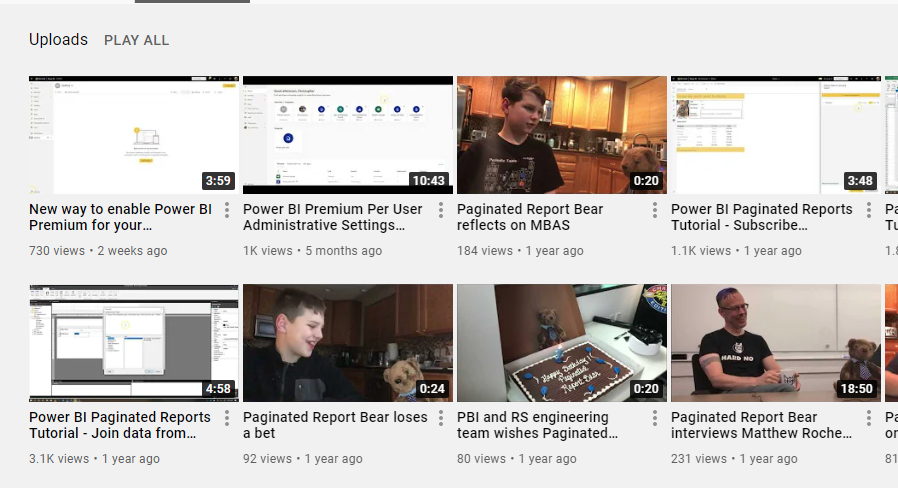
Be sure to check out my YouTube channel!

I know it’s been quite some time since I’ve posted on here, and while I hope to start to post more regularly here, you can always find me posting regularly on my YouTube channel. And by regularly I mean “More than once a year” :).

It’s focused on Power BI and paginated reports, along with some other neat items I’ll sometimes focus on (like Premium per user!).

Make sure you check it out if you haven’t had the chance to do so – Chris Finlan’s YouTube channel

Thanks for reading everyone!

Happy birthday, Paginated Report Bear!

20190606_022241354_iOSpadgie

Paginated Report Bear turns 1 year old today.  He wasn’t expected to last more than a few weeks.

20190405_043319215_iOS

For those of you who aren’t familiar with Paginated Report Bear, my friend Chris Webb described him as follows – “Well, he’s the breakout social media star of 2019, a furry YouTube sensation whose incisive interviews of members of the Power BI development team have become renowned for their deep technical content and insights into the Power BI roadmap. If you’re not watching his videos on YouTube, you’re missing out.”

20190609_152624000_iOS

If you watch the very first video that “Padgie” did 1 year ago today, Chris’s description seems EXTREMELY generous.  The production quality was very low, and Mr. Matthew (my son) couldn’t even say “Paginated Reports”.  Why even do videos with a bear in the first place?  You see, my son had for some time wanted to do a YouTube video series with me where his stuffed animals would be included.  They had been granted various personalities and voices throughout the years by yours truly, and these characteristics have carried over to the videos.  I decided to rename “Mickey” to “Paginated Report Bear” because he was the lovable but dumb one, and I thought the name sounded ridiculous.  And since my (naïve) assumption was we’d do a few of these videos during my vacation, and my son would get tired of doing them, that would be that.  And that almost happened – there wasn’t any videos for a month from December to January, and I figured that was the end of it.

20181127_162925342_iOS20190722_160008289_iOS

Then something strange happened – not only did my son want to do more, but some members of the Power BI community seemed to actually ENJOY the videos.  He was featured on Guy in a Cube, he was mentioned on the BiFocal podcast, and he was a hit at the MVP Conference in March (he even got an MVP pin!).  It was then that we decided to have him start interviewing members of the product team, starting with Lukasz back in April, and the rest is history.

20190609_212520198_iOS20190610_141332035_iOS

But the biggest achievement of Paginated Report Bear is the one he’s taught my kids as they’ve watched their dad carry a cheap stuffed bear purchased from EBay to conferences across the country just so people can take a selfie with him – you can do something different, or be different, and be successful in your career and in life.  That means a lot, and shows the broad Power BI community can have an impact outside of the day to day product details.

20190610_122939172_iOS20190610_194931190_iOS

So thank you, and I look forward to what the future has in store for Paginated Report Bear in the year ahead!

20190612_024209056_iOS20190703_173803591_iOS

Free sample Power BI paginated report – Ultimate Export Report available for download

I recently came across an interesting article on MSSQLTips for SQL Server Reporting Services that showed how you could use a T-SQL query as the parameter value, and have it return a table of data as the result set from that query.  (The original article is here, and I will fully admit that all I did was take this author’s idea (and that of one of the commenters) and stick it into this sample report  – https://www.mssqltips.com/sqlservertip/5757/create-dynamic-ssrs-reports-using-a-query-as-an-input-parameter/ ). I wanted to see if this worked for Paginated Reports in Power BI, and of course it does!  So once I put in my connection string information for my Azure SQL database (the original article was against a traditional SQL Server database), I can write just about any select query against that database as a parameter at runtime and get back results in a nice table that can be exported out to Microsoft Excel.  I created a short video to show you how it works in practice –

Now there’s little chance I’d use this report as is in production – it’s really just a way for me to test some things, dump out data quickly, and it demos nicely.  But there are some ways you could potentially change this to make it more production friendly – have a list of dropdown values that represent the queries that you update on an ongoing basis, or even allow users to submit queries through a workflow you approve that updates the parameter list.

If you’d like to try it out yourself, feel free to download the sample report –

Ultimate Export Report

Once downloaded, you’ll need to update the data source with your connection string to whatever database you’ll use this against in Power BI Report Builder before you can use it in the service, but once you do that, you should be good to go.

image

Thanks for reading!