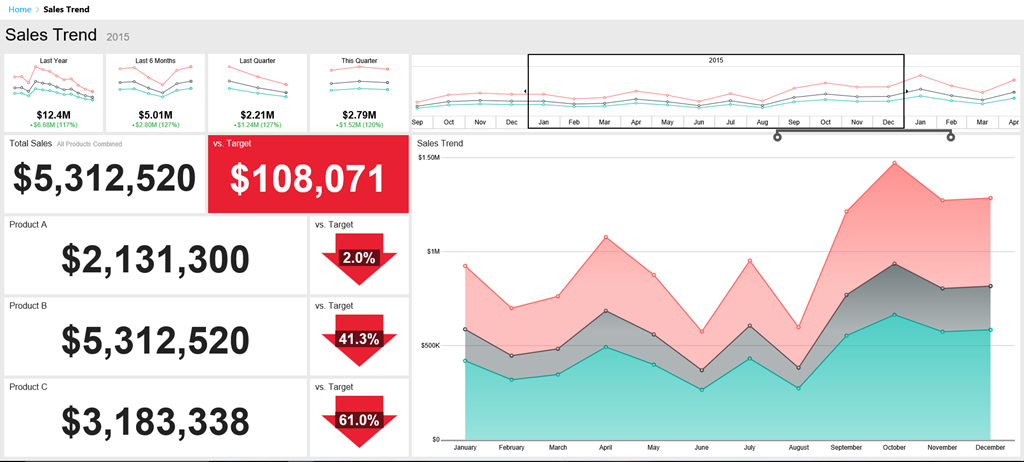
Using Datazen with Plus One to visualize your social media data

image

The idea for this post came from having spent the last year or so playing with a app called Plus One.  Check out their site to learn much more about it, but in short, it’s an app you download onto your desktop, enter the keywords you want to search across different social networks (Twitter, Facebook, etc.), and get back the results.    And in the FAQ, it states – “You are not limited to just the reports found within Plus One Social.  Because we store the data in a friendly desktop database, Microsoft Access, you can connect your favorite self serve bi tool . . .

Naturally, I wanted to see if Datazen would work with Plus One, which meant I had to do a few things I hadn’t done before to get started –

– Install the Plus One application on Windows Server and
– Use Microsoft Access as a data provider

Installing Plus One is pretty straightforward – you go to this link, enter in your information, and they’ll send you the download link.  Download and install the app on the Windows Server you’re running Datazen on, and the Plus One icon will appear on the desktop.

image

This next part is tricky – BEFORE you try to open the app, you have to install two Access ACE ODBC drivers.  If you try to do it before that, you’ll get an error message.  The problem is, Datazen requires the 64-bit ODBC driver, while Plus One requires the 32-bit driver.  So how do we work around this?

1. Follow the instructions in this blog post to install the driver and setup the data source that Datazen needs.  However, use this data provider schema file as opposed to the one in the post because you need to leverage Access as your data source, not Excel.

2. Once that’s done, install the 32-bit Access Driver from here.  It’s from the 2007 version of Office, so there’s only one item to download and install.  That should allow you to open Plus One Social to get started.

Open the app now, and you’ll see the search bar where you can enter your search terms.  I’m going to do a search for Twitter data related to Datazen (surprise, surprise), so I type in datazen.
image

I’m asked to authorize the app on my Twitter Account (you need accounts with the different social networks you want to search across)image

I authorize the app, and it grabs the results from Twitter.  It’ll then go and grab the last seven days of tweets (Plus One is limited to one week of data, so you’ll need to save it on a rolling basis to keep older data), and I can even setup an auto-refresh to get the latest data.
image
Now that I’ve got my Twitter data, I want to view it in Datazen.  The default Access database sits in the following folder location on the machine –

C:\Users\UserName\Documents\Plus One Social\PlusOneDB.accdb

If you were to open the file in MS Access, you’d see five tables with data – Hashtags, Mentions, Messages, Queries, and Users.  You can now write SQL queries against those tables in the Datazen server to pull back the data you need for your dashboard(s).  Let’s do one together.

I’ve got the Microsoft Access data provider all setup
image

I want to see what platform people are using on my dashboard, whether it’s iOS, Android or something else.  So I’m going to write a simple case statement query to bring back the results.  Something like this –

SELECT Source = CASE WHEN Messages.Source like ‘%iPad%’ THEN ‘iOS’ When Messages.Source like ‘%iPhone%’ THEN ‘iOS’ WHEN Messages.Source like ‘%Android%’ THEN ‘Android’ ELSE ‘Other’ END,
Count(Messages.MessageID) AS CountOfMessageID
FROM Messages
Group By CASE WHEN Messages.Source like ‘%iPad%’ THEN ‘iOS’ When Messages.Source like ‘%iPhone%’ THEN ‘iOS’ WHEN Messages.Source like ‘%Android%’ THEN ‘Android’ ELSE ‘Other’ END

Except I get an error –
image

The issue here is you have to write the SQL Query like you would in Access, when doesn’t use case statements.  It does use switch statements, so I try that instead –

SELECT Switch (Messages.Source like ‘%iPad%’, ‘iOS’, Messages.Source like ‘%iPhone%’, ‘iOS’, Messages.Source like ‘%Android%’, ‘Android’,True, ‘Other’ ) as Source, Count(Messages.MessageID) AS CountOfMessageID
FROM Messages
GROUP BY Switch (Messages.Source like ‘%iPad%’, ‘iOS’, Messages.Source like ‘%iPhone%’, ‘iOS’, Messages.Source like ‘%Android%’, ‘Android’, True, ‘Other’ )

image
And that works without issue.  I went ahead and created seven different queries in total –
image
and set them up to refresh every hour, making sure I set it to run 10 minutes after I know my refresh on Plus One will finish.
image
With that all setup, it was easy to create my dashboard (thanks to Datazen) and always stay on top of our social media activity.  This was the end result –
image

Thanks for reading!

Respect my security – A primer on Datazen user authentication

Almost every customer conversation I’ve had around Microsoft Business Intelligence the past few years has had part of it devoted to a conversation around security.  This isn’t my favorite topic to cover off on.  It’s a little like going to the dentist – that isn’t my favorite thing to do either (even though I truly like my dentist). 

But security (and visiting the dentist) are still very important, so I want to use today’s post to spend some time explaining what Datazen can (and can’t) do when it comes to each of the authentication options it supports  –

Datazen Authentication (default) – ah, good ol’ Datazen Authentication.  The preferred authentication option for demo server builds everywhere.  This is the easiest option to setup, and easiest for everyone to understand.  You create a user on the server, they get a link to reset their password, and all the credentials are assigned (and stored) on the Datazen server.

When should you use this – if you read the Security Best Practices in the Datazen documentation, your answer would be never.  But there are some legitimate reasons where it probably makes sense for you to use this authentication scheme –

– It’s a test/development server or a quick proof of concept.
– You’re looking for the simplest setup possible to start using Datazen.  You can invite users just by using their e-mail address.
– You have a scenario where you are servicing external users who wouldn’t be in a domain to leverage Active Directory.
– You’re a long haired hippie who likes to let their hair down and live on the wild side, not worried that the Datazen server could be used as an attack vector.

Far out man – classic authentication!

Okay, forget that last point.

Windows Authentication –

This option is the one that most people will probably end up leveraging when it comes to Datazen.  It’s also the one that generates the most confusion – let’s see if I can’t clear that up a bit.

Generally, people assume when they setup users in this scenario, the Datazen server is communicating with the domain controller during that process to validate them.  It doesn’t – you could create bozotheclown@microsoft.com as the username, and Datazen will show a success message when you finish user creation. 

image
Wait a minute . . .

Datazen doesn’t check the users in the domain until someone actually attempts to login as that user – it does a check against the users in the domain and makes sure it matches.  If it can’t find the user in both the Datazen server AND the domain, it’ll fail.  This is why you can’t leverage Active Directory user groups – Datazen wants to find a 1:1 match.

So the time saving benefit around user setup that you’re expecting to get using a Windows authentication vs. Datazen authentication doesn’t exist from an admin perspective.  (Saying this was an oft-requested feature enhancement people are looking for is an understatement.)  It also doesn’t change the way the users have to authenticate when they are hitting the service from an app – the first time they connect to a Datazen server, they still have to enter a username/password.  It’ll be their network password, sure, but it’s the same experience as Datazen authentication for them.

The only place a single sign-on experience can be enabled for them is in a web browser.  This is true for both WinAD AND for ADFS – the app experience will ALWAYS require entering a username and password the first time you connect to a Datazen server (at least for now, anyways).

So why use Windows Authentication?
– No passwords stored on the Datazen server
– Looking to enable Analysis Services row-level security
– You’re integrating Datazen into a SharePoint site or custom app, and want an improved user experience when they use the dashboards in that context (no additional login page).
– You don’t want IT to yell at you, or you are IT and Windows Authentication is the standard security option for this type of application.

ADFS (Active Directory Federation Service)

This is where the dentist drill is at full-bore for me. Setting up ADFS is not for the faint of heart, and I’m not going into the weeds on that or in any other post on this blog (ever). If you want to see the process from start to finish, this blog post does that wonderfully.


”Oh, please don’t worry. I’m not going into that cavity.”

However, this is the most secure option if you have ADFS already setup in your organization. It will ensure no user credentials are stored on the server, but you still need to go through the user setup on the Datazen server. It also offers some additional options for the security team, like using a smart card to login to the Datazen server.

However, and without getting into the sordid details of why, Single Sign-On doesn’t work with that type of login security scenario. Should it work? Yes, it should, but it doesn’t. It’s something that will be addressed by the team as we move forward with the product.

External authentication

This option works in the opposite manner of Windows Authentication – a user’s username and password is checked first against an external source, then looks for a match on the username stored in the Datazen server.  You have to be careful when using this method because –

– You’re assuming the username and password are checked.  If that isn’t setup properly, it’s a massive security hole you’ve potentially enabled.
– The mobile apps don’t work with it.  It was designed for web-only scenarios.
– You can’t make changes to the server when you are running in external authentication.  You need to switch to another authentication method, make your changes, and then switch it back.

I’ve not run into a customer yet using this setup, so I’m curious to hear from folks on how they’re using it in their organizations.

Whew – now that our visit to the dentist is over, hopefully you have some more clarity around the different user authentication options in the product.  The team is fully aware of the limitations I’ve called out in this post, and we’re committed to improving these options as the product is fully integrated into the Microsoft platform.

Render unto Datazen – a solution for rendering issues

In the latest server build (which I spoke about here last week), some users were running into issues with the Datazen rendering service.  In plain English, it just means they weren’t seeing their dashboard thumbnails properly in the web browser or client apps.  We’ll be tweaking the server install slightly to make sure this doesn’t occur for anyone, but if you have an issue prior to that being updated, there is a simple fix for this.

In your Datazen server file explorer, navigate to the following folder –

C:\Program Files\Datazen Enterprise Server\renderer\svc

Copy the ‘Microsoft.IdentityModel.dll’ file –
image
Paste it into the following folder –

C:\Program Files\Datazen Enterprise Server\renderer\viewer

You can then restart the Datazen Server rendering service on your server –

image
And your days of rendering issues should be over (if you were having any to begin with, that is).

New Datazen Server Build Brings some MDX Magic

Oh, how I’ve waited for this day.  Finally, the days of handwriting MDX queries in Datazen server are over for me.  Thanks to the latest server update, the server can now handle MDX generated from a tool like SQL Server Management Studio or SQL Server Report Builder.  Not only that, I have additional control over the field names and field types when the query results are returned.  Let me show you how it works using SSMS – Right-Click on your database and select browse – image The handy Model browser comes up where I can drag and drop my fields from my model and build my query. image I’ll bring in Country Region Name and State Province Name from Geography plus Internet Total Sales from my Measures.  My results are returned like so – image Now I want to get the query that generated by this to use with Datazen.  I can simply toggle off Design mode by clicking this button in the toolbar – image And my query text appears – image I’m going to copy this text and switch over to my Datazen control panel and paste this query as a new data view under my SSAS data sourceimage Before today’s update, when I hit next, this query wouldn’t work.  It would just bring back a blank result set.  But now, a couple things now happen.  The first one is, a new screen appears in the wizard – image I now have the ability to change the display name, the data types being returned from the data source, and exclude certain fields from the result set.  This gives me a lot of flexibility I didn’t have previously.  So I’ll change my display name to the following – image I hit next and Whammo (that was for Mike Gannotti) – the query not only works, it is all cleaned up and ready for my Datazen dashboards – image This is great news for folks who love Datazen, but don’t love handwriting their MDX queries.  And the new abilities to change the display name, data type and field list is there for all datasets, not just SSAS.  So SQL Server customers, grab the new server build of Datazen and take advantage of this great new functionality. Thanks for reading!

Combine Datazen dashboards with Power BI Q&A functionality

Happy Friday, everyone!
Did you know that Power BI now allows you to directly link to individual dashboards?  This got me thinking – I love the Q&A functionality in Power BI.  Could I easily put together a solution where I used Datazen for my dashboards and jumped into the Power BI service to ask additional questions?  Why yes, yes I can.  Here’s how –

For this example, we’ll use a simple Excel workbook as the data source.  But let’s leverage the capabilities of OneDrive for Business to make this solution a bit more elegant.

image

Why?  Couple reasons –

1. Power BI will automatically refresh datasets sitting in OneDrive every hour, so anytime you update your Excel data, it’ll get grabbed automatically by Power BI shortly thereafter.

2. You can leverage the OneDrive for Business sync client to save Excel files locally on your PC and have them automatically sync to other machines running the sync client.  This makes it easy to get my Excel files onto my Datazen server after I’ve installed my sync client on there – I can refresh my files locally, save them to my OneDrive folder on my PC, and they’ll show up on the Datazen server within minutes!  I could even use a tool like Power Update to automate the data refresh of my Excel files.
Let’s get started –

First, I’m going to open Datazen and draw my dashboard first so I know how I should lay out the data in my Excel workbook.

Screenshot (34)
With that done, I’m going to create my workbook from my live data source using Power Query to make sure it’s laid out the way I need.
image
Now, I’m going to save the file to OneDrive for Business.  Once that’s done, I’m going to my PowerBI.com site and creating a new dashboard called “StoreQA”.
image
Now, I’m going to add my data to the dashboard.  So I click “Get Data”
image
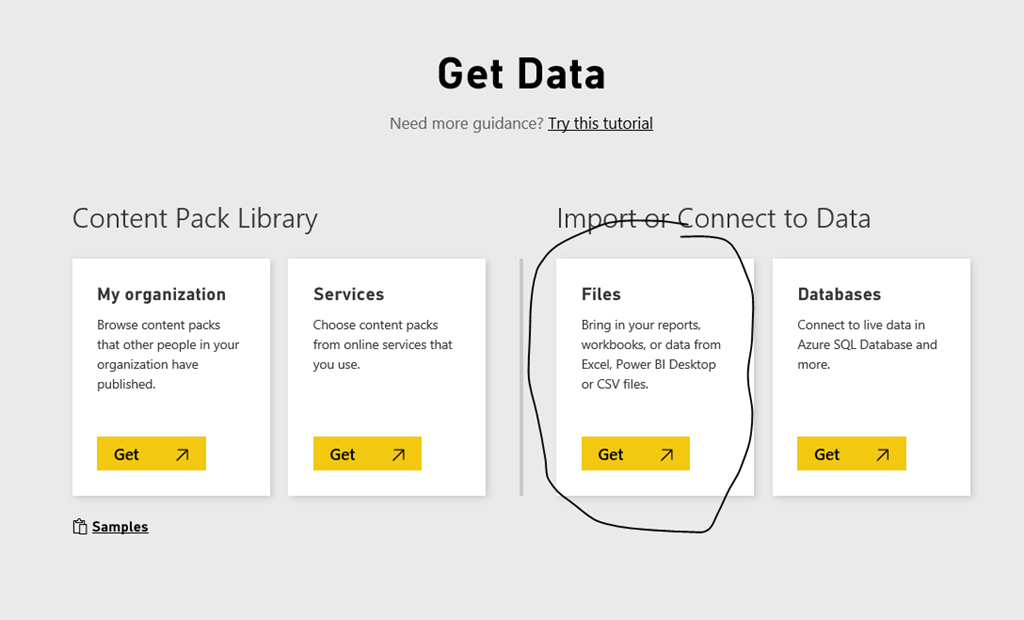
Then I select “Files”
image
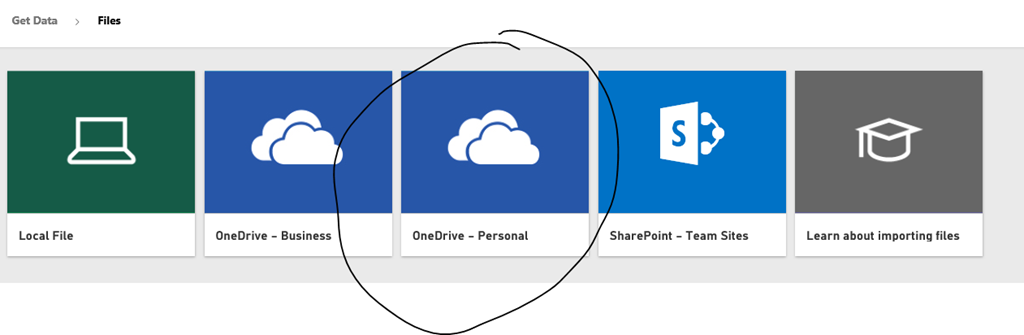
Now I want to select the “OneDrive for Business” tile
image
And then find the file I just saved

image
and hit “Connect”.  It’ll then bring my data into the dashboard and I can leverage Q&A with it.
image
I’m going to leave this open for now, and jump back to my Datazen Publisher App to bring in the Excel data to my Datazen dashboard.  You’ll need to setup the OneDrive for Business folder on your Datazen server as the location for the Excel data (this assumes you setup the sync agent on the box already).

image

With that done, you can bring in the Excel data to your Datazen dashboard
Screenshot (35)
 Screenshot (36)
and hook back in the elements accordingly.

Screenshot (39)

Once that is done, you’ll want to create a link from the Datazen dashboard to the Q&A in Power BI for this dataset.  Go back to your browser and grab the URL for the dashboard from the address bar.  It’ll look like the example here – https://app.powerbi.com/dashboards/xxxx

To go directly to the Q&A functionality for this dashboard, just add ‘/qna’ at the end of the url, so it then looks like this – https://app.powerbi.com/dashboards/xxxx/qna
You can test it out and see how it takes you right to the question and answer area for this dashboard –
image
Simply copy that link and select an element on your dashboard you’d like to link to the Q&A piece from
image
by using the Drill-Through Target functionality to point to a custom URL
Screenshot (37)
Now when I click on the element, I get right to the Q&A page in Power BI with the same dataset so I can ask it more questions about my data
image
If you really wanted to get clever, you could even use the parameter functionality.  See how when I ask a question in Power BI, the URL changes to include the question text –

https://app.powerbi.com/dashboards/f31f7d2f-13ba-4e21-8b22-754ac62d39d7/qna?q=what%20were%20total%20sales%20for%20grocery%20by%20year

and gives me the following result

image

I can simply change it to use a parameter instead, so it would look like this –

https://app.powerbi.com/dashboards/f31f7d2f-13ba-4e21-8b22-754ac62d39d7/qna?q=what%20were%20total%20sales%20for%20{{ SelectionList01.SelectedItem }}%20by%20year

and when I run my dashboard, I can change the dropdown
Screenshot (38)

and the question will dynamically change when I click on my element with the link to Power BI!

image
Remember, you have to publish the dashboard to your server before you can test the URL drillthrough in Datazen!

And with Power BI now having the ability to setup custom links with it’s elements, you could even pin the tile for the question you just asked so you could jump back to your Datazen dashboard!

image 
Hopefully this helped open up a number of possibilities with the tools for you to explore.  Have a great weekend, and don’t forget to download the Windows 7 publisher app currently in preview from here and give it a spin.

Thanks for reading!

Extraordinary Things

Welcome back!

Before I jump into the meat of the post, a quick note of interest to many of you – the Windows 7 Publisher App from Datazen is now available for public preview.  You can download it and try it out today at this link – http://www.datazen.com/start

This post is a little different than the previous posts on this blog.  I’m writing this in the Microsoft office in Malvern on a rainy Saturday.  It’s the last time I’ll sit in this office in my role as a Technology Solutions Professional for the Mid-Atlantic.  I truly loved this job, and the coworkers and customers I got to meet and work with these last couple years made it a truly special place and time in my career.

But why am I leaving a role I so enjoyed?  It can be traced back to an hour-long meeting I had when I was still at SAP in April 2013.  That was the day I first met with the team from Datazen.  Not sure why I saved a copy of this appointment, but I’m glad did.
DatazenImg
From that day until now, I have worked very closely with them, and in my role here at Microsoft, I watched customer after customer smile from ear to ear when I’ve shown them Datazen.  And when the opportunity to work with them and the rest of the Power BI team presented itself,  I jumped at the chance to work with such a talented and passionate group of individuals.  And that’s why I’m at the office on a Saturday – I’m waiting for prospective home buyers to finish looking through my house, since I’m headed to the Redmond campus starting this summer.

One of my favorite motivational speeches was one that Jim Valvano gave in 1987 to the Million Dollar Round Table.  This particular section is my favorite –

I get pumped up every time I watch that clip, because it speaks perfectly to how I try to do my job, as I’m sure it does for a lot of people reading this.  I consider myself one of the ordinary people he speaks about, who has accomplished some extraordinary things thanks in large part to Microsoft’s tools and technology, from LightSwitch to Power BI to Datazen.  And I’ve seen that same thing happen at customer after customer during my time here.  I’m thrilled to be joining the team and working with all of you to continue that proud tradition going forward.  And I’m also excited to get back in my house – I’m dying to take a nap.  Smile 

Thanks for reading!

How to enable user activity reporting on your Datazen dashboards

One of the common questions that has come up around Datazen is folks wanting to see some basic information around their dashboard usage.  While there isn’t anything like that available on Datazen server right now, there is a way you can setup the collection of some simple metrics on each dashboard.  Let’s walk through how you do it.

You’ll need to setup a table on a SQL Server instance (or Azure SQL Database is a great option, and what we used for this example) to collect the metrics.  The table will have just a few fields – ActivityId, ActivityDate, ActivityDashboard, and ActivityUserName (I’ll provide the SQL scripts I used for this as part of a zip file you can download at the end of this post).

image

Once you’ve created the table, you need a way to insert the data coming in from your Datazen dashboards.  We’ll use a simple stored procedure that runs each time someone opens a dashboard.  You need to make sure the procedure also includes a simple select statement after your stored procedure executes.  I’ll explain why in a little bit –

image

Once that’s done, switch over to your Datazen server instance and add this SQL instance as a new data source.

image

Here’s where the magic happens – you’ll want to add the stored procedure as a query, and this needs to be a real-time data connection.  You’ll also need to make sure you are passing through the parameters from Datazen that you need to capture.  So you’ll first add a new parameter from the ‘Define Parameters’ link highlighted here –
imageSetup a parameter for your Dashboard Name and assign a default value that will appear when a user is entering the dashboard design screen for that dashboard.  This allows you to determine who might have made changes to a dashboard, for example.  Here’s what I chose –

image
Once complete, I’ll now enter my query text and make sure I’ve checked the ‘Personalize for each member’ option.  This will give me the ability to capture the username for each user and pass that as a parameter.  Here’s my final result –

image
Notice I added single quotation marks around the username parameter, and also used curly brackets around each parameter I am passing back to the stored procedure.  It won’t work properly if you don’t do that.

I hit finish to save this information, and I now have the following in my list of data queries.  It was successfully setup, but I don’t have the ability to preview the data like I do with other queries I’ve created.  That’s okay, as long as you have the successful status message like I’ve highlighted here. 

image

To test this out, I go into my Datazen publisher app and create a brand new dashboard with a single widget.  It doesn’t matter which one, be creative!
Screenshot (30)

Once complete, you now can add the data source you created earlier to the dashboard.  Here’s where you see the results of the query that runs in the stored procedure.  Datazen has to have a result set returned for the data view to be added to the dashboard, which is why we had to have the query included  –

Screenshot (31)To make sure you properly now capture the dashboard name, you need to click the Param. selection under the gear in the data source tab to bring up the selection screen.

Screenshot (32)

Then type in the dashboard name as the default value that gets passed back to the SQL table.
Screenshot (33)
Hit Apply and run a preview of your dashboard.  If you check your table in SQL Server, you’ll see the resulting record has been inserted into the table.

image
You notice you don’t need to hook it into any of your dashboard widgets for this to work, and this will work for any dashboard you setup and publish to your Datazen server. 

Now you can view a simple report (maybe even in another Datazen dashboard!) that shows you the user activity for each of the dashboards you’ve added this data view to, including the time, username and dashboard name.  It also opens up a number of possibilities for you to fire off other events every time a user opens a dashboard that I’ll explore in future posts.

Here is a zipped file of the SQL scripts I used for this post – http://1drv.ms/1TbMVPN

Special thanks to Christopher Moncayo for his help with this post.

Shape of the Union or Free Datazen Maps!
This blog post will be short, but hopefully valuable for everyone.  I’ve included a link to a zip file at the end of this post containing all the US states and some variations on the continental US you might find valuable (4 region view, 9 region view, etc.)

It’s easy to add these to your server and make them available in your dashboards.  To do so, go to the Datazen hub you wish to add the new map shape to and click “Custom Maps” on the left-hand navigation bar –

image 
Then click “Upload Map Shape” to open a new dialog and select the files you wish to upload –

image
image
Once you’ve uploaded them, you’ll have access to them whenever you select any map object in your designer screen by selecting “Custom Map from Datazen Server” in the dropdown.  You’ll be prompted through a few screens to select the map you want to use.

Screenshot (1)

Screenshot (5)

Screenshot (3)

Screenshot (4)

Now you have your new map in your dashboard!

Here is a link to the files for you to download and use – http://1drv.ms/1FOAwXL

Enjoy!

How to use Visual Studio LightSwitch oData feeds with Datazen and Azure

In the most painfully overdue blog post ever, considering my love of all things LightSwitch and Datazen, I finally sat down and consumed an oData feed I generated from a LightSwitch project I published to Microsoft Azure to use in a Datazen dashboard.  It’s really pretty simple, and I’m kicking myself for not doing it before.  Anyways, here’s how you do it –

1. If you don’t have the foggiest idea what Visual Studio LightSwitch is, you can read more about it here.  It’s a fantastic tool for building rapid line-of-business applications for the desktop and mobile web apps.  Plus, it’s available in the community edition of Visual Studio 2013, which is free for individual developers!

2. You need an app you are going to deploy and use the data feed from.  Beth Massi has an excellent walkthrough (including a link to a sample app you can use) of how you can deploy a LightSwitch App to Azure.  It’s very easy to do, and this is a great option to make your app available for Datazen to consume.

3.  Once published, LightSwitch exposes the different data sources as easily consumable data feeds via oData, which happens to be one of the data sources that Datazen consumes out of the box with either anonymous or basic authentication.  You could also create a custom data provider that used more advanced authentication options.  To learn more about what oData is, you can read about that here.

So I published a simple app and put in some sample data to use with my Datazen Server –

image

Now, how do I setup Datazen server to use this feed as an oData source?  Well, this confused me the first time I did it, so let’s go through it –

Login to your Datazen server as the admin, and choose the hub you wish to add this feed as a new data source for. 

image  

Now add a new data connection –
image

This is where you might get tripped up.  Unlike every other data source listed, you don’t actually enter the data connection string at this point.  You give your data source a name, choose the authentication method (and enter your credentials), hit next to setup permissions for the feeds, then hit finish.

image

If you try and put in the URL as the data connection name, it doesn’t save it, so it looks like the oData data source doesn’t actually work.  Once you’ve saved the data connection details, you’ll see a new folder appear in you folder/data connections list –

image 
Now, you click the folder name, and click the new data view button to add your first oData feed.

image

Here, you can now enter the url in the OData view URL area that you wish to consume.

image
Hit next then success, the feed is there and working!

image
This gives you an easy way to visualize your data from your LOB app using your Datazen on your favorite mobile device.  It also opens up a number of options around filtering your data prior to bringing it into Datazen using the entity set filter options with LightSwitch.

Thanks for reading!

Drillthrough from one Datazen Map Dashboard to another dynamically

Tonight’s post came out of a conversation I had with my friend Chris here at Microsoft (yes, we’re both Chris).  I was looking to see if I could drillthrough from a map of the United States into each individual state, and see the county-level information of another Datazen dashboard.  The answer is – yes, kindof!

Why the caveat?  Because I want to dynamically have the state change based on which one I select for drillthrough.  You can’t do that by drilling from one dashboard to another inside the Datazen app.  But you can do it by using the web viewer functionality in Datazen for your lower level dashboard.  Let me show you what I did.

First, in the Datazen Designer, I dragged a single Range Stop Heat Map onto the canvas and renamed it accordingly.

DatazenMap

Next, I used Power Query in Excel to search online and find the state by state results for the 2012 Presidential Election.  I brought the results into an Excel file, and loaded the file into my Datazen dashboard under the “Data View” tab by choosing “Add Data” and “Local Excel File”.

Screenshot (27)
I made “Obama” the Values selection and “Romney” the Targets selection.  It doesn’t really matter which one you choose for which for this example, however.  Then I flipped back to my layout view.

I changed the range stop values to show a very narrow range for Neutral Start/Neutral End (99.98 and 99.99), so unless you had another Florida situation, you’d only see two colors for our map.  At this point, I saved it and created a new map dashboard.  But instead of using the out of the box maps, I loaded a new custom map from my local hard drive by choosing “Custom Map From File” from my map selection list.  Here I loaded the Pennsylvania map files I had (here they are if you would like to use them.  Just save them locally and extract them to somewhere on your machine – http://1drv.ms/1H1PtLp).

Screenshot (28)

Then I created a new map dashboard, doing all the same setup items I did for the map of the US.  I called it “Pennsylvania” and published it to my Datazen server.

I want everyone to see this dashboard, so I need to make it public, which is something that Datazen server supports.  To do that, I need to add a guest account to my Datazen server, and then give it rights to that dashboard.  So I add a guest Server User, like so –

image  Then I add Ol’ Guesty to my hub as a user –

image

Then I make sure I assign Sir Guest-A-Lot to my public dashboard (as you can tell, I’m kinda punchy right now).

image

Now I can link directly to this dashboard by using the following pattern as described in the Datazen documentationhttp://local.server/viewer/public/dashboard?name=DashboardName

With that complete, I can go back to my original map dashboard and set up the drillthrough to the url of this state dashboard.  Since I want it to drillthrough to the selected state, and not just Pennsylvania, I’ll use the parameter value so my url looks like this –

http://sample.cloudapp.net/viewer/public/dashboard?name={{ RangeStopHeatMap3.SelectedItem }}

Now I publish my dashboard, and when I click on the state of Pennsylvania:

Screenshot (29)

A web browser opens up and I get this!
image

So yeah, there’s obviously the drawback I need to do this 50 times in this example.  But it DOES work (kindof), just like Chris and I discussed.

Thanks for reading!