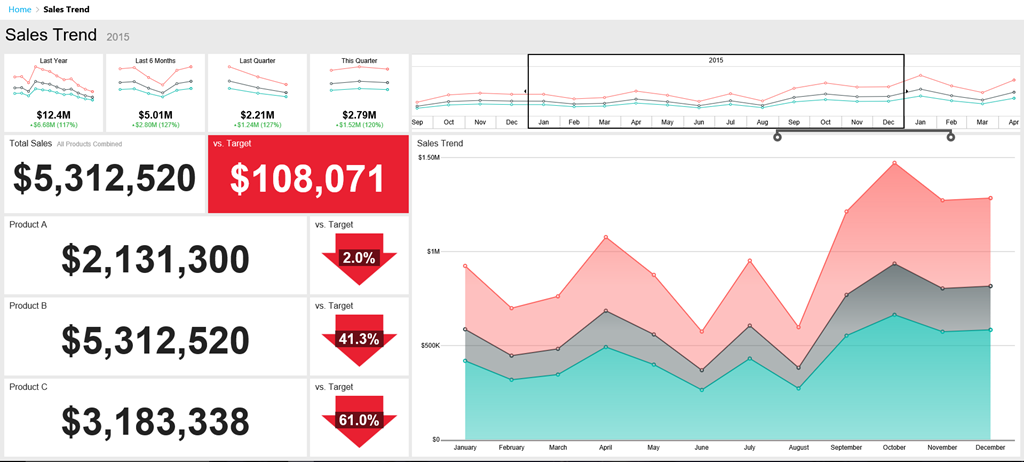
SQL Server 2016 Mobile Reports – Free Maps of the Week, Part 4

image

Hi all!

Another week, another set of free maps for SQL Server 2016 Reporting Services Mobile Reports.  Use the links below to download the zipped map files.  You’ll need to unzip them and follow the directions here to use them in your mobile reports.

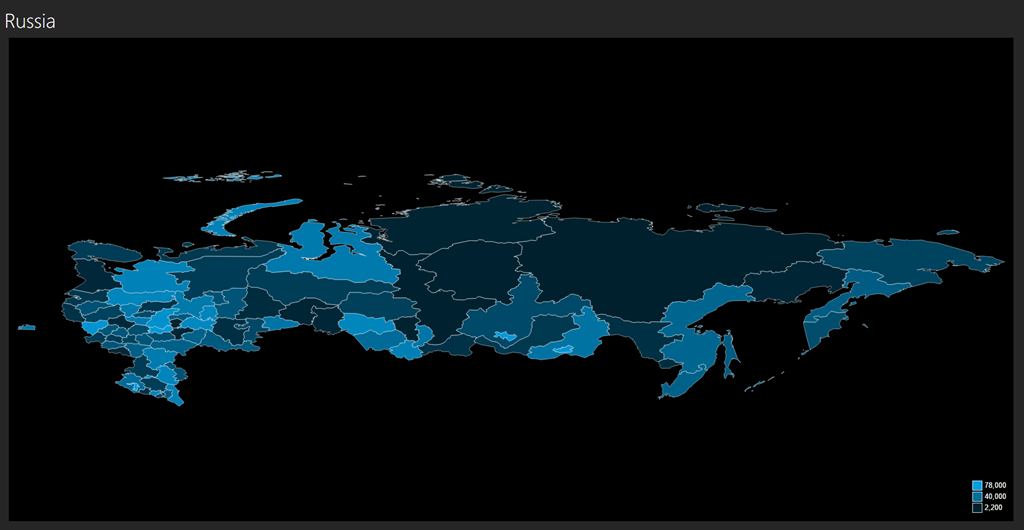
Russia – Download
Croatia – Download
Finland – Download
Japan – Download
New Zealand – Download
Norway – Download
Pakistan – Download
India – Download

Remember, these maps aren’t officially supported by Microsoft in any way.  I’m working my way through even more, so look for an even larger list of maps being made available next week.  Thanks!

SQL Server 2016 Mobile Reports – Free Maps of the Week, Part 3

image

Hi everyone – once again, I have a new set of free maps I’ve pulled together to share with all of you as we celebrate the official release of SQL Server 2016.

Use the links below to download the zipped map files.  You’ll need to unzip them and follow the directions here to use them in your mobile reports.

Cayman Islands – Download
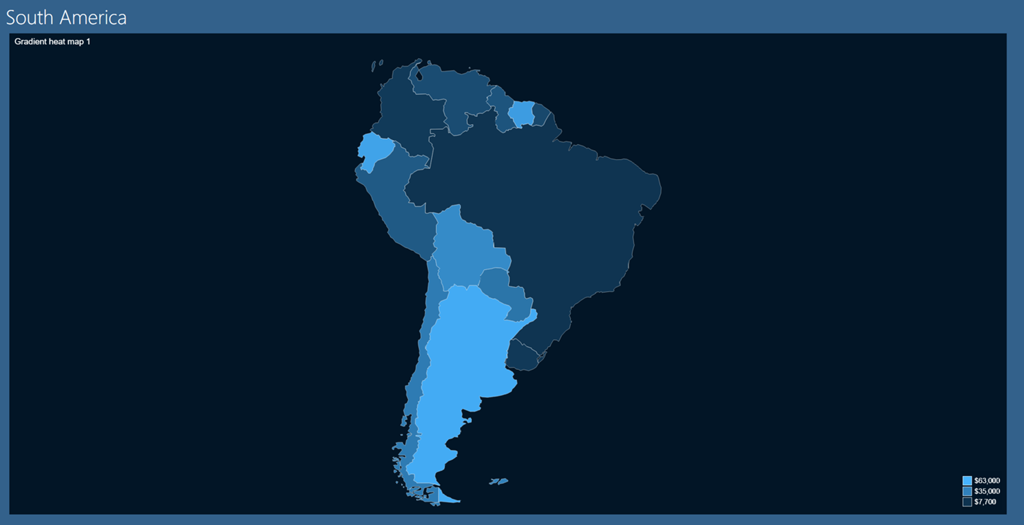
South America – Download
Ukraine – Download
Micronesia – Download
Jamaica – Download
Hong Kong – Download

Remember, these maps aren’t officially supported by Microsoft in any way.  This blog series seems to be fairly popular regardless, so look for even more next week.  Thanks!

Free Sample Mobile Reports for SQL Server 2016 Reporting Services

image

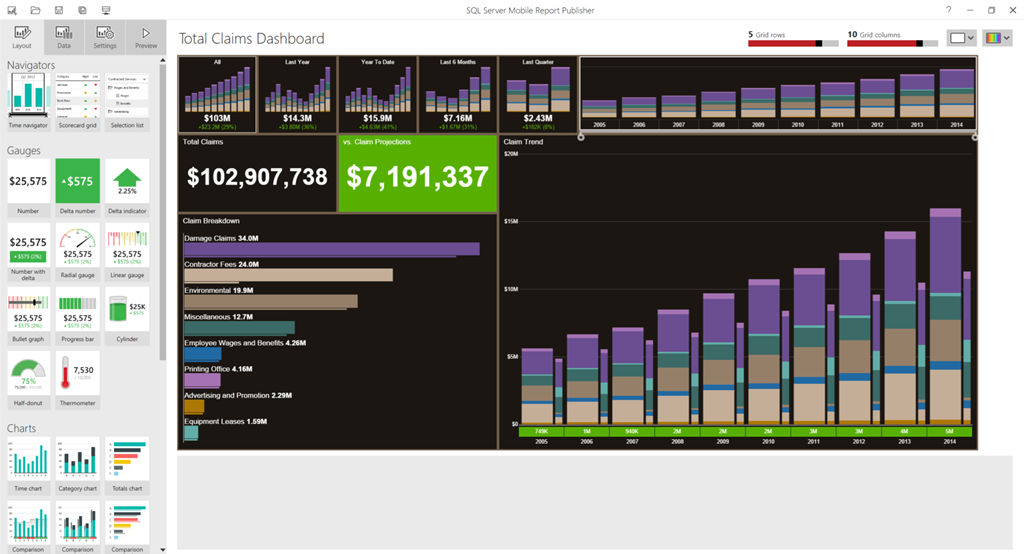
Hi all – I was hoping to get to this over the weekend, since I know a number of folks were looking for some sample mobile report files they could use as a starting point for building new reports in SQL Server 2016 Reporting Services.  While we weren’t able to include any sample files as part of the Mobile Report Publisher install, I do have some sample files I use that I’m happy to share with you to use as you’d like.  Just download the zip file, open one of them in Mobile Report Publisher and you have a great starting point for your own mobile report(s).

The usual disclaimer applies that these samples aren’t officially supported by Microsoft in any way.

Sample Mobile Reports – Download

Enjoy, and I’ll have more sample map files available for you later this week.

SQL Server Mobile Reports – Free Maps of the Week, Part 2

image

Hi everyone – as promised last week, I have a new set of free maps I’ve pulled together to share with all of you as we get even closer to the GA of SQL Server 2016.

Use the links below to download the zipped map files.  You’ll need to unzip them and follow the directions here to use them in your mobile reports.

World Countries – Download
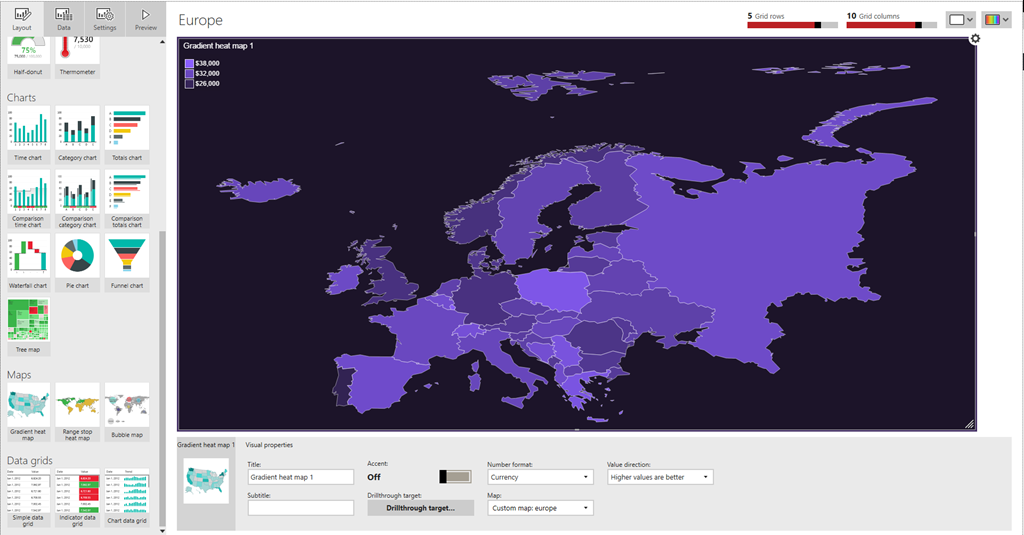
Europe – Download
Bosnia-Herzegovina – Download
Bulgaria – Download
Spain – Download

Remember, these maps aren’t officially supported by Microsoft in any way.  But if you find these helpful, be sure to check back next week for even more free maps.  Have a great rest of your holiday weekend (well, if you’re in the US, anyways)!

SQL Server Mobile Reports – Free Maps of the Week

image

Hi all – hopefully, you’re as excited as I am about the upcoming GA of SQL Server 2016 on June 1 and with it, the brand new version of Reporting Services.  We’re finishing up the official release of the Mobile Report Publisher as well, and with that in mind, I wanted to introduce a new blog series I’m doing here.  I’ve taken the time to put together some custom map files you can use for your mobile reports.  I’ll post the files here each week or so.  These will be free for you to download/share, use or repurpose however you’d like.  I’ll post more as I get more created – these maps aren’t officially supported by Microsoft in anyway, so keep that in mind as you download and use them.   I just thought you might find them valuable, and frankly, I needed to do a new blog post.  It’s been awhile.

Use the links below to download the zipped map files.  You’ll need to unzip them and follow the directions here to use them in your mobile reports.

Africa – Download
Argentina – Download
Asia – Download
China – Download

Thanks for reading, and enjoy the free maps.  Be sure to keep following this blog to grab more maps in the future!

How to use custom thumbnails with Mobile Reports in SQL Server 2016

Happy Sunday folks!

In the new Reporting Services web portal, you see thumbnails for each of the mobile reports you’ve published to the server.  Well, here’s a neat hack that allows you to update your mobile reports with custom thumbnails.  Keep in mind, the normal disclaimer applies around the fact it isn’t officially supported and if you break something, you’re on your own, etc.

1. Download the latest version of the Mobile Report Publisher
2. Create your mobile report
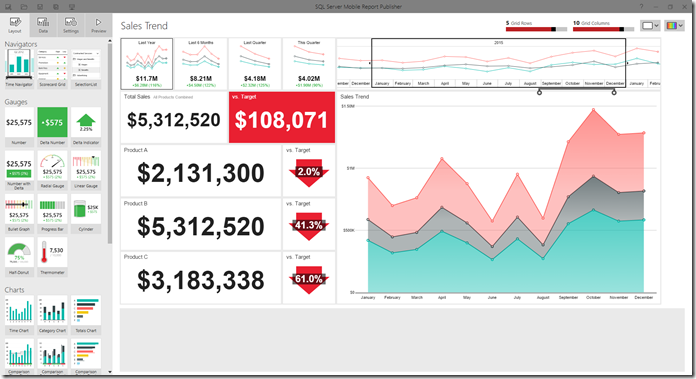
image
3. Save it locally vs. publishing it the server.  It doesn’t matter if you use either Excel data or shared datasets from your server.

image

4.  Find the file location where you saved it locally.image

Now change the file extension from .rsmobile to .zip

image

5.  Double-click on the .zip file to view the contents
image

You’ll see two image files called thumbnail.png and thumbnail-phone.png that look like the following and were generated when I first created this report.  These are the files you’ll want to replace, and you can replace one or both of them.
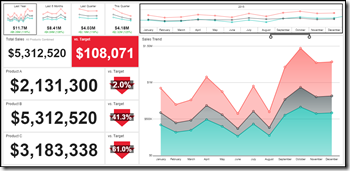
image        thumbnail-phone

6. Now, pick new images to use.  They need to be named the same as the ones with the file, and need to be in the .png format.  Ideally, they’ll have the same dimensions as the default files, which are –

thumbnail.png file – 1150×555
thumbnail-phone.png file – 550×825

That isn’t a requirement for this to work, but it does mean your pictures might look a little distorted if they don’t match.

I chose one of my son’s favorite stuffed animal to use as the new thumbnail.png file.

portrait

Once I saved the file and renamed it, I simply dragged it into the still zipped folder and answered yes when prompted to overwrite the existing file.  You see it has replaced the existing file, and the file size has increased significantly.  Something else to be aware of if you do this for multiple files.

image

Now, I can rename the file extension back to .rsmobile and then upload the file to my Reporting Services server.
image

image

Once uploaded, it will automatically recognize it is a mobile report based on the file extension, and put it in the right category in the portal.

image

I’ll also now see the new thumbnail I added to the file in place of the one generated by the Mobile Report Publisher.image

Here’s how it looks in My Favorites
image

And when I click the report tile, the report still renders as I’d expect in the browser:
image

One thing to keep in mind – if I were to edit this report and re-publish or upload it, new thumbnails will get generated and overwrite the custom one(s) I added to the file.  So I’d have to do this each time I make changes to the report and re-save it.  That’s why this is a hack though, right?  🙂

Hopefully you enjoy this and have some fun playing around with this concept.  Have a great week!