Row level security options for Mobile Reports in SQL Server 2016

image

Welcome back!

With the latest release candidate of SQL Server 2016 now available for download, let’s take some time to review some options you have to implement row-level security for Mobile Reports.  These options can also be used for paginated reports in Reporting Services, so you don’t have to do the same work twice.

If you’re using SQL Server 2016 (or Azure SQL database) as your data source, you can take advantage of the new, built-in row-level security functionality.  My colleague, Patrick LeBlanc, does an excellent job walking you through how to get this setup in SQL Server 2016 in a blogpost here – http://patrickdleblanc.com/wordpress/?p=90, so I’m not going to redo all the steps he lays out nicely on his blog.  Since the old report manager has been replaced by the sleek new report portal in RC1, I’ve added a new screenshot below to replace the one Patrick included –

image

If you’re using a version of SQL Server prior to 2016 as your datasource, you can achieve something similar by creating a view that filters out records based on the user name accessing it.  Assuming I used the same dataset I used in the first example, my view would look like this –

SELECT        Student, SchoolRep, Class, Grade

FROM            dbo.Students

WHERE        (SchoolRep = CURRENT_USER)

I also have the option to use row-level security from an Analysis Services data source.  Here’s an example of how you could do this using a tabular AS model

1. Setup the execution account in the Reporting Services Configuration Manager to run as an account of your choosing –
image

2. Grant this account admin permissions on your Analysis Services instance

image

3. For the data source you’ll be using for your mobile report, setup roles for your users to be mapped to.

image

Add users or groups to these roles –

image

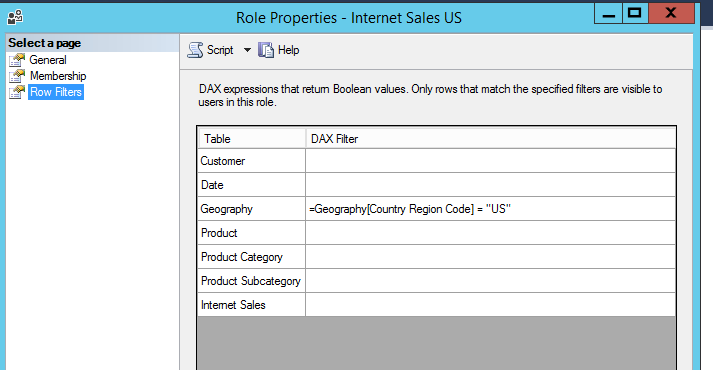
And setup the filters for the roles accordingly.  These are the records anyone assigned to that role will be limited to seeing.

image

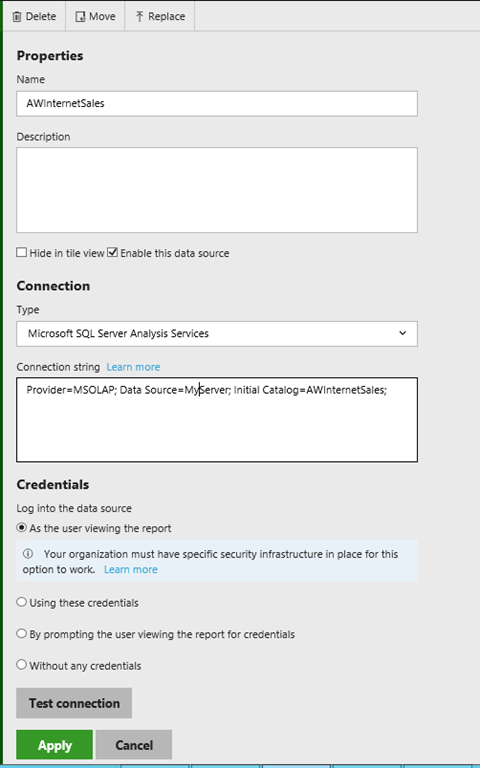
In Reporting Services, when you setup the shared data source for Analysis Services, it’d be setup like this –
image

Note –  Unless you have Kerberos setup in your organization, the Analysis Services and Reporting Services instance will need to be on the same server for this setup to work.

Regardless of which of these options I choose, I’ll always need to do the following steps to create and publish my mobile report –

1. Create my shared dataset in Report Builder or SQL Server Data Tools –

image

2. Save it to my RS server –

image

3. Create my mobile report using the SQL Server Mobile Report Publisher
image

4. Hook up my shared dataset to the visual elements –
image

5. Preview It in the Publisher –

image

6. If everything looks good, I publish it to my server so people can view it –
image

And there you go!  This is one of a series of articles I’ll be doing both on my personal blog and the Reporting Services team blog over the next few weeks to show you how to get the most out of investment in Reporting Services in SQL Server 2016.

Thanks for reading!

So refreshing–How data refresh works with Mobile Reports and KPI’s in Reporting Services

image

With the release of SQL Server 2016 CTP 3.3 and the latest version of the Mobile Report Publisher Preview both now available, I thought it would be a good time to review how data updates work for Mobile Reports and KPI’s in Reporting Services.

As I reviewed in a previous post, you need to create a shared dataset to use in your mobile report or KPI that you save on the server.  This is similar to what you would do in Datazen, where you’d create a query against a data source on the server and then use it for either a dashboard or a KPI.  However, the way data is updated for KPI’s using a shared dataset works a little differently than it does with Mobile Reports.

Let’s review the Mobile Reports scenario first – In Reporting Services, by default, the shared dataset will always be up-to-date with the latest data.

image
They’re live!

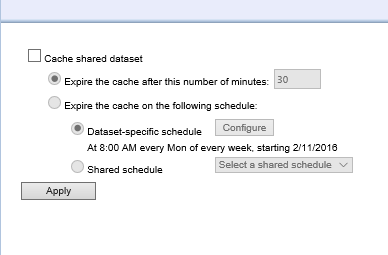
So if I create a query against a SQL Server table for my dataset, every time I run a mobile report, that query will execute and bring back the latest data.  This might not be ideal for performance reasons if hundreds/thousands of users are potentially using that report frequently.  So Reporting Services has an option to cache the dataset on a periodic basis – that way, the data is saved periodically on the Report Server and isn’t always going back against the live data source.

image
You need to setup caching in the old Report Manager in CTP 3.3

It’ll make sure everyone who runs the report is getting consistent results and response times are potentially faster.  If you do this for your mobile reports, you won’t see any updates to your data until the cache expires and the query then executes against the underlying dataset again.

With KPI’s, this doesn’t work the same way – for your KPI’s to be updated with the latest data from your shared dataset, you must have caching turned on AND also have a cache refresh schedule enabled to preload the cache with fresh data.

image

Why does it work differently than Mobile Reports?  Well, imagine if you have forty KPI’s on the home page of your portal.  When you first load the site, if it worked the way it did for mobile reports, it would execute at least forty queries all at once to load the data for each KPI.  And since you can setup multiple datasets for different elements of a KPI, you’d potentially be running over 100 separate queries just by going to the home page.  Multiply that by several users doing it at the same time, well, you get the idea.  So make sure you setup a cache refresh plan

Hopefully this helps you understand what your options are around refreshing your data for your mobile reports and KPI’s in SQL Server 2016.  Thanks for reading!

Solved: (500) Internal Server Error in Mobile Report Publisher

image

This is a quick blog post for a Friday, but one that might help some of you who’ve run into this issue.

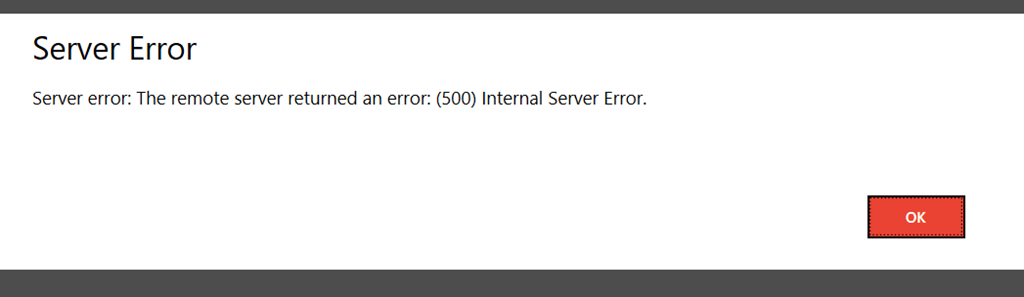
Certain users have reported getting an error when connecting from the new Mobile Reports Publisher from a shared dataset they published in Reporting Services

image

After doing some investigation, we were able to determine the issue comes up only when the data set had been published using SQL Server Data Tools.  The issue does NOT appear when you are using a shared dataset you created and published in Report Builder.  We’ve already fixed the issue for future releases, but for now, there are two ways to workaround this –

1. Use Report Builder to create the shared dataset vs. SSDT

2. Edit the shared dataset .rsd file using an XML/text editor.  For the entry for the dataset in the file, change it from this –

<DataSet Name=””>

To something that doesn’t leave it blank.  It could be this, for example –

<DataSet Name=”DataSet1″>

Then re-save the file to the server, and it will work without issue.  Entering a value there won’t affect anything else around the dataset, including the name you assigned it when you save it.  It just prevents the error from being thrown by the Mobile Reports Publisher around having a blank entry for the dataset name.

Hope this is helpful to anyone having this issue, and thanks for reading!

How to create Mobile Reports and KPI’s in SQL Server Reporting Services 2016 – An end-to-end walkthrough

It’s finally here – Microsoft SQL Server 2016 CTP 3.2, and with it, the introduction of Mobile Reports and KPI’s into SQL Server Reporting Services.  These new capabilities are based on Datazen technology, and are the first step in bringing together the different report types in Reporting Services that was outlined during PASS in October.  It’s also the first time I’ll be posting as a member of the Reporting Services team!  Yes, I’ve moved over from the Datazen team to work with Riccardo Muti and drive the all-new Reporting Services experience we’re shipping in 2016.

And since the Mobile Report Publisher App just went live, I thought it’d be helpful to do a post where I walk you through the entire process – from how to setup a test/dev server with Reporting Services in Azure, to creating a report and KPI, and finally consuming those KPI’s and Reports in the Power BI app for iOS.  So without further ado, let’s get to it!

Setup your server in Azure (this section assumes you already have an Azure account you can use.) –

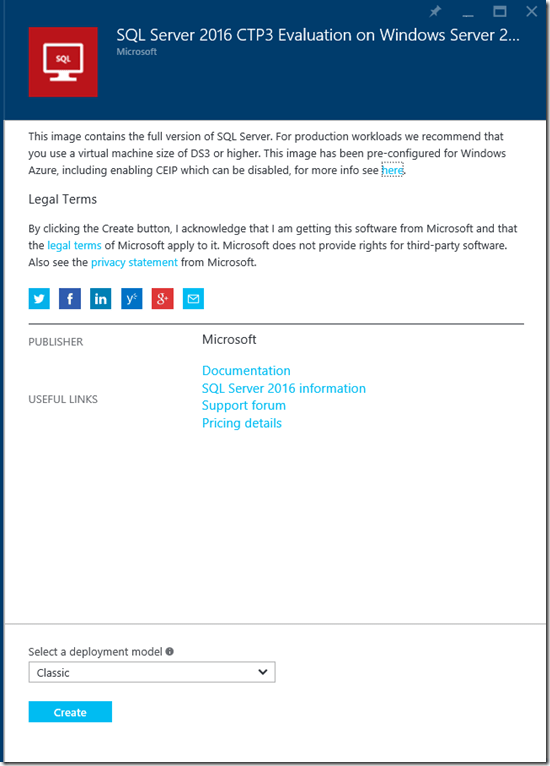
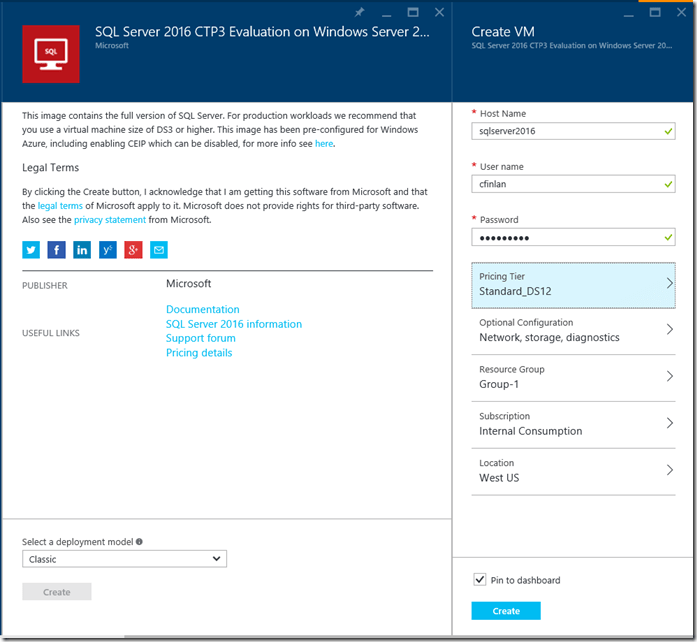
1. The easiest way to get started is to select a VM which has the latest CTP already installed on it.  You’ll be taken to the create screen –
image

I’ll use the “Classic” deploy model for this scenario, since it’s a single VM and I’m only using it for a short period of time.  After I hit create, I’ll need to enter my machine details.  I’ll leave the defaults for all items (since this is just for testing purposes), save for one –
image

I do want to open up the endpoints on my machine so I can connect to them with my app.  So I want to click Optional Configuration –> Endpoints, and I’ll both the endpoints for http and https (I’ll only use http for this walkthrough, but using https instead of http is recommended for security purposes in production scenarios).

image

Once that’s done, I’ll hit create.  My machine should be ready in about 10 minutes or so.

Once it’s done being created, I’ll connect via Remote Desktop by hitting the ‘Connect’ button on my VM dashboard and logging in using the username and password I created in the previous step.

image

Now that I’m connected, I need to do a couple things on the server to enable Reporting Services and do proper testing.

First, let me turn off IE Enhanced Security Configuration in the Server Manager so I can more easily browse around if necessary in Internet Explorer.  This is available under Server Manager –> Local Server
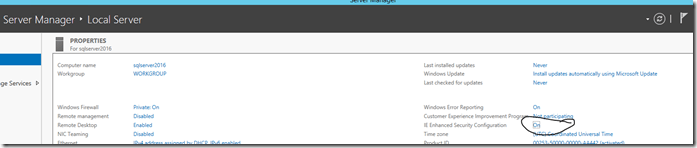
imageI can click on “On” and turn off the enhanced security for now.  I’d normally re-enable it when I’m finished my session, but I’m deleting the VM when I am finished in this scenario.

image

NOTE: If for some reason the Azure image is not version 3.2, you can download the latest SQL Server bits after the server has been setup and upgrade SQL Server before walking through this section.

With that complete, I can now setup Reporting Services by running the Reporting Services Configuration Manager.  It looks like this in your App Menu on the server.

image

When I start it, I’ll connect to my default Report Server instance on the box and walk through the configuration steps.
image
I’ll leave the built-in virtual service account as is and hit next.
image

For the Web Service URL, I can see that isn’t yet configured.  I’ll leave the default information.  With that done, I hit ‘Apply’ to apply my selections so I reserve the port and URL on my VM.
image

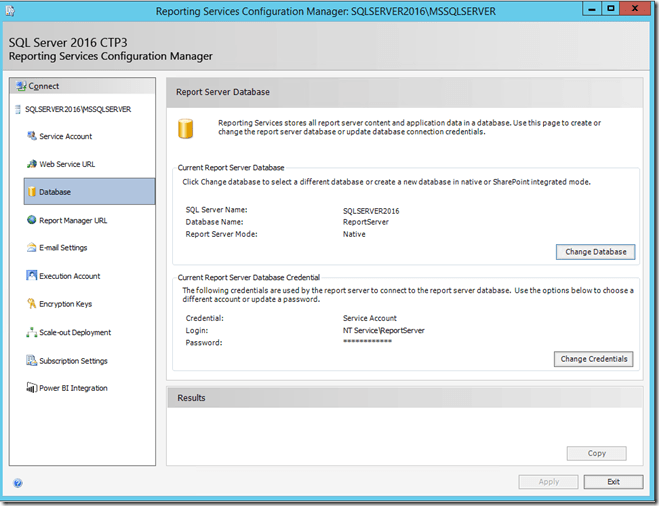
Under Database, I’m going to connect to the local database on the server using my integrated credentials.  You can leave the defaults for each option here and hit “Next” until the system completes the database creation process.  When I’m done, it should look like the following –
image

The Report Manager URL needs to be configures as well, I’m also using the default settings here.  I’ll hit Apply to save those and reserve the port on the VM for that address.  I’ll get a success dialogue if that is done properly or not.

image

At this point I can hit Exit and start working with my new Reporting Services portal.  Please note – my setup was very basic, and really only makes sense when you are doing this for test/dev purposes.

Since I’d like to use the Power BI iOS mobile app to view my reports and KPI’s, I need to enable Basic Authentication on my server.  The article I linked to has more details, but the simplest way to set this up is –

1. Open RSReportServer.config in a text editor.

The file is located at <drive>:\Program Files\Microsoft SQL Server\MSRS13.MSSQLSERVER900\Reporting Services\ReportServer.

2.  Add the RSWindowsBasic as an option under Authentication Types.  It’ll look like something like this –

image

You can leave the other types listed there (NTLM, Negotiate, etc) and just add the Basic option in the format I show above.  Save the file and restart the report server.  When you’ve restarted, you can browse to the new report portal under the following location if you’re remotely logged into the server –

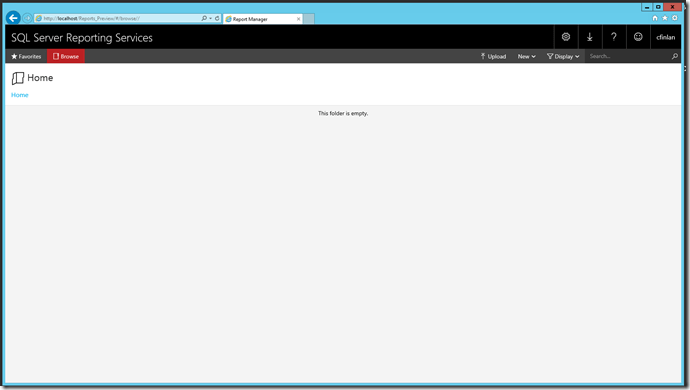
http://localhost/reports_preview

You’ll be taken the new home screen, which should look like this.
image

Now that we’ve setup our test server, let’s start building!  To do so, we need to create a shared data source, where we’ll get our data from.

Create New Data Source

From Portal, select New -> Data Source
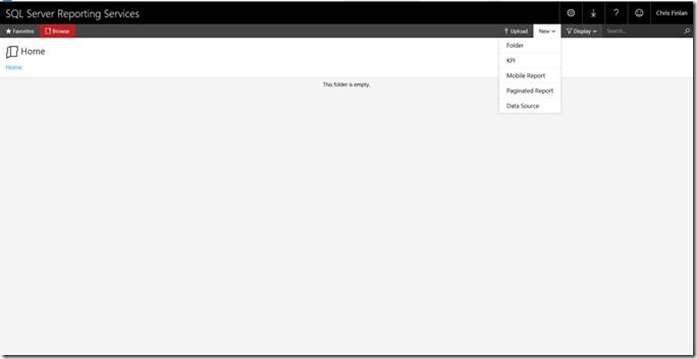
clip_image002

You’ll be prompted to go to the old Report Manager screen to enter data connection details.

clip_image004
Click the link in the pop-up window to switch screens and enter your data source information.  Please note that currently, you can’t use an Analysis Services data source for your Mobile Reports and KPI’s.  I’ll use a SQL Server data source for this example.
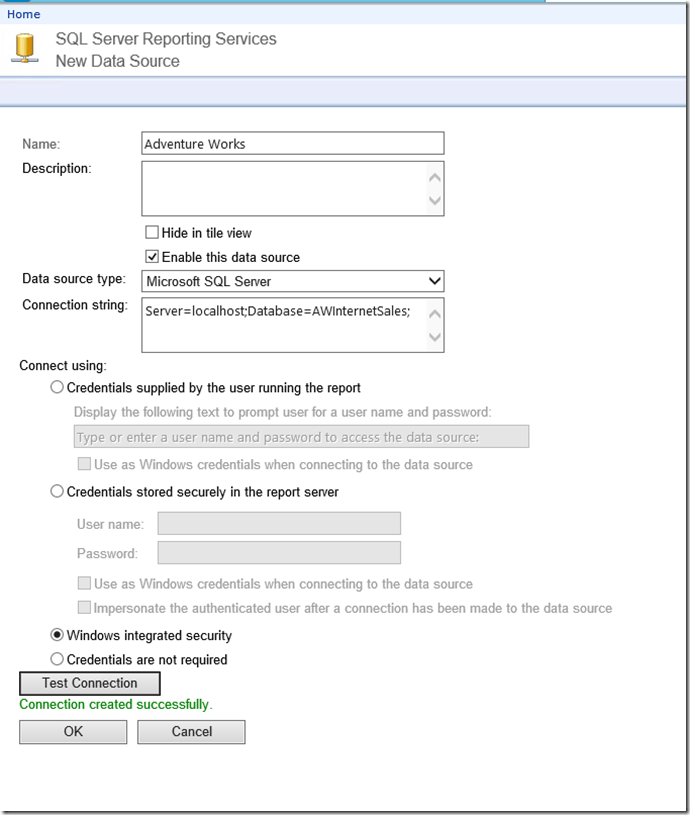
image

Hit Okay to save the data source. By default, in the new portal, the data source is unchecked from the list of items you see. Enable it by clicking the Display menu and selecting Data Source

clip_image008

You’ll now see the data source available in the new portal.

clip_image009

You’ll need to use an existing Reporting Services client tool to create the shared dataset. This walkthrough assumes you are using the Report Builder client app, available for download here.

Create New Dataset

Open Report Builder and choose the New Dataset option from the splash screen

clip_image011

Select the data source that you just created in the previous step. You’ll need to connect to the report server the data source is setup on before proceeding, otherwise it won’t appear as an option for you. You do that by hitting “Browse other data sources”

clip_image012

Typing the name of the server in that hosts your data source in the Name field in the following format –

clip_image014

After you hit Open, you’ll then be able to navigate to the data source you setup in the previous step.

clip_image016

Select it and hit Open. Then, create your dataset using Report Builder.

clip_image018

When complete, save the data source to the SSRS server.

clip_image019

You’ll then be able to use the data set for your KPI and/or Mobile Report. You can create multiple data sets against the same data source, and they can be re-used by different KPI’s and Mobile Reports without rebuilding it each time.

clip_image021

Now you can create KPI’s and Mobile Reports against these shared datasets.


Create New KPI

KPI’s can be created right from the server. Select “New KPI” from the dropdown menu –

clip_image022

You’ll be taken to the KPI creation screen. You have the option to manually enter values, or to use a shared dataset. Let’s change the “Value” entry from the default to one from my dataset. I click on the dropdown to change the Value from “Set manually” to “Dataset field”

clip_image023

Clicking on the ellipsis will bring up a window where I can select my dataset from

clip_image025

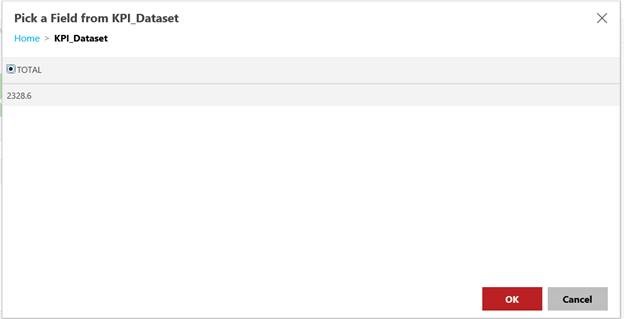
Then I can choose the value from the result in my dataset.

clip_image027

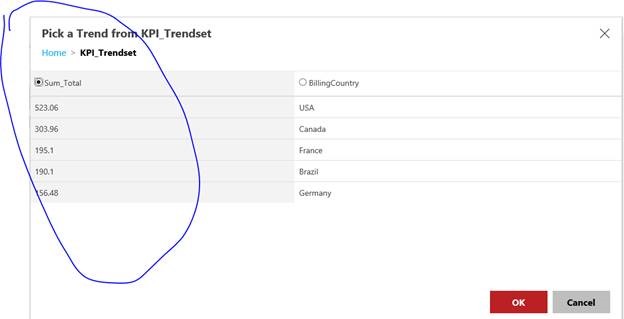
Please note – for the value, goal and status fields, I can only choose the result returned in the first row of my results. For the trend set, however, I can choose which column accurately reflects the values that reflect the trend set.

clip_image029

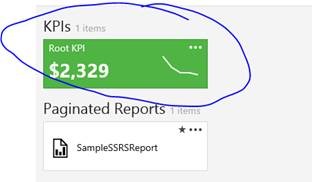
Then I hit “Create”, and my KPI will appear on my report portal!clip_image031

Create New Mobile Report

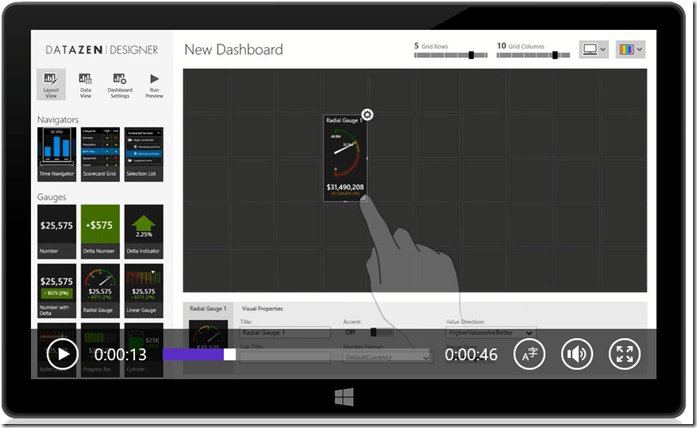
To create a mobile report, you would download the new mobile report publisher. When you first open the tool, you’ll see a blank canvas where you can create your report where you either start with your visuals OR with your data.  The experience is the same as you have with Datazen today in that respect.
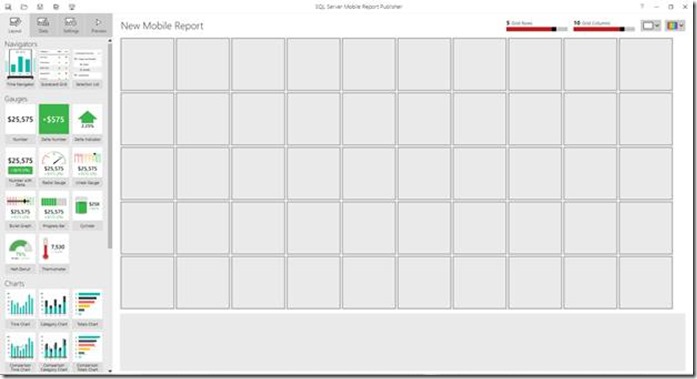
clip_image033

If you start with your visuals first, sample data will be generated automatically that is tied to the report and will change dynamically as you change your visual selections.
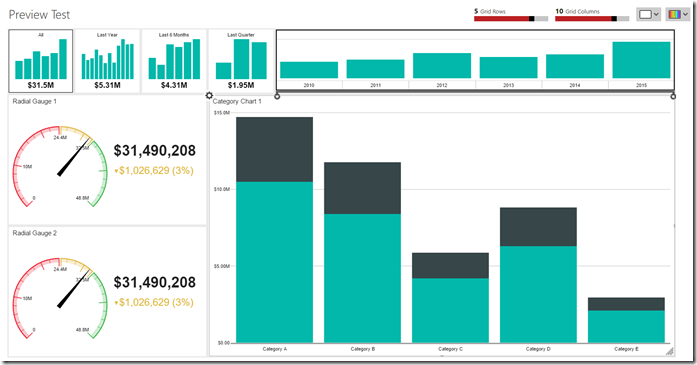
image

You can see this by switching to the data tab.

image

To add your own data, click the “Add Data” button and select where your data is located. You can add local Excel data OR a shared dataset from your SSRS instance.

image

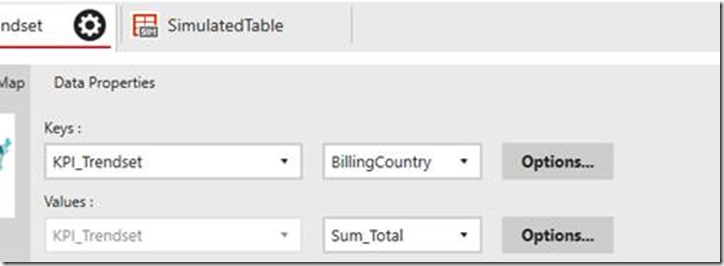
You can then change the data that your visuals are connected to
clip_image041

I can then return to the canvas and see the data has been hooked in to my visuals when I test the report.

image

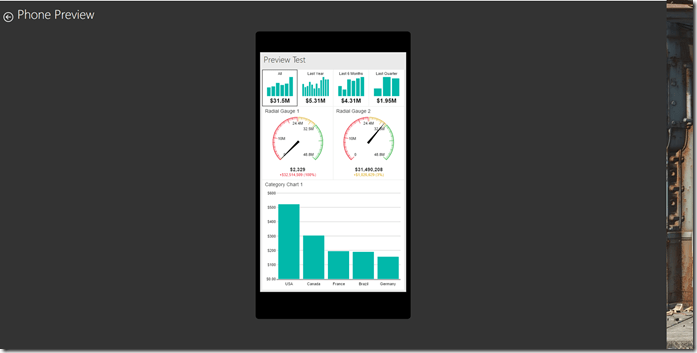
In addition to the main layout, I need to create a phone layout for my phone users so the experience is optimized for that device type and proper thumbnails can be generated. I can do so by changing the layout dropdown in the upper-right hand corner to Phone and laying out my report.  If I don’t remember to do this, the app will prompt me to do so.
image

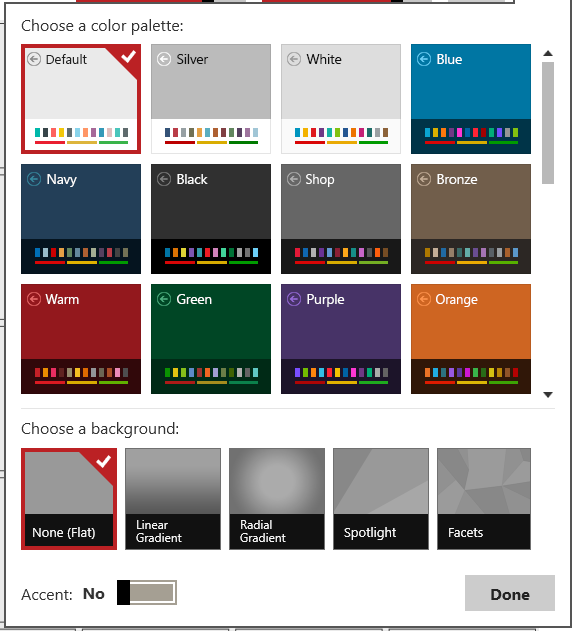
I can also change my theme options just like I could in Datazen, by choosing one from the the upper right-hand menu.  I’ll leave mine as the default theme for this report, however.

image

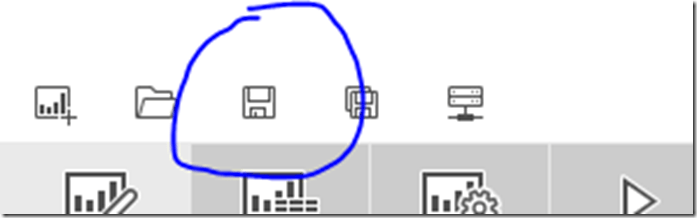
Once finished, I can save my report either locally, or to an instance of Reporting Services. To do so, I can hit the save button in the upper right hand corner
clip_image046

And then choose where I’d save my report to.

clip_image047

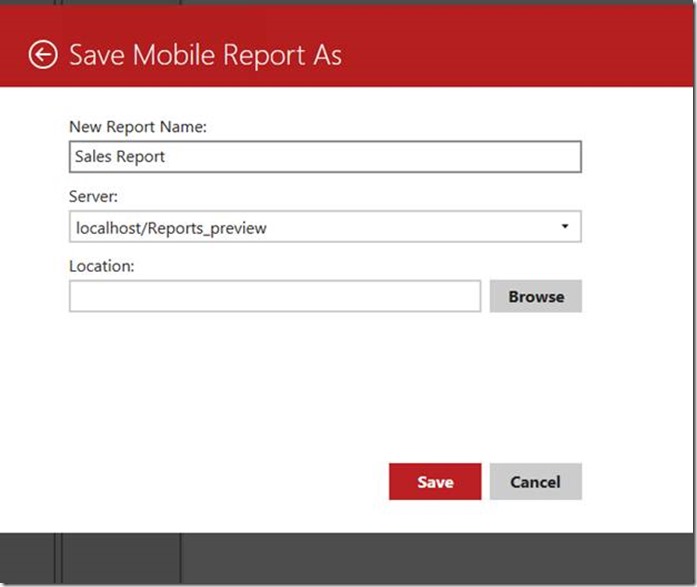
If I choose server, I’ll be prompted to save my report to a folder location on the server I got my data from.
clip_image049

After I’ve saved it, if I return to the portal, I can open the report and see my mobile report thumbnail.
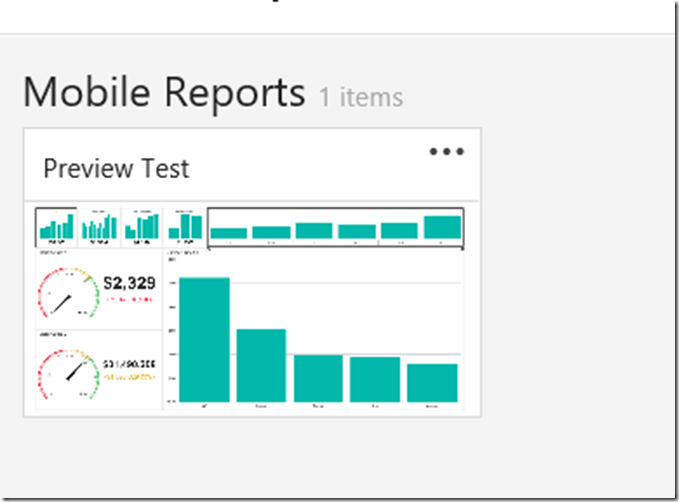
image

And click it to open and interact with the report in my browser.

image

View KPI’s and Mobile Reports in the iOS App

The Power BI app now allows you to connect to your Reporting Services server to view your Mobile Reports and KPI’s.  To get started, make sure you have the latest version of the Power BI app downloaded to your device.

clip_image052

Once downloaded, when you first open the app, you’ll be greeted with a welcome slide.

clip_image054

Hit the Sign In button to move to the app experience.

20151216_015524000_iOS


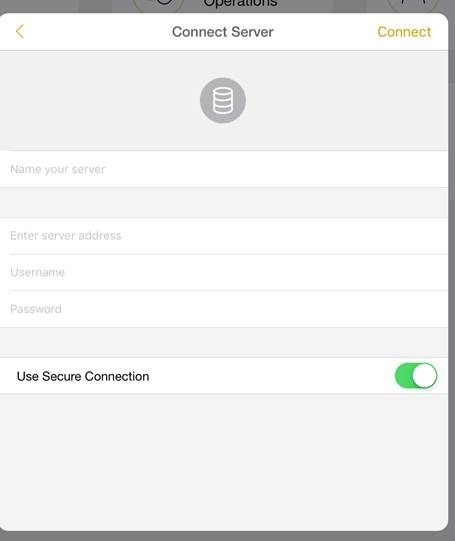
This is where you’ll add your Reporting Services server. To do so, select the Reporting Services button and enter your server details and the credentials you’ll use to access the server. You can also toggle whether the connection is using http or https.  Again, https is recommended for all production scenarios.

clip_image060

Enter your information accordingly. You’ll need to make sure the URL follows the pattern I demonstrate below.

clip_image062

Click Connect. If it connects successfully, it will show the KPI and Mobile Reports screens you have access to on the server. You can swipe between the two options to view the different assets accordingly.

IMG_0834

IMG_0841

You may tap on any KPI or Mobile Report to bring it to full screen and interact with it accordingly.

When you enter the app in the future, you will see the server in the menu that you have setup. You can only have a single connection to Reporting Services at a time in the app.
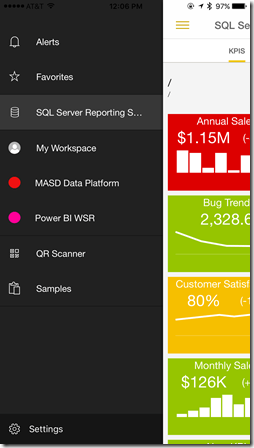
IMG_0842

The app will default to the KPI page as the first page you see in the future unless you are also connected to a Power BI instance. It will default to Power BI when both services are connected.

Whew!  That was a long post, but hopefully it’ll help you get up and running quickly so you can try it this new functionality over the holidays.  So Happy Holidays, and enjoy the all-new SQL Server Reporting Services Mobile Reports experience!

Pin to Win – Use Power BI to get updated Reporting Services data in your PowerPoint presentation

image

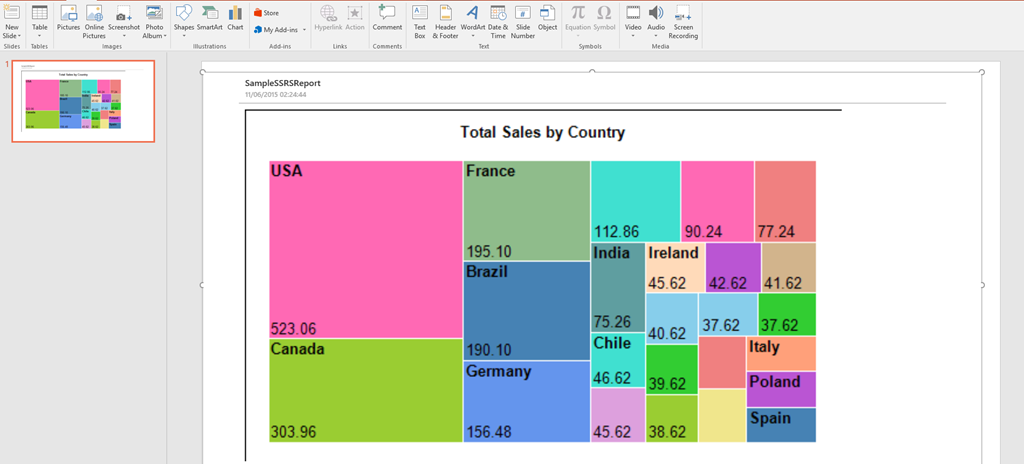
This was too cool not to blog about.  So the latest version of SQL Server Reporting Services supports Export to PowerPoint, but the data isn’t still live once it is exported.  Well, here’s a neat trick you can use to use elements from SSRS reports and have to data update in your PowerPoint presentations.  Use Power BI to make it happen!

1. Use the new pinning capability in Power BI to pin the report element from your Reporting Services report to your dashboard.

image

You’ll then see the SSRS element as a tile on your dashboard.

2. Use the new DevScope Power BI app in the PowerPoint presentation to add this element from your Power BI dashboard to your PowerPoint slide.  It’s an option just like every other tile in your Power BI dashboard to be selected and used.

firstpic

3.  The data gets refreshed hourly (the default option) in your Reporting Services report element in Power BI.  When the update happens, refresh the tile in PowerPoint and you’ll see the latest data and the time the data last refreshed!

image

This was an unexpected benefit of using the Power BI tiles in my PowerPoint presentation.  Heck, you could also do this in an Excel workbook!

Thanks for reading!

From Datazen to Mobile Reports in SQL 2016 – an FAQ on what it means for you

DatazenSSRS

If you follow this blog, you probably follow the news around the Microsoft Business Intelligence stack.  Which means you probably saw the post around the roadmap and what it means for Datazen.  But if you didn’t for some reason, here’s the scoop – a new report type, Mobile Reports, will be supported in SQL Server Reporting Services 2016 when it is released sometime next year and it will be based on Datazen technology.  So what does this mean for you, exactly?  Well, a number of questions around this announcement came up during PASS and on Twitter, so I thought I’d recap them here for folks who couldn’t attend or don’t follow me on Twitter.

When will we see Mobile Reports in a CTP for SQL Server  Reporting Services 2016?

By the end of this calendar year.  Our target is to deliver a public preview by the end of the calendar year.

Will the Datazen name be going away?

Yes, the Mobile Reports experience is all part of SQL Server Reporting Services in 2016 and beyond.  A new publishing app will be made available with updated branding and will be used for building mobile reports. At PASS Summit 2015 we demonstrated a single Power BI mobile application delivering a combination of report types from both SQL Server Reporting Services 2016 and the Power BI service.

Will I be able to migrate my existing Datazen dashboards to the new experience?

Yes, the plan is to give you a migration tool to assist you with that process and make it as seamless as possible.  This tool won’t be available at the same time as the first preview release, but we are planning to release it before the GA release.

Does this mean we will get support for WinAD groups when it moves into Reporting Services?

Yes!  As Riccardo Muti mentioned on Twitter, this is one of the ways Datazen and SSRS are better together.

Will brand packages be supported in the new Reporting Services experience?

Yes, they will.  More information around how that will work in the new service will be made available in the near future.
Fabrikam-Black

What functionality will be changed/updated when it is migrated into Reporting Services?

The way you build mobile reports, consume and interact with them on mobile devices or in a browser should basically be identical to the way you do so currently.  You’ll definitely see changes on the server side as it brought into SSRS so we can give you more of the things you’ve been asking for (like WinAD group support).  You’ll hear more about what exactly is being updated or changed as the release date gets closer.

How will it be licensed in SQL Server 2016 vs. today?

Since it will be part of Reporting Services, it’s reasonable to assume it will be licensed the same way Reporting Services is today.

Which product SKU will the Mobile Reports capabilities be available in for SQL Server 2016?

TBD.  There will be an announcement around which product SKU’s in 2016 it is available in at a later date.

Will the Mobile Reports capability be available in SharePoint integrated mode or Native Mode, or both?

Mobile Reports will be available in Reporting Services running in native mode only at 2016 GA, but can be surfaced in SharePoint using an iFrame similar to how you can do so now with Datazen.

There, that covers off basically everything that was announced or asked and answered at PASS concerning the future of mobile reports and Datazen.  You should be hearing additional details around some of these items either on the Datazen blog or the Reporting Services blog as the highly anticipated CTP release with this functionality approaches.  If you have additional questions you didn’t see addressed here, please leave a comment on the blog.  I might not be able to answer all of them, but will do my best to do so.

Thanks!

Game Change Two : Electric Boogaloo – Special PASS Edition of the Powerful Productivity Series

Fabrikam-Black

Game on.

That would have been the extent of the Microsoft Business Intelligence roadmap blog post if I’d written it (and is probably why I wasn’t picked to do so.)  But that was the takeaway that folks seemed to have after this week’s PASS Summit and after reading that post.  Chris Webb had a great write-up of the event where he said “In summary I can’t remember the last time I felt this positive about the future of Microsoft BI.”  Marco Russo tweeted on Wednesday “I’ve seen the most consistent, coherent, inspiring #msbi roadmap in 10 years.”

And the star of the show?  The Box.

No, not the movie from 2009 with Frank Langella and Cameron Diaz.  I’m talking about SQL Server 2016 and all the BI goodness that is coming with it.

The sessions given by Frank Weigel and Riccardo Muti were jammed with attendees (both had to stop people from coming in) who tweeted their excitement throughout with an almost religious fervor, especially when it came to SQL Server Reporting Services.  Think I’m exaggerating?  Look at this –

image

Sheesh – who knew the passion one would inspire by giving people the ability to re-position report parameters and export to PowerPoint.  Or maybe it was in response to the announcement that there will be support for Mobile Reports and KPI’s based on Datazen technology at GA in Reporting Services 2016

image
Boom goes the dynamite!

AND support for Power BI Desktop Reports in Reporting Services 2016 post GA

Boomshakalaka!

I could probably end the post right now with “Woohoo, we win!  We win!  Victory dance!  The box is back!”.  But if you remember my original Game Change post, as excited as we all are, are non-PASS attendees going to have this reaction?  I mean, I’m sure Telly Savalas would kill it every time saying “We’re all born bald, baby!” at the keynote of the annual meeting of the Bald Headed Men of America.

But how does that play when he goes on the road away from his fellow baldies?  Do the folks with hair get just as excited, or does someone stand up and say, “Wait a minute.  I thought you were dead?”  Which is exactly what I’m sure some customers will say when this is demoed to them for the first time.  Several jokes and tweets were even made during PASS about how SSRS finally looked like something built this century.

image
My dad loved his Ford Mustang as a kid!  Oh, now I get it . . .
This meant, however, sales folks and partners talking to customers about Microsoft BI generally avoided showing the product despite it having some incredibly powerful capabilities because “it looked like it fell out of an ugly tree and hit every branch on the way down”.  I actually had a customer say that about Reporting Services.  Or was it about me?  Either way, the meeting didn’t end well.

That meeting would have been much, much different now, for a number of reasons that I’ll call out two of –

1. Everyone loves Datazen.  Okay, I’m sure it’s not EVERYONE, and the product isn’t perfect.  But that’s the beauty of it being rolled into SSRS – where the product is missing certain features (lack of WinAD group support, etc.) is where Reporting Services is strongest.  And vice versa.  The interest in Datazen from Microsoft customers has been off the charts since they were acquired in April.  That’s due in no small part to the fact that the product demos incredibly well to the same people you’d never have dared showing Reporting Services to in the past, despite that functionality being something they were looking for (as I’ll demonstrate in the second point).

image
Hey, I can do that!

It makes perfect sense to bring these products together, and I’ll go into more details about what this all means for Datazen going forward in a separate post.

I’ll add one last thing, and this is the only time I will address this – if you heard the news that Datazen was being added into Reporting Services, and even for a moment had the word “ProClarity” pop into your head, STOP IT.  The difference between the two situations are so stark I can’t possibly cover off on all of them.  Even my pal AJ here at Microsoft, who came here in that acquisition ten years ago, laughed off the comparison.  But here’s two of the biggest differences:

Miljan Braticevic wasn’t here.
James Phillips wasn’t here.

Moving on.

2.  Let me tell you a true story  – one of my old customers brought in a solution from a competitor a couple years ago to replace another BI solution they had (NOT Microsoft’s).  This instance runs the majority of their reporting internally.  Their report looks like this –

image
Oh, I’m sorry.  I accidentally posted a picture of a paginated report in Reporting Services 2016, didn’t I?


Tricky, tricky

Yes, that’s because their report used functionality that could be done easily in Reporting Services using nothing more than Report Builder.  And their main method of distribution for these reports?

Subscription via e-mail.

And did I say one customer?  I meant to say MORE than one customer who had brought in our competitor’s product was using it solely to do reports like this!  I couldn’t believe it – all you heard was about how sexy and cool this other product was, yet the reports I saw people building with it were paginated reports often distributed via email!

So why were they meeting with me, you ask?  In essence, here’s what each of them said –

“Well, we’re a big Microsoft customer and we’ve run into some limitations with our current BI solution, so we were hoping to see if Microsoft had something that could provide them with a more holistic solution.  You know, something that would scale out to the entire organization, tie into our current security infrastructure, offered a great hybrid story that included both self-service and enterprise reporting options, plus mobile options for all device types and can easily surface the data in programs like Excel and PowerPoint.  Oh and it had to sit on-prem, because they weren’t ready to move everything to the cloud yet.  Did we have anything like that, either now or in the near future?

Your damn right we do.  Because the box is back.

Happy Halloween, everyone!