Perfect Data Poppycock – Part 4 of the Powerful Productivity Series

I wasn’t planning on this being part 4 of this blog series.  No, the plan was to do an end-to-end scenario using real data and a real business use case.  Instead, you’re getting a rant that I’m dressing up as a blog post.  The rant of a man who spent his Saturday afternoon doing what’s the hardest part of any BI project – actually getting the data and making sure it is clean and correct.

There’s been a number of new announcements recently around new analytics solutions from companies like Amazon, SAP and Tableau.  The announcements all had a similar theme – we’ve got a snazzy new product that will help people to easily explore, visualize and analyze their data.  And to show you how ground-breaking it really is, they give you a chance to try it using one of their pre-loaded sample datasets.  With just a few quick clicks, you too can make a bar chart that shows you how much ticket sales were for Jurassic World.  Or better yet, how many third class passengers died on the Titanic!

Yes, the best friend of BI pre-sales personnel everywhere, these perfect public datasets do a fantastic job helping tell the story you want customers to hear – just take your perfect dataset (preferably a single table on a spreadsheet), load it up and watch the magic happen.  And everyone uses these datasets – yes, including here at Contoso Microsoft.  It’s just the reality of doing demos – privacy concerns make using real company data very tricky, you don’t want the demo to go wrong, etc.  So like the latest Macklemore video, these demos look great at first glance, but trying to find any actual meaning around the information being presented is probably wasted energy.

That was why I wanted to finish off my perfect productivity series with a grand finale – use real data and a real business scenario that showcased the value of Power BI and Office 365.  And I had an excellent one – my wife runs an online business I help her out with from time to time.  She’s had some moderate success with it, but she’s never really used the data in any meaningful way, other than the normal tax stuff one has to do.  She suggested I look at the data to see if there were some things she could be doing to make more money at it.  Jackpot!

So yesterday, I sat down to dig into the data – surely, this was going to be a piece of cake.  All the data was in a central location, I knew the business, etc.  That’s when I ran into a data access problem.  The site she sells the items on only lets you get the records for the current month and the past three calendar months.  Since she had sales going back to October 2013, that wasn’t going to help.  I then tried pulling the data from a site called Terapeak, which I love to play with because it has historic sales data, but they too limit the number of records you can download.  Gee, what a surprise, central IT was preventing me from getting the data I needed to do my job . . .

After I snapped out of my shadow IT flashback, I did what I used to do in these situations.  I figured out how to work around the data access limitations.  I discovered the data was also available from PayPal, and those you could run for a custom time period.  Woohoo!  So I ran the report, downloaded the file, and opened it up in Excel to review the data before I got started.  That’s when the “fun” began.

The first problem was PayPal had two records for each item someone bought, one that reflected the item when it was in the shopping cart, the other when it was it actually paid for.  It looked like this –

image

Then I noticed there was stuff in the download that had nothing to do with the sales themselves, but were potentially for office supplies or the like.  Plus it had a bunch of extra columns, date formatted in a dumb way, etc.

No big deal for me – Power BI desktop and Power Query in Excel eat these types of problems for breakfast.  And unless I missed something in my BI 101 class, no snazzy visual or finger gesture on my tablet is going to make up for the fact my dataset from the company’s “single source of truth” is giving me complete garbage.  Oh, but it gets better – this particular report included all the listing information, including the listing title, but didn’t include the listing category, which I needed.  So I’d have to recreate that myself for the purposes of this report, based off of the item title.  Also, the publication year for the item being listed, which was very helpful for certain listings, was buried in with the main title text.  I needed to pull that out and make it its own column.  It was becoming clear that my grand plans to play Witcher 3 all afternoon were evaporating fast.

We’re now teetering dangerously close to Ken Puls/Bill Jelen/Rob Collie territory in terms of ability required to make this happen, and last time I checked, there weren’t folks like this littered across every department of companies I’ve spoken to (see my previous post for some context on that).  Unless of course, I’m simply muscling through the spreadsheet and typing values into new columns manually as I eyeball each line.  Which is EXACTLY WHAT 99% OF PEOPLE WHO THESE NEW TOOLS ARE MARKETED FOR WILL DO.  It’s going to be faster for the vast majority of people in the short term.  Or maybe you’re using Google Docs, or haven’t heard of Power Query, whatever.  But not ME.  No, I’m going to make the folks at PASS proud by writing this great M script and –

If you’re thinking that ends with the phrase, weep like a baby when you notice yet another data issue, you’ve obviously been on this goat rodeo before at a customer site.  As I went to start my data import, I looked more closely at the title field – in the report, if someone bought multiple items in the same transaction, it only lists it as a single transaction line item, with a summarized sales amount.  BUT, it has all the items bought as separate values in the item title field, separated by commas.  So it looked like this –

image
Sadly, Bo didn’t know profits.

I knew what each item’s sales price was for, because the prices were always the same for the same types of item – for example, an old book would be listed for $9.95, and old Xbox game would be $14.95, etc.  But I still had to break these records into individual line items and then adjust the value on each line to reflect what the price was for that item only, since the overall item total would be copied to each line.

Uncle.

I’m sure it’s possible to get an M script that would automate this, and I’ve done stuff like that before in SQL Server, but I wasn’t about to fiddle with it for the 175 or so rows I needed to clean up.  I sucked it up and did that part of it manually in Excel.  The rest of the data clean-up I outlined I did do in Power BI desktop, but it took some custom M script, two Ken Puls articles (this one is especially useful) and about 200 (!) steps.  Oh and about nine hours of my time.  And Geralt’s time.

But the pain was all worth it – my properly cleaned dataset contained some remarkable insights that I was able to light up in Power BI with some of the new custom visuals that were introduced last week.  And it also reminded me of what it’s like in the real world, because this scenario happens every day, in every company in almost every department.  It certainly happened in my old group more often than my boss coming to me with a perfect data export of Titanic deaths he was looking to throw a pie chart on.

Jen Underwood touched on this theme in her post asking if you’d bought a self-service BI fantasy.  I’d take that one step further – you might need to ask yourself if you’ve bought a corporate BI fantasy as well. Because for all the flaws people feel the Microsoft solutions might have, it’s the only one I’ve found was designed and consistently used as part of every solution here in the real-world, where data is messy or unavailable or both.  And we’ve got pretty great visuals as well – ever seen a Datazen dashboard or that cool fishbowl in Power BI?

Have a great week at PASS!

Datazen Friday Grab Bag Post – Windows 7, Support, Dashboard Staging, Training and a PASS tease

image

Happy Friday all!

I haven’t had a chance to post the last couple weeks, but with the PASS Summit coming next week, wanted to share a few quick items that have bubbled up, grab bag style!

Windows 7 Publisher now in GA – I know this is big news for a lot of folks.  If you’ve been using the preview version of this, make sure you download the updated app, which was made available earlier this week.

Where you can go for support – I’ve had this come up a few times recently.  You can send a request to support@datazen.com and you’ll get an auto-email response that will contain a number of FAQ’s and a link to file a ticket with the support team.  If the FAQ doesn’t answer your question, make sure you use that link to submit your support question that you get back in the e-mail.  I’d also suggest you link to the Datazen content portal, which has articles that apply to the vast majority of questions that come up.

Moving content between server/hubs – The topic of dev or staging environments for Datazen is one that people send me questions around.  The best way to handle this type of scenario right now is to create groups on the same hub for each staging area, and move the dashboards between those environments.  You can use the Datazen security options to hide the groups and dashboards as needed in each group, and you can change the groups you publish dashboards too, as long as they are in the same hub.  We’ve heard the feedback that people would like more robust options and will be looking to improve that experience as the product evolves moving forward.

Where can I get Datazen training? – For most folks, the tutorial videos posted on the Datazen site are more than sufficient to get started quickly and put together some amazing content.  If that’s not enough to meet your needs, I know some customers were looking at the course available from Blue Buffalo Press, as well as working with partners to help them meet their needs.

Is there a Datazen session at PASS next week?  Yes!  Paul Turley and I will be presenting at the PASS Summit – that’s the good news.  The bad news is, it’s in the last slot on Friday before Halloween.  So, I’m sure that will cut into attendance at least a little bit.  But for those who do stick around, I’ll promise you this – you’ll get a glimpse of Datazen vNext during the session!

Hope you have a great weekend, and I’m looking forward to meeting some folks at PASS next week!

Mini Post – Datazen Sample Brand Package

Yesterday on Twitter, there was a conversation around getting a sample Datazen brand package to use or look at.  I provided it yesterday in the context of that conversation, but happy to make it available here as well.  You can download it for your use from here – http://1drv.ms/1L4XptF

For more information about the Datazen brand packages, make sure you check out the official documentation.

Thanks!

Game Change – Part 3 of the Power BI and Office 365 Powerful Productivity Series

image
What happened this week may go down as one of, if not the most, important weeks in the history of Microsoft Business Intelligence.  Melodramatic nonsense from a Microsoft fanboy/employee?  Hmm – maybe.  Let me explain why I’m making this bold statement.

So, I’m not normal.  Neither are probably most (if not all) folks reading this blog.  That’s a good thing, because it makes us special.  We’re blessed with what Rob Collie refers to as the “Data Gene”, and it’s why we love working with the Microsoft stack.  It’s estimated (by Rob) that approximately 1 in 16 people have the data gene, in fact.  Which means 15 out of 16 people don’t have it.  They aren’t interested in crunching numbers all day, nor should they be.  It isn’t their job.  Which is why the presentation layer and integration with a productivity suite like Office is so important in any business intelligence solution – users need to be able to quickly and easily understand what’s being presented and take action on the information.  These are themes I discussed at length in Part 1 and Part 2 of this series.

When I joined Microsoft in 2013 in my pre-sales role, I quickly learned two things –

1. The vast majority of people I was presenting to weren’t the ones reading every blog post from Marco Russo or Jen Underwood.  They generally didn’t know or care what DAX was.

2. If they couldn’t see how they’d get business value from it personally, then they weren’t interested.  This doesn’t mean they’re selfish – on the contrary, it means they’re pragmatic.  And it is exactly how I’d feel if I was in their shoes.

Which meant if I spent a lot of time talking about how great the CALCULATE function was (and still is!) in Power Pivot, unless I had that one person in the room out of sixteen who had the data gene, I’d lost my entire audience right then and there.  Forget about the sales context – the reason I wanted to do that job was summed up nicely in this tweet I saw from Hope Foley the other day –
image
Yep, sounds corny, but it’s true.  And I knew I could help them solve their business challenges with our stack.  So I wanted to be sure to highlight functionality which THEY were telling me would help them the most, not just what I thought would.  Think back to the pre-Power BI era at Microsoft, which is when I joined – what two things do you think folks told me was the most valuable functionality I showed them?

1. The ability to export to PowerPoint from a Power View report in SharePoint was easily first
2. The decomposition tree in PerformancePoint in SharePoint was easily second

There wasn’t a close number three I could point to – at each customer presentation I did, if I showed these two pieces of functionality, they’d be the ones customers wanted to start using “tomorrow” because of the amount of value they thought it would bring their organizations.  What usually happened when I finished was, the customers marched right from the presentation down to IT and demanded they deploy the latest version of SharePoint and Office in the organization so they could use this functionality.  Naturally, IT said “Absolutely!  We own these licenses already and we’ve been itching to do this.  We’ll have you up and running in no time!”  Then they joined the rest of the Care Bears on Gumdrop Mountain to celebrate their good fortune.

I’m guessing you figured out I was being facetious.  For many customers, it was simply too much work for them to get all the pieces in place to take advantage of this functionality.  This was frustrating, but completely understandable coming from where I’d been in “shadow IT”.  So we only saw a fraction of the adoption you’d expect based on the interest shown in the presentation.  Fast forward to this week and what was announced.

The first announcement came a week ago in the Power BI visualization contest.  Fredrik Hedenström submitted his second entry in the contest – now, it would be hard to top his first (which of course I loved – I am sure you can guess why looking at this picture of it)
image
Go Frederik Go!

But he may have done just that.  His entry this week was for a visual called Breakdown Trees.  When I saw it, I smiled.  Frederik basically took the decomposition tree from PerformancePoint and put it into PowerBI.

Power BI version
BT_Screendump1.png

PerformancePoint version

Remember, this was one of two things our largest customers told me they saw providing the most value to their organizations when I showed it to them.  And now, instead of just seeing it with AdventureWorks data being demoed, they could now be using this functionality, with their data, in the same meeting.  That’s absurd (in a good way)!

Maybe you’re thinking “Pfft – that was over two years ago.  I mean, Datazen didn’t even have an iOS app yet.  Times change, man!”

I seriously doubt that people won’t want this functionality as much now as they did then, but I’ll concede the point for the sake of argument.  The other announcement that came a few days later was even bigger than the first one.

image
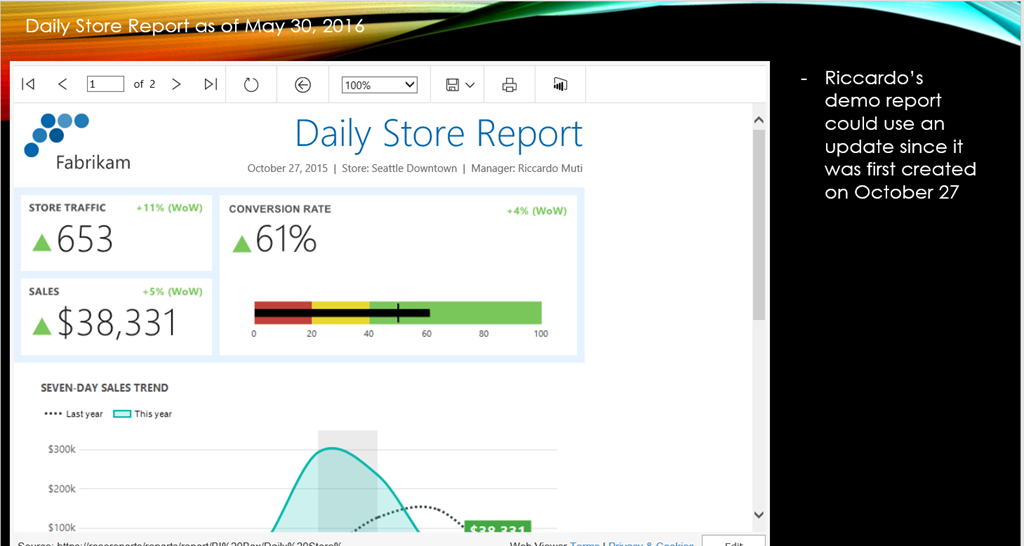
A company called DevScope created an Office Add-In that allows me to insert tiles from my Power BI dashboards into PowerPoint, Excel, or Access.  I’ve talked about Office Add-Ins before in a previous article, which was one of my most popular posts to date.  As I read through the blog post which showed me how to add the tiles, I thought to myself “It can’t possibly be this simple.”  So I tried it and followed the steps in the blog –

1. Insert the Power BI tiles in the document
image
image

2. Click at the login button and authenticate with your Power BI credentials at the shown popup.

3. Select the Dashboard and the desired PowerBI tile:image

image

I now had two questions –

1. Can I refresh the data?  Yep
image

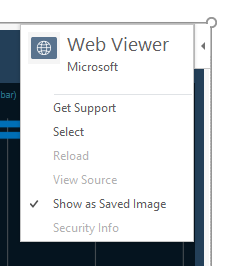
2. What if I send it to someone who doesn’t have the app?  You still can, just choose the “Show as Saved Image” option.
image

OMG – this changes everything.  Here’s why –

1. For two years, every organization I met with asked for this type of functionality in every meeting.  That’s over 100 of the largest Microsoft customers in the world.  Even after Power BI was introduced and became the focus of many of my conversations, they have the same ask.  The ability to get their live dashboards into PowerPoint slides OR line of business apps.

2. The level of difficulty to get this setup for an organization has gone from “complex” to “trivial” if they’re running a newer version of Office.  Many more customers are actively using Office 365 and 2013/2016 than were using it two and a half years ago, so that isn’t the barrier it once was.

3.  Well, what if an organization is instead using Office 2010 as the standard?  It used to be that would be an enormous blocker to even try Power BI.  Now, it doesn’t matter for Power BI, since I can sign up and use that immediately regardless of Office version.  But I wouldn’t be able to use the app, right?  Replay that fanciful conversation the folks had with IT earlier – instead of needing to have setup

– SharePoint 2013
– SQL Server
– SQL Server Analysis Services,
– SQL Server Reporting Services
– PowerPivot for SharePoint add-in
– Office 2013 for the client machine
– Hardware or VM’s to run everything on
– The Silverlight add-in on the client machine
– Proper security integration, proper licenses, stakeholder buy-in, etc.

to get functionality they saw me demonstrate, I just need one machine with an updated version of Office (32 or 64-bit) to get this functionality.  I can think of exactly two customers during my time in the field where they wouldn’t provision a single machine with the latest version of Office on it or allow the person to upgrade.  In general, it wasn’t a big deal to get a couple folks using a newer version of Office to prove out the value of the solution.  So I show them in the presentation they can do this.  Then they sign up and do it right away with their Salesforce.com data, and the only thing preventing them using it in every PowerPoint presentation they create is a slower deployment of Office?  That’s a much, much easier thing for them to get done, and I assure you, people will make the ask to do so just to get this.

4. This is the biggest one, and I am convinced of this – this functionality is so simple and so valuable, people will sign-up for Power BI to use this functionality even if they already own and use another tool.  Forget about how easy it was to do – as far as I know, NONE of the other major self-service BI vendors I just mentioned can do what I just did at all, let alone that easily with three major pillars of the productivity suite that people use every day.  It was that important to every business I’ve ever worked at, talked to, whatever.  And because I don’t need every user to have the app downloaded, (remember, it still allows them to see the data as a static picture if they open it and don’t have the app), I’d be giving this an AWFULLY long look if I’m currently taking 30 snapshots of my Tableau/Qlik/Lumira/Whatever report and pasting them into a PowerPoint deck every week.

It’s not a perfect app – yet.  If I have 50 tiles in my slide deck, yeah, refreshing each one at a time would get to be tedious (yet still much faster than my current option).  To paraphrase Voltaire, “Don’t let perfect get in the way of good.”  This app is really good as is, and it’s been available for all of two days.  The only folks who wouldn’t get any value from this are the ones who can’t take advantage of Power BI at all.  To them I say, read the latest blog post from my colleague Riccardo Muti this past week who shows off the newest functionality in SQL Server Reporting Services in SQL Server 2016 CTP 2.4, available now.

Yep, we added the ability to Export to PowerPoint there as well.  And it looks GREAT when you export the report, thanks to the other enhancements they’ve made.

So, what do you think?  Did Microsoft truly change the game this week?  Before you answer, go ask some non-BI pros if they’d find the functionality I just described to you something they’re looking to use in their jobs.  I think you may surprised just how valuable something so simple might turn out to be.

Enjoy your weekend!

Mini Post – How to build a Datazen PowerBI Mashup Dashboard

image

Mini post for you all today – Looking to show off your Power BI and Datazen dashboards in a single view?  A quick and easy way to do this is to take advantage of the capabilities to use custom URL’s from your Power BI tiles and link them to Datazen dashboards.  You can add images of your Datazen dashboards, then add a custom URL to the pinned image.  That way, when someone clicks the image, a new window opens showing your Datazen dashboard or KPI.  How did I generate the image files for the Datazen dashboards?  From my previous post!

Combine Excel Online and Load on Demand to power up your Excel data source in Datazen

image

I hadn’t planned on a post today, but after watching the Philadelphia Eagles get their first win of the season, I was inspired to do something I’d first thought about a couple weeks back.  Specifically, I wanted to use an Excel document as a data source in my Datazen dashboard, but enable Load on Demand capabilities so I could take advantage of parameters.  I also wanted to see how that would work in combination with people just typing in data into the Excel sheets that are the data source.  How quickly would I see their changes in my Datazen dashboard?

Out of the box, Datazen allows you to use Excel files in a shared folder as a real time data source.  And in the post I did around combining Datazen dashboards with Power BI Q&A functionality, I first talked using the sync capabilities of OneDrive to sync an Excel file from my local drive to the Datazen server.  The thought was, that way if I refresh a data source locally, I can have it sync up to the server.  The issue I saw with using this as the solution for this scenario were two-fold –

1. I was the only person updating information in this scenario.  Ideally multiple people could make updates using Excel Online at the same time.

2. I couldn’t do parameters with the out of the box Excel data source in Datazen.

Well, what if I used the workaround I mentioned about how you could use Excel files as a data source for KPI’s?  Since that had you using Excel like SQL, maybe then I could use parameters.  Let’s give this a shot.

In my Datazen server, I’m going to create a new data source called Excel as SQL, using the instructions from the blog post I referenced –
image  I’m going to create an Excel file with two tabs – one has Category, Amount and Target along with some sample data.
image
The other just has Category and a single sample value.
image
I then save my file.  It’s now available to me either on the server or in a web browser via Excel Online, thanks to OneDrive.
image

On the Datazen server, I’m going to create two SQL queries to use.  The first one, called Data, looks like this –
image

You see I’ve setup a parameter called @Product to use – here’s what that looks like
image

I used a default value to make sure I get back at least one value, otherwise the Datazen Publisher won’t be able to build the data view properly.  Next, I’ll build my other query called FilterValues.  It’s pretty basic –
image
Now I can build my dashboard.  I’ll bring in two elements – a Selection list and a Number with Delta.
imageThen bring in both of the data feeds and hookup the data to the dashboard elements.
image
I’ll setup my parameter to be equal to what’s passed into my dropdown list.
image
Now I publish my dashboard.  When I hit it from a web browser or app, I get back what I’d expect to.
image
This is fine, but I’ll want to add more items on an ongoing basis.  If I try to open the document and make the changes directly on my desktop, the data source is locked and not available to Datazen –
image
But, if I instead make the changes in Excel Online, the changes get synced and my data source isn’t locked!  This is true even if I have multiple people adding items at the same time.  I’m going to update my Excel Online document by adding a number of new categories (as suggested by my children) –
image
How quickly these show up can vary – I’ve had it in as little as 5 seconds, and sometimes it’ll take up to a minute.  For example, these showed up by the time I finished typing the previous sentence.
image
And I’ll now update my data in the other sheet as well.
image
What’s cool here is I don’t need to refresh the page to see this new data, since it’s always going to back to the original data source thanks to Load On Demand.  Once my data shows up, my values are automatically updated when I change the dropdown.
image And notice I added the Seahawks data – I’ll never see that as a value if unless I add it to the dropdown as well.

This offers some great flexibility for folks to manage data and make updates this way.  You could also do multi-select values vs. a single value by changing your SQL statement and allowing multi-select in your dropdown list.

Thanks for reading everyone!

Throwback Thursday Fun – Use a Visual Studio LightSwitch App to enable search/auto-complete for large selection lists in Datazen

image

This is an admittedly goofy post, but maybe it points some folks in the right direction.  One question that comes up is around how can you better manage a large lookup list in Datazen.  Currently, the product doesn’t allow search functionality in the dropdown list.  There is a way to work around this, however.  Previously, I posted about how to set default selection values in Datazen dashboards viewed in a browser.  The next logical step here would be to build a custom app and pass the values to that url.  I did just that, and I built the app in Silverlight!

Why did I do it in Silverlight?  Well, I  figured for Throwback Thursday (and because it’s admittedly a hacky solution) I’d kick it old school and build a C# LightSwitch app.  And since I realize most folks aren’t looking to do Silverlight development these days, I won’t bore you with the normal code review and walkthrough.  Instead, I decided to post the app I threw together up in Azure so you can play around with it and see if inspires you (or makes you smile.  or weep).  Here’s what you do to give it a whirl –

1. Go to https://datazentbtapp.azurewebsites.net/desktopclient where you’ll be prompted to install the app locally on your machine.  There’s no security on it or anything (and I didn’t bother signing the .xap file).
image

2. You’ll see the little DatazenTBTApp logo on your desktop if you choose that option.  Double-click on it to open the desktop app.
image
3.  The app will open and you’ll see the only screen in the app –
image
4.  The dropdown list on the left contains over 2500 records to choose from, so it’s not something you can easily scroll through.  No problem – just type the first few letters in the auto-complete combobox in the app.  You’ll jump to the results that match what you’re typing.  I’ll start by typing “MGS” – I quickly jump to the matching results that start with MGS, and my dashboard updates automatically to give me the proper result –
image

That’s basically it – feel free to try typing in some different letters/words (obviously Fabrikam and Contoso are well represented in this product list), watch your dashboard update, and relive the magical year of 2010!

(And yes, I might do one in HTML5/JavaScript in a follow-up post sometime.)

How to auto-refresh a Datazen dashboard in a web browser

image

This is a common question I get asked about Datazen – people have setup a live connection to their data and want to make sure their dashboard is automatically showing the latest information.  One scenario was they wanted to view a Datazen dashboard on a big TV screen and have it update every 10, 20, 30 seconds, etc.  I was going to do an article about building a custom solution in Visual Studio using an iFrame, javascript etc.  But much like Indiana Jones found out in Raiders of the Lost Ark, sometimes a simple solution can be quite effective.  Here’s how I solved this, Indiana Jones style –

1. Download a copy of the Mozilla Firefox browser to your PC and install it.

2. Once installed, open up the browser and click the “hamburger” menu on the right hand side.  You’ll see an option for installing a browser add-on
image

3. Click the add-on icon and you’ll see the add-on manager open up.  Do a search for the term auto refresh
image

4. You’ll see a number of different add-on’s appear in the results.  I chose to use the one called “ReloadEvery”.  It offers options to right-click a webpage and have it reload at certain time intervals, which is what I was looking to do.
image

5. Choose the install button to install the add-on.  Once installed, you’ll need to restart your browser to have the add-on enabled.  Note –  The developer of the app requests you donate a few bucks to his development efforts if you feel generous.

6. Let’s test it out – I’ll go to my Datazen dashboard and right-click on the page.  A new menu option has appeared called “Reload Every”
image

7. I can now enable the functionality and tell it how often I want the page to refresh.  I’ll choose every 10 seconds –
image

That’s all I need to do.  My page updates every 10 seconds, even if I hit F11 and leave it as full-screen.  An easy solution to common request!

Providing context for the shadow – Part 2 of the Powerful Productivity Series

This next scenario was one I was going to tackle at some point, but I decided to do it now because of a couple articles I read this past week.  Interestingly enough, one of the articles was a blog post from Tableau, and the other was a survey done by Domo.  I found them interesting because they both touched on a topic I’ve been intimately involved with for the last several years, and that’s sales reporting.  I’m guessing, however, my reaction to each article was different than other folks who read them because of that.

The Tableau post told the same story that every company that sells a BI solution talks about to their customers – here’s how we use our own product to run our business.  For example, Marc Reguera does a great job telling customers how the finance team at Microsoft uses the Microsoft stack to run the business.  I’d have been shocked if the article was about how the sales teams at Tableau reported on their business using Power BI (although I’m guessing James Phillips would have blogged about that article as opposed to me.  But I digress).  The report they showed had the usual metrics you see every sales organization look at – top opportunities in the pipeline for the quarter, YoY growth rates, Achievement vs. Quota, etc.  There was nothing “wrong” with the post at all – but my first reaction was immediate and made me laugh.  That was because I created a report similar to this four years ago for a VP I supported at the time.  I’d spent months doing the following –

– Getting security access to the right data

– Ordering a VM to host my reports

– Setting up SQL Server on the VM to host my data from these sources

– Creating SSIS jobs to cleanup and bring the data in from various .csv files

– Setting up SQL Server Reporting Services

– Building the report in Report Builder

– Deploying the report

There was no doubt in my mind I was about to be the new BI hero in town.  I presented the report to him and waited for his reaction.  Which was the following –

shrug1

Shrug re-enactment drawing courtesy of Rob Collie

Yep, that was his reaction.

“You don’t like the report?” I asked.

His response and subsequent explanation really stuck with me.  And it was partially highlighted in the survey results I called out earlier – on slide 17, some specific issues were culled from the responses.  The ones I noticed right away were these –

– inaccurate

– not up to date

– unreliable

– hard to understand

When it comes to sales reporting, the vast majority of data comes out of the Customer Relationship Management, or CRM, system.  This is where the sales organization enters all of the information around their customers and the sales opportunities they have with them.  You might have heard of some of the companies that sell CRM systems – Microsoft, Salesforce, and SAP are three of the largest vendors.  However, every CRM system has the same “flaw” – they all rely on salespeople to enter data in the system.  And the quality of the information entered can vary wildly depending on the salesperson for a number of reasons.    

This isn’t meant to be an blanket indictment of folks working in sales.  Being a good salesperson is HARD.  Having a quota you are responsible for, presenting or speaking to customers most days, making cold calls or traveling – it is a job that comes with a lot of pressure.  And every time you enter something into CRM, it’s going to be immediately tracked, dissected, discussed by your manager, their manager, etc.  Which means sometimes, people are very “selective” about what they put in CRM – some might think to themselves, why bring a lot of extra attention to yourself if you don’t have to?  Or they’ll put the value of the opportunity much lower than it really is for similar reasons.  Because of travel, perhaps they don’t update their data in the system for a few days because their too busy.  Or they hate entering stuff in CRM and put it off as long as possible.  Or they are told to put a bunch of opportunities in the system that they have little confidence in but need to show a “full pipeline” for management.  Combine this with the usual number of data entry errors folks will make, and you have a scenario where you have a sexy dashboard that is showing a pretty picture of a lot of bad data.

Should these folks be doing these things?  Of course not.  But the point my manager made was that since this did happen, he needed a solution that could account for this “shadow pipeline” as well as what came out of CRM so he could make a proper forecast of where the quarter would end up.  And he wanted it structured the way they had it currently in Excel, which looked like similar to this overly simplistic re-creation –

image

Why couldn’t he just force his team do it properly in CRM, you might ask?  Because they were a global team that worked with the regional sales folks, but didn’t directly enter any of the data.  This is hardly unusual – most, if not all, customers I talked to had many, many groups leveraging this data that weren’t entering it directly.  So they needed a way to include this information in the report.

At first glance, this seemed like an easy enough request to add.  I’d follow a similar pattern to what I did in the first post in this series and build a form where his direct reports could enter their shadow pipe, then show it in the format he wanted in the SQL Server Reporting Services report I’d built.  So I went back and did that (which took several hours of work) and re-presented it to him.  Again with the shrug.

“What’s the problem now?” I asked.

“I can’t change the shadow pipe values,” he said.  “I need to be able to do that on the call.”  He was referring to the regular team call this report was used on.

“Well, I can show you how to change them, but I don’t understand.  Why do you want to change values on the call they just typed in for that call the day before?”

In hindsight, this was a really stupid question.  He could have said, “Because I said so, dumbass.”  But he decided to explain anyways.

“There could be a number of reasons.  First off, a lot of stuff can happen around here in a day, so there could be an update that needs to be reflected.  Second, I just hired three new people.  They don’t know the accounts real well and might change their forecast when we talk about it.  Third . . . ”

“Okay, I get it.  But you can change the values – just open the app I built, change the dropdowns, find the value to change, hit save, re . . .”

That was not what he wanted to hear.

“I’m not doing all that, Chris.  I want to change it like I do now, where it takes a second and all the calculations update automatically.  And I also want a way where I can add notes on the call that I can use when I share this information up the chain.  You should never give an executive a sales report without context.  Otherwise you’re just creating a bunch of additional work.  They’ll always want to know why the numbers are what they are, what are we doing to help the teams drive more revenue, do we need to re-allocate funds around . . .”

He was absolutely right – I’d seen that scenario play out time after time.  So I went back and took another crack at it using Excel and this new add-in Microsoft had released called Power Pivot.  However, the way the data needed to be laid out meant people would have to enter data in “holes” in the middle of a pivot table.  There were also a bunch of subtotals in the report currently where I needed to add up data from both the entered data in Excel and the summarized data from SQL Server that also sat in locations in the current report I couldn’t see how to do in Excel.  It also didn’t address the issue of having a central place for folks to go and enter the data because we didn’t have SharePoint setup (this project spurred me to do this for the team on my own, actually).

Eventually, the solution I provided him was a completely custom solution in Visual Studio that took probably three weeks to build, and countless additional hours to tweak over the time I was supporting them using it.  The good news was, he was happy with this and it led to a number of great projects I worked with them on.  The bad news was, making changes was something only I could do, so it died as soon as I left and they needed to make a change. Plus, I never felt comfortable I’d found the best solution.

What if I had the opportunity to do it over again now?  Well, I’m not waiting any longer – let’s redo this baby right now using Office 365 and Power BI and what we can come up with.

I’m going to run through the entire scenario in my head as best as I remember how this used to work, and map it to the functionality in Office 365 or Power BI in each step –

– A meeting invite was created and sent to the participants via e-mail (Outlook and Exchange)

– Data needed to be cleaned up and combined from CRM and another data source that has the quarterly sales targets stored (Power Pivot/Power Query in Excel 2013).

– As opposed to building a custom app, I’ll create the report using Excel as the front-end and taking advantage of Cube Formulas.

If I had simply spent more time reading Rob Collie’s blog post from January 2010 (!), I would have seen I could have provided my manager with the exact functionality he was looking for by leveraging cube formulas.  For the people who’ve never used them before, in essence you have the ability in Excel to blow up a pivot table and layout the cells however you want while still being linked to the data model dynamically.  Rob spends more time talking about cube formulas than I do about Datazen (well, close anyways), so I’d strongly urge you to read his blog to learn more, but here’s how I’d do it for this project –

1. From the Power Pivot window in my Excel 2013/2016 Preview workbook, I’ll create a new PivotTable (or I could create it on the Insert tab in Excel.  It doesn’t matter) –

image

2. Add to the pivot table the results I need for my report from the CRM system.  I added a slicer as well just to make sure everything is still connected to the live data source after I convert the data –

image

3. Under PivotTable tools, select OLAP Tools, and Convert to Formulas in the dropdown  –
image

You’ll see this has converted the cells to individual formulas in the formula bar that looks something like this, depending on which cell you have highlighted –
image

4.  Cut and paste the last row of values down one from it’s current location so your report looks like this –

image

5.  If I click the slicer, my values update to the proper results
image

I now can lay out the report any way I need to, allowing data entry in certain fields, add formulas that properly sum the fields that are entered and tied to the data source, add an area for comments to be entered for each row, etc.  It would have met the requirements he had for his frontend experience.  Single tear . . .

– Central place to collect shadow pipeline and notes from users for the report (OneDrive for Business Access Web App)

As I thought about how I’d handle this piece, I initially considered the idea of just saving my report to OneDrive for Business, sharing a link with the users and allowing them to enter the data in the shadow pipeline field accordingly since the report was small enough it could be used with Excel Online.  He could simply overwrite that on the call with them, or add additional notes and call it a day. There were a couple issues there I had concerns about –

1. Anyone could potentially overwrite the fields that contained cube formulas when editing in the browser.  It wouldn’t be the end of the world, since I’d have multiple backups of the report, but still wouldn’t be ideal.

2. Instead, I looked at adding protection to the sheet while leaving certain cells unlocked and available for editing.  Problem was, this only would work when folks opened it in Excel locally.

For the record, if I had offered this second idea to my manager on how to handle this, he would have said that was fine and not to overthink it.  I know this because we ended up doing something similar for a different project once I got SharePoint stood up.

A better answer in my mind would be to let his team enter the value and notes via an Access app in Office 365 like I showed in the last post, but give him a field where he could enter a value as well, and supersede any entry folks made in the calculations if he entered a value.  Why bother doing this extra work if I know he would have accepted the previous option as a solution?  Because I know he’ll want to capture these values in a way that he could see historically what people were forecasting and how accurate they were vs. the actual sales amount (I know because he did ask for it later on, by the way).  My proposed solution would allow him to do just that, and then he’s the only one ever updating data directly in the report.

– Share the report with my manager and his team (OneDrive for Business and Power BI)

By loading the report to OneDrive for Business and then accessing it through Power BI, I get the best of both worlds.  I now have a way to share a link to the Excel document with my manager so he could view and edit it, provide a link to anyone else so they can view it only, and leverage the Power BI personal gateway to refresh the data on a schedule basis.

This is pretty easy to do.  I can save the file right to OneDrive for Business from Excel directly.  I just go to File –> Save As, then add an Office 365 SharePoint location

image

Enter my credentials and my OneDrive for Business information is added.

image

Once I save it there, I flip to my Power BI area and add data from my OneDrive for Business folder

image

then choose my Excel file I want to connect to.  I want to see and use the file just like I would in Excel Online, so I choose that

image

Then I can view or edit it as an Excel document AND leverage scheduled refresh.  No conversion to a new Power BI report necessary.

image

– Run the online meeting for the global team where they review the report and talk about their part of the business (Skype for Business)

There, I was able to redo everything using Power BI and Office 365 and meet his specific requests asks around being able to provide context for the shadow pipeline figures that were captured as part of this process.  I wonder if I could connect the data in that Excel sheet to the PowerPoint presentation he wants to give at the end of each quarter.  I bet I can . . .

Hmm – I’ll save that for another post in this series down the line.  So remember, the next time you’re asked to build a sales dashboard or report, see if can you provide context to the shadow with it.  Because if your solution doesn’t have that level of flexibility, people looking at your report might be “in the dark” when it comes to having the right answers (Yes!  I was looking for a terrible pun to end this post with, and I succeeded.  In your face, good storytellers.)

Until next time!

You can take that to the bank

This blog post has nothing to do with Power BI, Datazen, Microsoft, etc.  Instead, I have a story for you – one that reminded me how important good customer service really is.

To say I’ve been having issues with my regular bank since I moved to the west coast would be a grotesque understatement.  I’ve had issues with my debit card, my credit card, and they also managed to screw up a bank check I had printed from them.  These series of incidents have required repeated calls to customer service, and each time I’ve called, I’ve been told “I’m sorry” by each representative I’ve dealt with, which doesn’t make me feel any better.  Why?  Because it’s never followed up by actually addressing the underlying issue.  My son used to watch a show called “Daniel Tiger’s Neighborhood”, which I always enjoyed because it included a nice lesson for the kids just like the show it sprouted from, Mister Rogers Neighborhood.  In one of the episodes, Daniel learns that simply saying I’m sorry isn’t enough.  Instead, he learns it’s important to do what you can to help fix the problem/issue.  So he always says “I’m sorry.  How can I help?” and then follows through on the ask by actually doing what he can to help rectify the situation.

Today, once again, an issue with my current bank arose, and this was after they claimed twice before it had been fixed.  I get on the phone with customer service – I speak with three people, who all again apologize, but then simply shuffle me off the phone to another person.  At one point, the original person who made the error is brought on the phone.  She explains they’re confused why this is still an issue, then offers to call me back Monday (!).  In lieu of that, maybe they could speak to the other party who is affected by this screw-up on their part (like he cares at this point whose fault is).  I explained again how this was not something that could wait, I was told the manager could fix this, etc.  She says she’ll look at getting it fixed today and give me a call back.  You can guess whether or not this actually happened.

I spend the next hour or so writing a letter to complain and send, which is cathartic, but hardly moves things along.  Not wanting to have this other guy affected by this nonsense any longer, I head to a local branch of his bank, Wells Fargo, to make a deposit in his account directly.  Wells Fargo was my mortgage company these last few years.  I can’t say I liked or disliked them – they were just a place I mailed checks to once or twice a month.  And since I didn’t have a checking or savings account there, I wasn’t sure I could just deposit money into someone else’s account.  But I needed some exercise, so I decided to walk there with my family and hope for the best.  It was a bit of a hike, so I was pretty sweaty and disheveled by the time I arrived.

“Hi there – how can I help you?” the teller asked.

“Can I make a deposit in someone’s account if I don’t have an account here?” I asked.

“Sure.”  She then explains what information I need to have, what of type of payments they take, etc.

“Alright, I’ll go get cash.”

“Sounds good.”

I walk outside to get cash from the ATM – naturally, another issue with the card from my bank prevented me from getting out the full amount.  I trudge back inside, resigned to having to do this again the next day.

“All set?” she asks.

“Not really,” I sigh as I start counting out some bills.  “But it’s fine.  It’s not your fault.”

“I’m sorry to hear that.  What can I do to help?”

I was so surprised by her question I stopped counting and looked up at her.  I mean, I just told her it wasn’t her fault.  Why is she offering to help?

“No, it’s just – I’ve had some issues with my bank trying to get this guy his money.”  And I proceed to give the 30 second explanation of the whole sordid tale and how I’ll need to do this again the next day.

“Wow,” she said.  “You have every right to be frustrated.  I’m really sorry about that.  Here, why don’t I see if I can’t make sure you don’t have to come back tomorrow?”

“Really?  How?”

“Well, there’s a couple ways we could take care of it.”

And she proceeds to explain my options, make sure the account number and name match what I have, process the transaction and explain what she’s doing each at step, provide me final receipts, etc.  It was clear that if there was some way, no matter how small, she could meet my needs and make my day a bit better after spending time at her branch, she was going to do it.

“Thanks so much for coming in today, Mr. Finlan.  Is there anything else I can do to help you before you go?”

“No, this was great.  Thanks so much”

“My pleasure, Mr. Finlan.  Again, I’m so sorry about the day you’ve had.   If you ever need anything else, please let us know.”

I left and went across the parking lot to find my wife and kids, who had made the trip with me and were eating some lunch.

“How’d it go?” she asked.

I told her about my experience.

“I think we should sign up for an account there,” she said.

“Yes, we should.”

This woman had no reason to go the extra mile, or dig into the problem a bit more, especially considering I wasn’t an account holder.  And she didn’t fix the underlying problem – she couldn’t.  But she did make it clear, and proved through her words and actions, that she would do whatever she could to make the experience that she could control as smooth and pleasant as possible.  That’s all you can ever ask a person in a customer-facing position to do, really.  She unknowingly earned my banking business for her company.  Or maybe she figured she’d only go the extra mile for the guy who wandered in looking like Hobo Joe.

Sometimes it’s important to be reminded about how every interaction can potentially have an impact on your business, no matter how inconsequential it may seem at the time.

With that, I’ll put my soapbox away and return to my regular scheduled blogpost early next week.  Have a great weekend!