SQL Server 2016 Mobile Reports – Free Maps of the Week, Part 5

20160627_201100808_iOS

Hi all!

Sorry for the delay, but I’ve been on vacation with my family and haven’t had time to post any new maps until tonight.  Because of that, I’ve got an extra long list of free maps for you this week.  Use the links below to download the zipped map files.  You’ll need to unzip them and follow the directions here to use them in your mobile reports.

Cuba – Download
Cyprus – Download
Czech Republic – Download
Egypt – Download
Turkey – Download
Thailand – Download
South Korea – Download
Slovenia – Download
Slovakia – Download
Saudi Arabia – Download
Romania – Download
Macau – Download
Monaco – Download
Montenegro –Download

Remember, these maps aren’t officially supported by Microsoft in any way.  I’ll be back with more free maps after the long holiday weekend here in the States.  Thanks!

SQL Server 2016 Mobile Reports – Free Maps of the Week, Part 4

image

Hi all!

Another week, another set of free maps for SQL Server 2016 Reporting Services Mobile Reports.  Use the links below to download the zipped map files.  You’ll need to unzip them and follow the directions here to use them in your mobile reports.

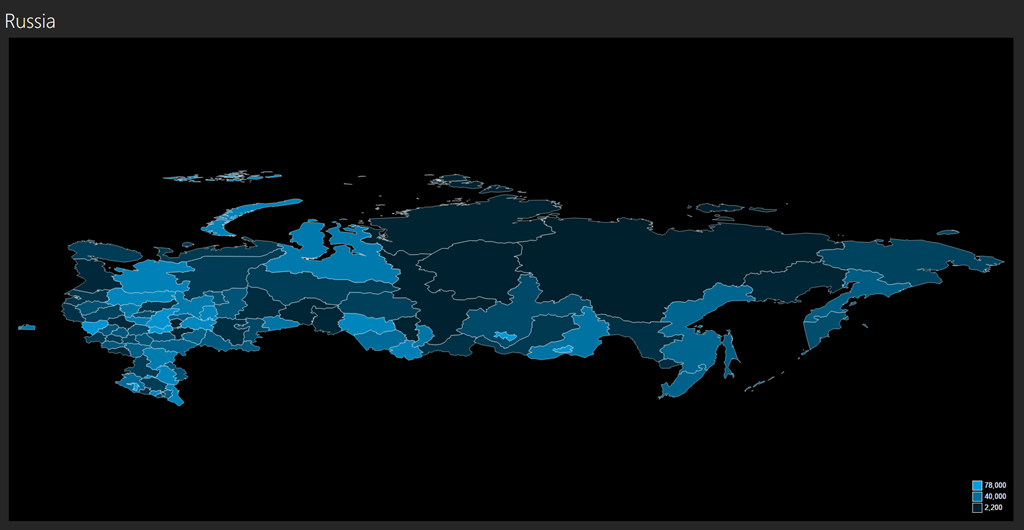
Russia – Download
Croatia – Download
Finland – Download
Japan – Download
New Zealand – Download
Norway – Download
Pakistan – Download
India – Download

Remember, these maps aren’t officially supported by Microsoft in any way.  I’m working my way through even more, so look for an even larger list of maps being made available next week.  Thanks!

SQL Server 2016 Mobile Reports – Free Maps of the Week, Part 3

image

Hi everyone – once again, I have a new set of free maps I’ve pulled together to share with all of you as we celebrate the official release of SQL Server 2016.

Use the links below to download the zipped map files.  You’ll need to unzip them and follow the directions here to use them in your mobile reports.

Cayman Islands – Download
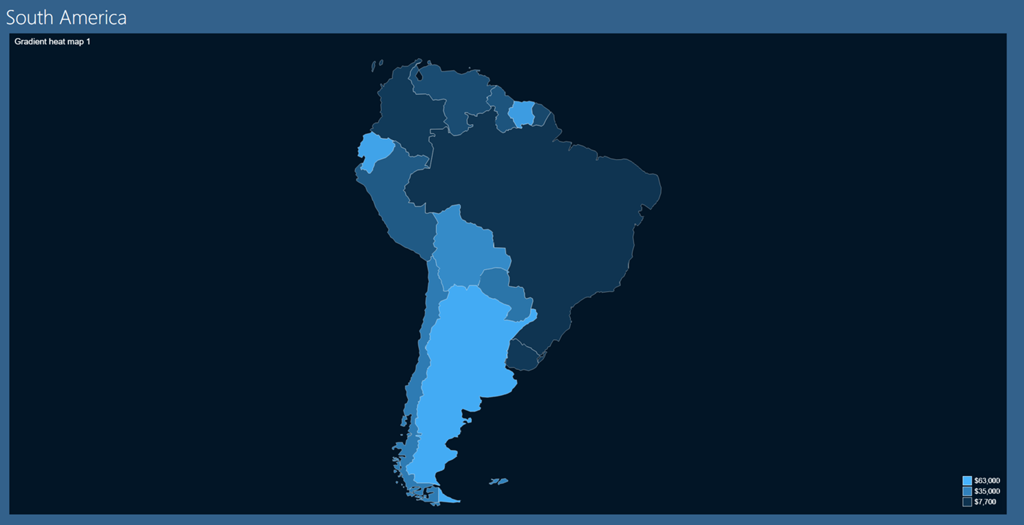
South America – Download
Ukraine – Download
Micronesia – Download
Jamaica – Download
Hong Kong – Download

Remember, these maps aren’t officially supported by Microsoft in any way.  This blog series seems to be fairly popular regardless, so look for even more next week.  Thanks!

Free Sample Mobile Reports for SQL Server 2016 Reporting Services

image

Hi all – I was hoping to get to this over the weekend, since I know a number of folks were looking for some sample mobile report files they could use as a starting point for building new reports in SQL Server 2016 Reporting Services.  While we weren’t able to include any sample files as part of the Mobile Report Publisher install, I do have some sample files I use that I’m happy to share with you to use as you’d like.  Just download the zip file, open one of them in Mobile Report Publisher and you have a great starting point for your own mobile report(s).

The usual disclaimer applies that these samples aren’t officially supported by Microsoft in any way.

Sample Mobile Reports – Download

Enjoy, and I’ll have more sample map files available for you later this week.

How to insert a live SQL Server 2016 Reporting Services report into a PowerPoint slide

Capture

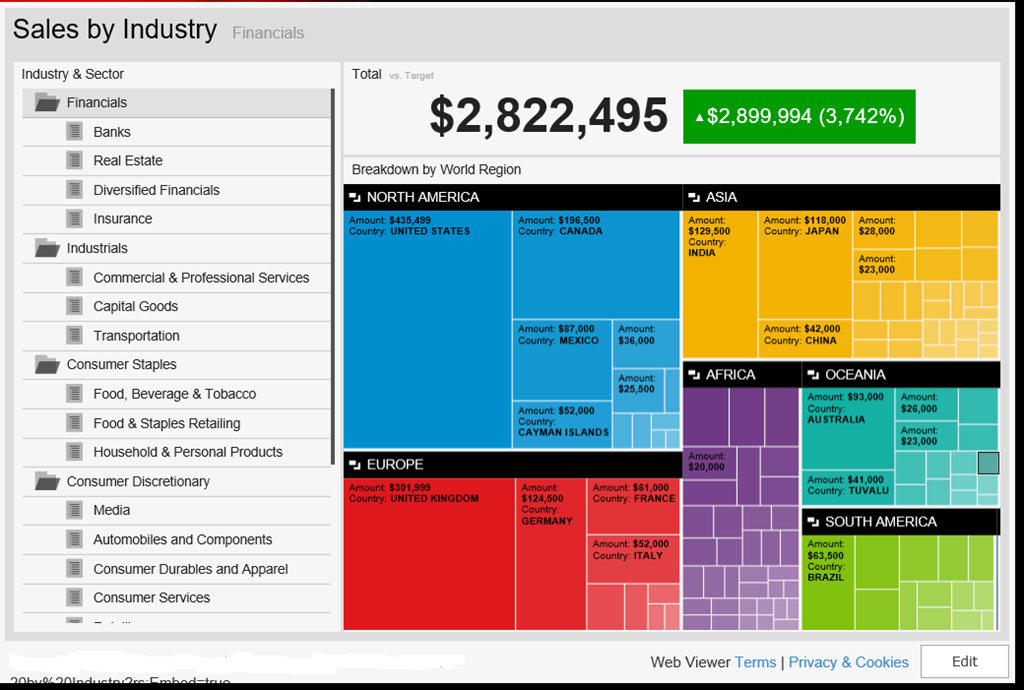
For Memorial Day, I wanted to revisit one of the most popular blog posts I’ve written, which was about how to insert a live Datazen dashboard into a PowerPoint slide.  As we transitioned the Datazen functionality in SQL Server 2016 Reporting Services, I wanted to make sure this still worked with Reporting Services.  Let’s walk through the steps again you’d use to enable this functionality (you’ll need Office 2013/2016 or Office365 for this) –

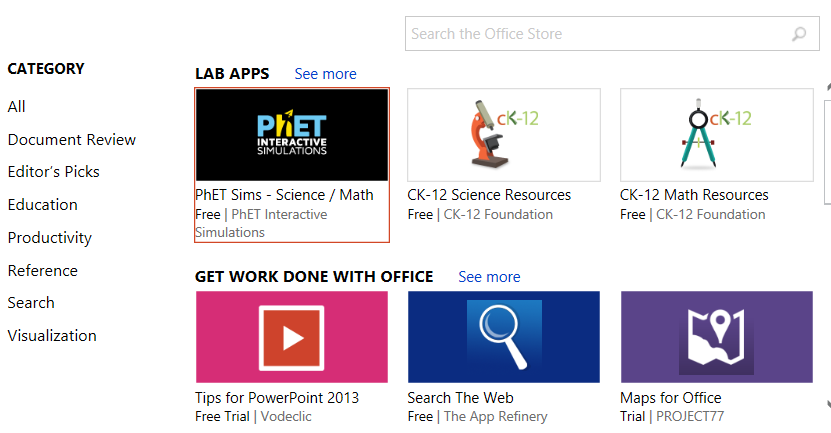
1.  Go to the Insert Tab in PowerPoint.  You should see the Store Add-In in the ribbon.  Click it to open the App Store –
OfficeSnip
2.  A pop-up will open with the apps available in the store.  You can now run a search for the app you wish to use
image

Type Web Viewer into the search bar and hit Enter.  You see the Web Viewer app created by Microsoft, which is what we’ll use.

image

I added the app to my slide and then entered the address for my Reporting Services site.  And this is what came up –

image

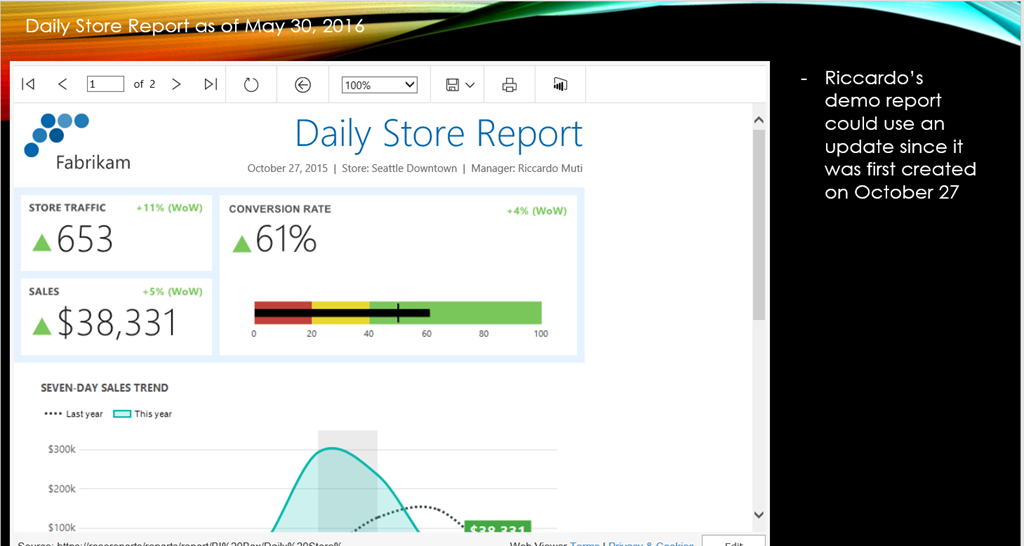
Curses!  But wait – I don’t really want to go to the home page and browse to my report.  I want to go to directly to my report, so I want to use the report address and the embed functionality we introduced in RC1.  When I do that, it works perfectly –

Capture2

I know what you’re thinking – does this mean it also works for paginated reports in Reporting Services using the embed url?  Yes it does!

image

Also, all of your security rules are still active on your reports, meaning you could provide this powerpoint deck to several people who would then only see the reports and/or data they have access to (row level security will depend on the security rules you have in place in your organization).

I’ve done hundreds of customer visits in the last few years, and I’d be hard-pressed to think of one that wouldn’t have a use case this scenario would readily address.  And it seems to cover the objections I’ve heard previously –

– It’s an app made by Microsoft
– It respects your security in Reporting Services, so it can be shared freely if needed and have people see only the reports/data they have access to
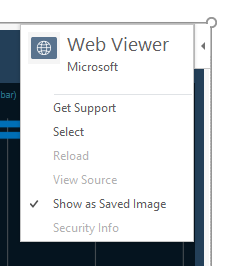
– You can still use your deck offline if you’d like by selecting the “Show as Saved Image” functionality in the app flyout menu in the upper right-hand corner (shown below)
image

This is a great way to get a ton of additional value out of your Microsoft investment at your organization, and I encourage all you to give a try.  Until next time!

SQL Server Mobile Reports – Free Maps of the Week, Part 2

image

Hi everyone – as promised last week, I have a new set of free maps I’ve pulled together to share with all of you as we get even closer to the GA of SQL Server 2016.

Use the links below to download the zipped map files.  You’ll need to unzip them and follow the directions here to use them in your mobile reports.

World Countries – Download
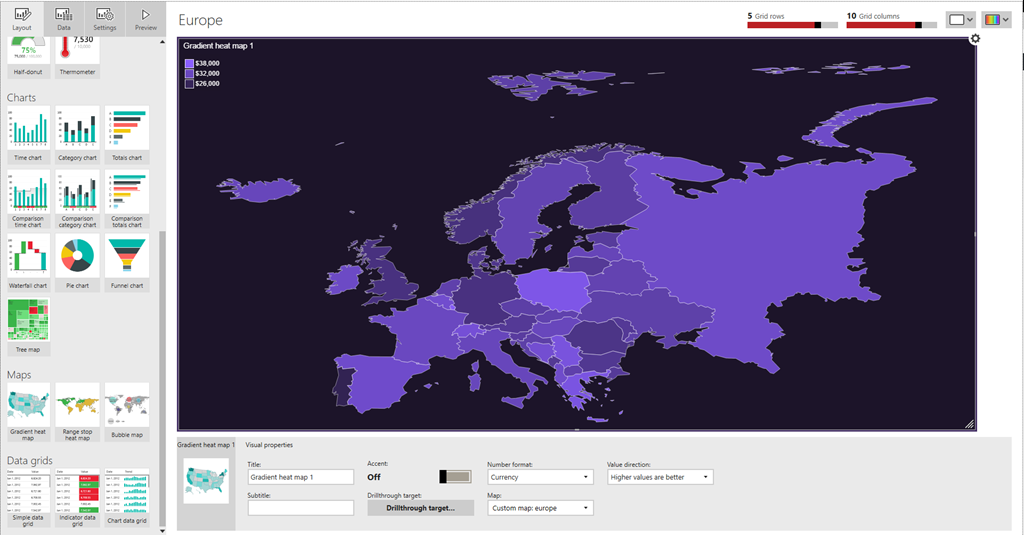
Europe – Download
Bosnia-Herzegovina – Download
Bulgaria – Download
Spain – Download

Remember, these maps aren’t officially supported by Microsoft in any way.  But if you find these helpful, be sure to check back next week for even more free maps.  Have a great rest of your holiday weekend (well, if you’re in the US, anyways)!

SQL Server Mobile Reports – Free Maps of the Week

image

Hi all – hopefully, you’re as excited as I am about the upcoming GA of SQL Server 2016 on June 1 and with it, the brand new version of Reporting Services.  We’re finishing up the official release of the Mobile Report Publisher as well, and with that in mind, I wanted to introduce a new blog series I’m doing here.  I’ve taken the time to put together some custom map files you can use for your mobile reports.  I’ll post the files here each week or so.  These will be free for you to download/share, use or repurpose however you’d like.  I’ll post more as I get more created – these maps aren’t officially supported by Microsoft in anyway, so keep that in mind as you download and use them.   I just thought you might find them valuable, and frankly, I needed to do a new blog post.  It’s been awhile.

Use the links below to download the zipped map files.  You’ll need to unzip them and follow the directions here to use them in your mobile reports.

Africa – Download
Argentina – Download
Asia – Download
China – Download

Thanks for reading, and enjoy the free maps.  Be sure to keep following this blog to grab more maps in the future!

How to use custom thumbnails with Mobile Reports in SQL Server 2016

Happy Sunday folks!

In the new Reporting Services web portal, you see thumbnails for each of the mobile reports you’ve published to the server.  Well, here’s a neat hack that allows you to update your mobile reports with custom thumbnails.  Keep in mind, the normal disclaimer applies around the fact it isn’t officially supported and if you break something, you’re on your own, etc.

1. Download the latest version of the Mobile Report Publisher
2. Create your mobile report
image
3. Save it locally vs. publishing it the server.  It doesn’t matter if you use either Excel data or shared datasets from your server.

image

4.  Find the file location where you saved it locally.image

Now change the file extension from .rsmobile to .zip
image

5.  Double-click on the .zip file to view the contents
image

You’ll see two image files called thumbnail.png and thumbnail-phone.png that look like the following and were generated when I first created this report.  These are the files you’ll want to replace, and you can replace one or both of them.

image        thumbnail-phone

6. Now, pick new images to use.  They need to be named the same as the ones with the file, and need to be in the .png format.  Ideally, they’ll have the same dimensions as the default files, which are –

thumbnail.png file – 1150×555
thumbnail-phone.png file – 550×825

That isn’t a requirement for this to work, but it does mean your pictures might look a little distorted if they don’t match.

I chose one of my son’s favorite stuffed animal to use as the new thumbnail.png file.

portrait

Once I saved the file and renamed it, I simply dragged it into the still zipped folder and answered yes when prompted to overwrite the existing file.  You see it has replaced the existing file, and the file size has increased significantly.  Something else to be aware of if you do this for multiple files.

image

Now, I can rename the file extension back to .rsmobile and then upload the file to my Reporting Services server.
image

image

Once uploaded, it will automatically recognize it is a mobile report based on the file extension, and put it in the right category in the portal.

image

I’ll also now see the new thumbnail I added to the file in place of the one generated by the Mobile Report Publisher.image

Here’s how it looks in My Favorites
image

And when I click the report tile, the report still renders as I’d expect in the browser:
image

One thing to keep in mind – if I were to edit this report and re-publish or upload it, new thumbnails will get generated and overwrite the custom one(s) I added to the file.  So I’d have to do this each time I make changes to the report and re-save it.  That’s why this is a hack though, right?  🙂

Hopefully you enjoy this and have some fun playing around with this concept.  Have a great week!

What’s the deal with Excel and Power BI Desktop Files support in Reporting Services?

image

Hi all!

So one feature that was introduced in SQL Server 2016 RC1 for Reporting Services was the ability to store Power BI Desktop and Excel Workbooks files on the server.  This feature generated a lot of buzz on social media, with people looking to understand exactly what this means vis a vis the roadmap announced in October of last year.  With that in mind, I wanted to do a post that answered that question along with some others.  Let’s do that now using the tried and true fake interview format!

Wow, this is so cool.  I can now store Excel Workbooks and Power BI Desktop files in Reporting Services!

Yes you can!  Though to be fair, this feature has been around for quite some time.  We did add a few things, like calling these items out as separate report types, allowing you to add them as favorites and giving them a special icon.

That’s it?

Well, because they are resource files, you can could access them using the SOAP API.  That might be valuable for folks to take advantage of.

Is this the integration you announced at PASS last year?  Cause if this is all we’re getting, that’s pretty lame.

Nope, this is just a first step.  The team wanted to have something for folks when SQL Server 2016 launched, but it doesn’t change our plans at all for adding full support for Power BI desktop files in Reporting Services.

Great – when is that Power BI desktop support coming?  I want it yesterday!

We know, and we are as excited to bring that support to the product as you are to get your hands on it.  We’re heads down on SQL Server 2016 currently, and it’s top feature to get added post RTM.

So you’re not going to tell us a specific date?

I don’t have one to give.

Fine – can you at least tell us what features will it include?  Can I use custom visuals?  Will Q&A work?  Can I build dashboards like we can in the service?

Right now, the only thing we’re certain of is we’ll provide support to view and interact with the reports in a browser in Reporting Services.  We’re not in the business of providing the bare minimum, however.

That’s pretty rich coming from the team that didn’t do anything with the product since  –

Very funny.  Were there any other questions you had?

Wait a minute – you didn’t mention you’d be adding full support for Excel Workbooks in Reporting Services on your roadmap, but you added special support for those as well.  Does that mean – ?

Yes – well, probably.  There’s broad support to do that, and it’s a popular idea with our customers.  When those things are aligned, it usually means it will happen.

Great – when is it happening?

I dunno.

What??!  You just said –

I said probably – there’s still some stuff that needs to be finalized, and I certainly wouldn’t formally announce something like that on a personal blog post on April Fools Day.  If and when it’s official, you’ll be the first to know.

Are you saying this entire blog post is an April Fools Day gag?

No, absolutely not.

And there you have it.  Hopefully this gives you some additional context around the feature and what we’re up to as we prepare for the official launch of Reporting Services in 2016.  As always, have a great weekend!

Row level security options for Mobile Reports in SQL Server 2016

image

Welcome back!

With the latest release candidate of SQL Server 2016 now available for download, let’s take some time to review some options you have to implement row-level security for Mobile Reports.  These options can also be used for paginated reports in Reporting Services, so you don’t have to do the same work twice.

If you’re using SQL Server 2016 (or Azure SQL database) as your data source, you can take advantage of the new, built-in row-level security functionality.  My colleague, Patrick LeBlanc, does an excellent job walking you through how to get this setup in SQL Server 2016 in a blogpost here – http://patrickdleblanc.com/wordpress/?p=90, so I’m not going to redo all the steps he lays out nicely on his blog.  Since the old report manager has been replaced by the sleek new report portal in RC1, I’ve added a new screenshot below to replace the one Patrick included –

image

If you’re using a version of SQL Server prior to 2016 as your datasource, you can achieve something similar by creating a view that filters out records based on the user name accessing it.  Assuming I used the same dataset I used in the first example, my view would look like this –

SELECT        Student, SchoolRep, Class, Grade

FROM            dbo.Students

WHERE        (SchoolRep = CURRENT_USER)

I also have the option to use row-level security from an Analysis Services data source.  Here’s an example of how you could do this using a tabular AS model

1. Setup the execution account in the Reporting Services Configuration Manager to run as an account of your choosing –
image

2. Grant this account admin permissions on your Analysis Services instance

image

3. For the data source you’ll be using for your mobile report, setup roles for your users to be mapped to.

image

Add users or groups to these roles –

image

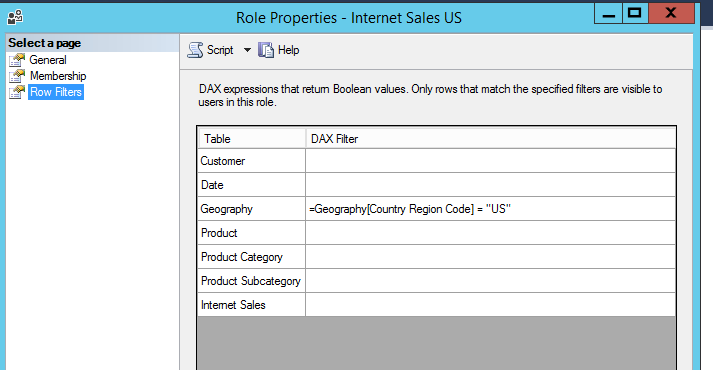
And setup the filters for the roles accordingly.  These are the records anyone assigned to that role will be limited to seeing.

image

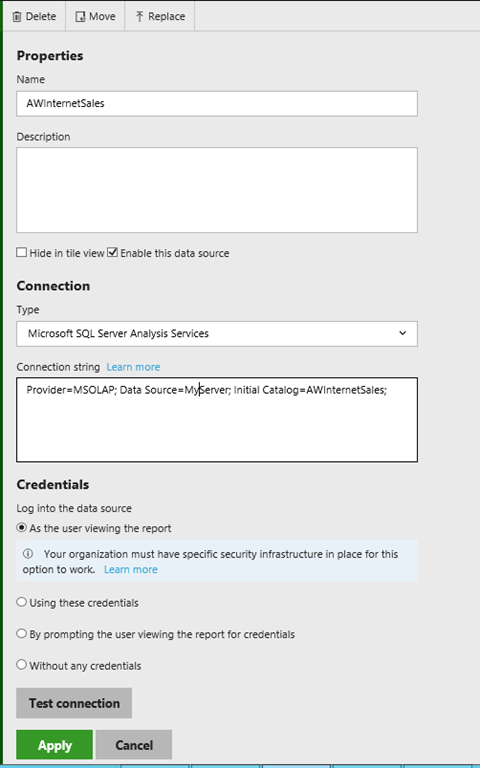
In Reporting Services, when you setup the shared data source for Analysis Services, it’d be setup like this –
image

Note –  Unless you have Kerberos setup in your organization, the Analysis Services and Reporting Services instance will need to be on the same server for this setup to work.

Regardless of which of these options I choose, I’ll always need to do the following steps to create and publish my mobile report –

1. Create my shared dataset in Report Builder or SQL Server Data Tools –

image

2. Save it to my RS server –

image

3. Create my mobile report using the SQL Server Mobile Report Publisher
image

4. Hook up my shared dataset to the visual elements –
image

5. Preview It in the Publisher –

image

6. If everything looks good, I publish it to my server so people can view it –
image

And there you go!  This is one of a series of articles I’ll be doing both on my personal blog and the Reporting Services team blog over the next few weeks to show you how to get the most out of investment in Reporting Services in SQL Server 2016.

Thanks for reading!