Articles

SQL Server 2016 Mobile Reports – Free Maps of the Week, Part 4

image

Hi all!

Another week, another set of free maps for SQL Server 2016 Reporting Services Mobile Reports.  Use the links below to download the zipped map files.  You’ll need to unzip them and follow the directions here to use them in your mobile reports.

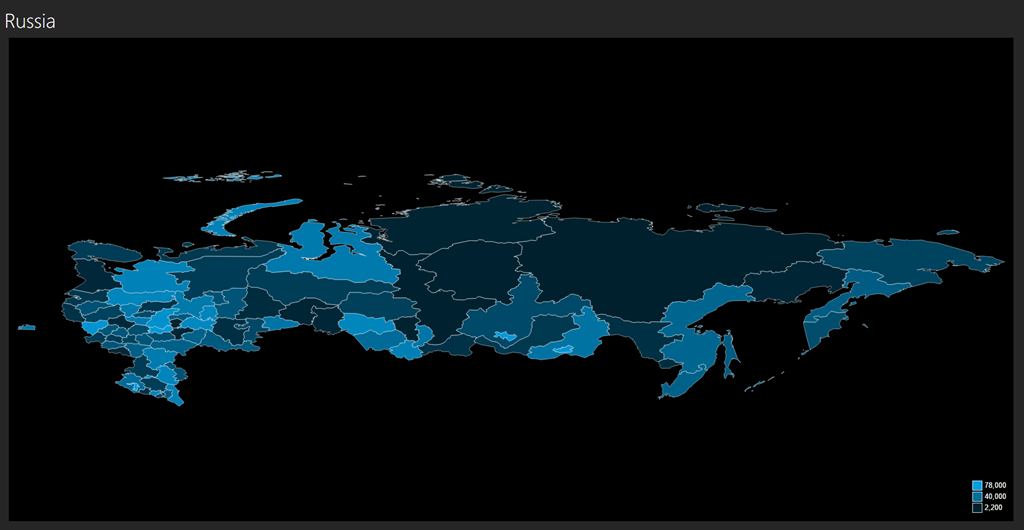
Russia – Download
Croatia – Download
Finland – Download
Japan – Download
New Zealand – Download
Norway – Download
Pakistan – Download
India – Download

Remember, these maps aren’t officially supported by Microsoft in any way.  I’m working my way through even more, so look for an even larger list of maps being made available next week.  Thanks!

SQL Server 2016 Mobile Reports – Free Maps of the Week, Part 3

image

Hi everyone – once again, I have a new set of free maps I’ve pulled together to share with all of you as we celebrate the official release of SQL Server 2016.

Use the links below to download the zipped map files.  You’ll need to unzip them and follow the directions here to use them in your mobile reports.

Cayman Islands – Download
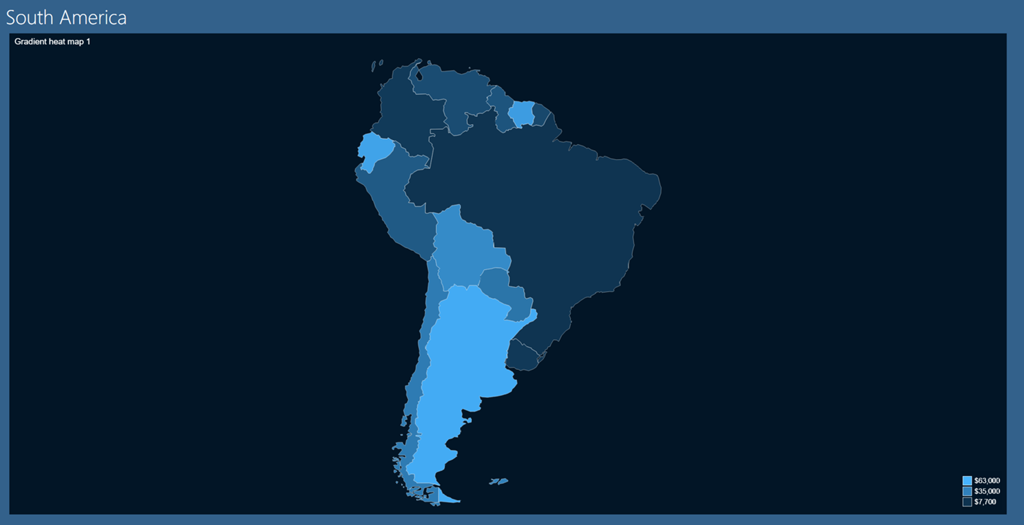
South America – Download
Ukraine – Download
Micronesia – Download
Jamaica – Download
Hong Kong – Download

Remember, these maps aren’t officially supported by Microsoft in any way.  This blog series seems to be fairly popular regardless, so look for even more next week.  Thanks!

Free Sample Mobile Reports for SQL Server 2016 Reporting Services

image

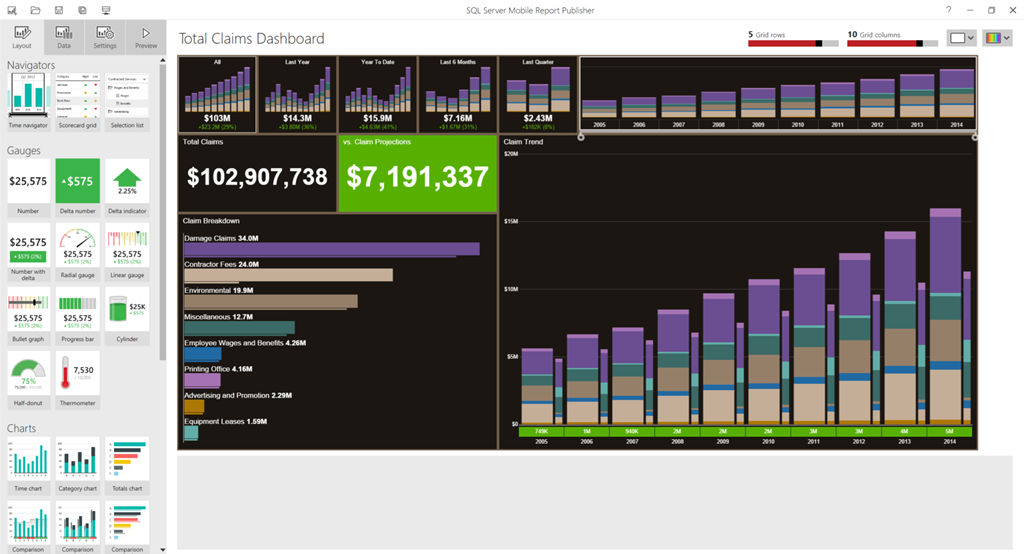
Hi all – I was hoping to get to this over the weekend, since I know a number of folks were looking for some sample mobile report files they could use as a starting point for building new reports in SQL Server 2016 Reporting Services.  While we weren’t able to include any sample files as part of the Mobile Report Publisher install, I do have some sample files I use that I’m happy to share with you to use as you’d like.  Just download the zip file, open one of them in Mobile Report Publisher and you have a great starting point for your own mobile report(s).

The usual disclaimer applies that these samples aren’t officially supported by Microsoft in any way.

Sample Mobile Reports – Download

Enjoy, and I’ll have more sample map files available for you later this week.

How to insert a live SQL Server 2016 Reporting Services report into a PowerPoint slide

Capture

For Memorial Day, I wanted to revisit one of the most popular blog posts I’ve written, which was about how to insert a live Datazen dashboard into a PowerPoint slide.  As we transitioned the Datazen functionality in SQL Server 2016 Reporting Services, I wanted to make sure this still worked with Reporting Services.  Let’s walk through the steps again you’d use to enable this functionality (you’ll need Office 2013/2016 or Office365 for this) –

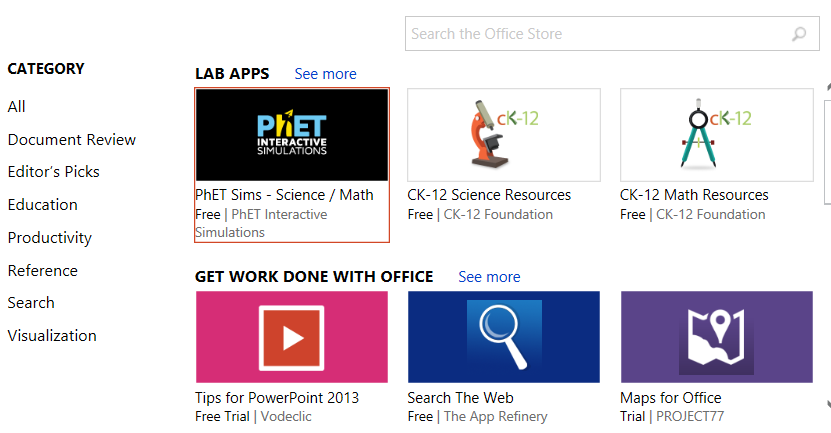
1.  Go to the Insert Tab in PowerPoint.  You should see the Store Add-In in the ribbon.  Click it to open the App Store –
OfficeSnip
2.  A pop-up will open with the apps available in the store.  You can now run a search for the app you wish to use
image

Type Web Viewer into the search bar and hit Enter.  You see the Web Viewer app created by Microsoft, which is what we’ll use.

image

I added the app to my slide and then entered the address for my Reporting Services site.  And this is what came up –

image

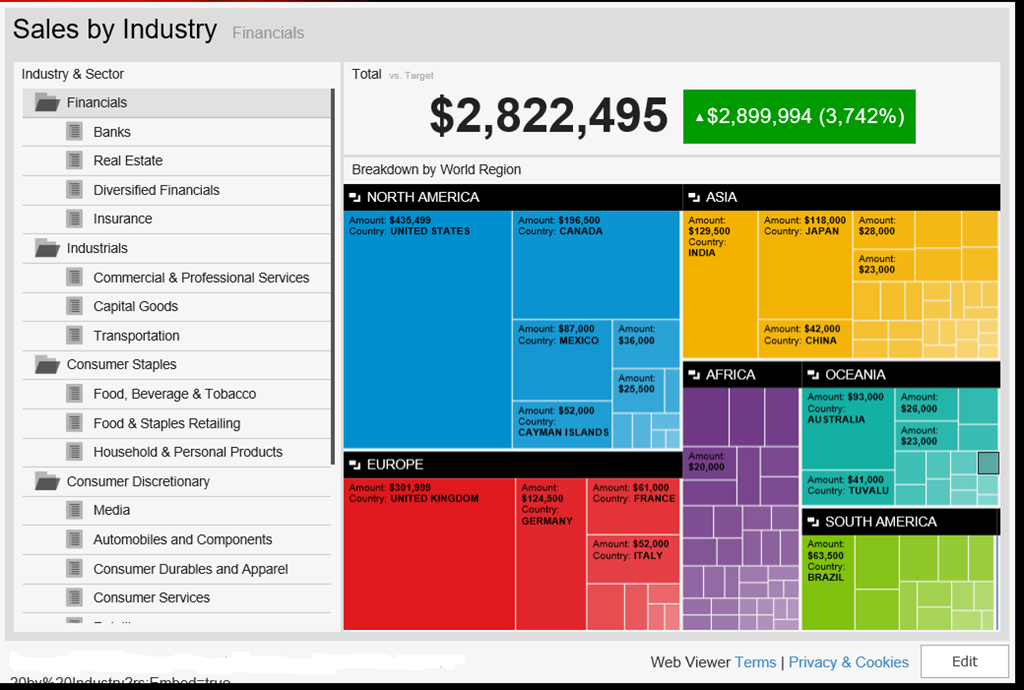
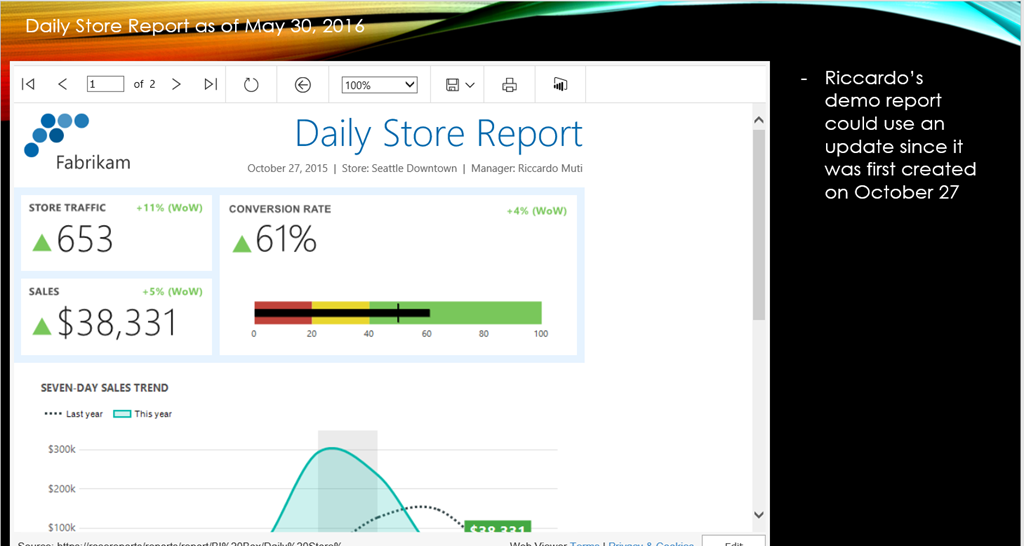
Curses!  But wait – I don’t really want to go to the home page and browse to my report.  I want to go to directly to my report, so I want to use the report address and the embed functionality we introduced in RC1.  When I do that, it works perfectly –

Capture2

I know what you’re thinking – does this mean it also works for paginated reports in Reporting Services using the embed url?  Yes it does!

image

Also, all of your security rules are still active on your reports, meaning you could provide this powerpoint deck to several people who would then only see the reports and/or data they have access to (row level security will depend on the security rules you have in place in your organization).

I’ve done hundreds of customer visits in the last few years, and I’d be hard-pressed to think of one that wouldn’t have a use case this scenario would readily address.  And it seems to cover the objections I’ve heard previously –

– It’s an app made by Microsoft
– It respects your security in Reporting Services, so it can be shared freely if needed and have people see only the reports/data they have access to
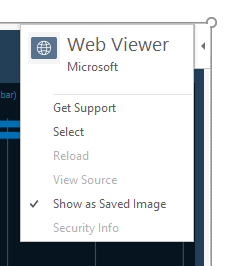
– You can still use your deck offline if you’d like by selecting the “Show as Saved Image” functionality in the app flyout menu in the upper right-hand corner (shown below)
image

This is a great way to get a ton of additional value out of your Microsoft investment at your organization, and I encourage all you to give a try.  Until next time!
SQL Server Mobile Reports – Free Maps of the Week, Part 2

image

Hi everyone – as promised last week, I have a new set of free maps I’ve pulled together to share with all of you as we get even closer to the GA of SQL Server 2016.

Use the links below to download the zipped map files.  You’ll need to unzip them and follow the directions here to use them in your mobile reports.

World Countries – Download
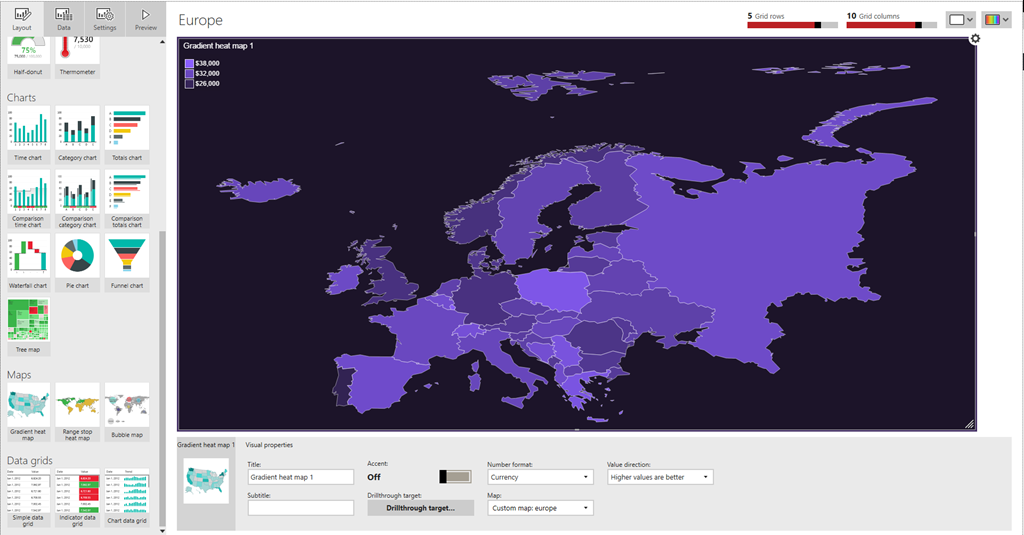
Europe – Download
Bosnia-Herzegovina – Download
Bulgaria – Download
Spain – Download

Remember, these maps aren’t officially supported by Microsoft in any way.  But if you find these helpful, be sure to check back next week for even more free maps.  Have a great rest of your holiday weekend (well, if you’re in the US, anyways)!

SQL Server Mobile Reports – Free Maps of the Week

image

Hi all – hopefully, you’re as excited as I am about the upcoming GA of SQL Server 2016 on June 1 and with it, the brand new version of Reporting Services.  We’re finishing up the official release of the Mobile Report Publisher as well, and with that in mind, I wanted to introduce a new blog series I’m doing here.  I’ve taken the time to put together some custom map files you can use for your mobile reports.  I’ll post the files here each week or so.  These will be free for you to download/share, use or repurpose however you’d like.  I’ll post more as I get more created – these maps aren’t officially supported by Microsoft in anyway, so keep that in mind as you download and use them.   I just thought you might find them valuable, and frankly, I needed to do a new blog post.  It’s been awhile.

Use the links below to download the zipped map files.  You’ll need to unzip them and follow the directions here to use them in your mobile reports.

Africa – Download
Argentina – Download
Asia – Download
China – Download

Thanks for reading, and enjoy the free maps.  Be sure to keep following this blog to grab more maps in the future!